 |
is
a Tagalog/Filipino phrase HOW-TO |
|
is
a Tagalog/Filipino phrase HOW-TO |
Assign a static IP address on a D-Link router
The D-Link router (DI-704P in this case, since I'm using this specific model of router) uses a slightly different scheme when it comes to dealing with static IP addresses. Follow these steps:
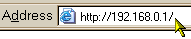
1. In your browser, type in your router's web configuration IP address in the address bar and press the Enter key.
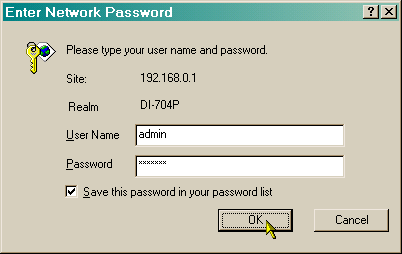
2. Enter the user name and password.
3. Navigate to the DHCP section of the router. The DHCP Server is enabled in the unit by default. The address pool (Starting and Ending IP Address) contains the range of the IP address that will automatically be assigned to the clients on the network. (See figure below.)
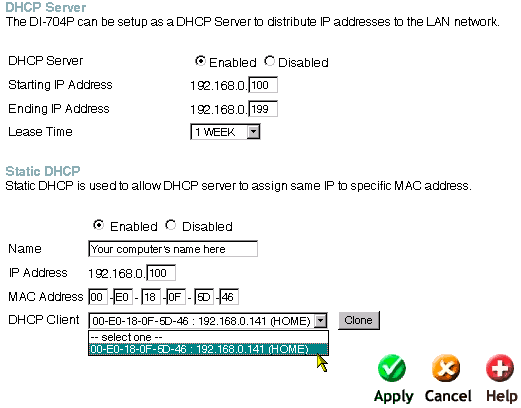
4. Leave the DHCP Server settings to their default values. Under the Static DHCP section, click the Enabled button.
5. Click the drop-down button under the DHCP Client field, select your computer, then click the Clone button. Name, IP Address and MAC Address will be filled with default values automatically. You can change the Name and IP Address fields if you like, but DO NOT change the MAC Address. If you want another IP address other than what the router assigned you, make sure it falls within the address pool (from the DHCP Server section).
6. Click the Apply button. The router will restart.
7. You're done. Every time you start your computer, it will get assigned the same IP address.
Did this page help you solve
your problem?
| Tell me what you think
| What
others have to say | Back
to main page |
 TIPS AND TRICKS