 |
is
a Tagalog/Filipino phrase HOW-TO |
|
is
a Tagalog/Filipino phrase HOW-TO |
Configuring the router to work with P2P/File Sharing - WinMX
The steps described in this page utilizes a feature of your router called a Virtual Server. This is also known as Port Forwarding on other brand of routers. You can also use this page as reference in setting up other applications that require incoming connections to your computer. To configure your router to work with WinMX (or other file sharing application, or any application for that matter), follow these steps:
1. Make sure you have assigned your computer a static IP address. Click here if you haven't done so.
2. Start WinMX, open the settings page and bring up the Incoming TCP Connections category.
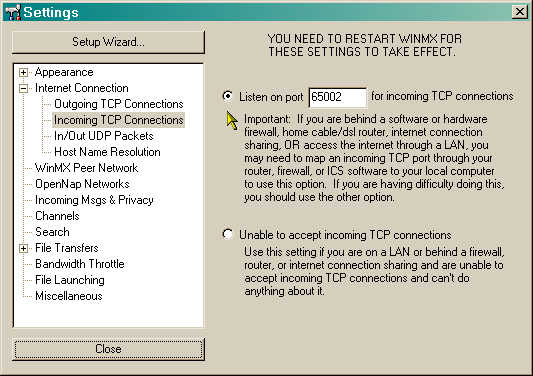
3. Under the Listen on port field, type in the port number that you plan on using and note this number down. The port number can range between 0 to 65,535. However, it is advisable NOT to use port numbers within the 0 to 1,023 range since these numbers are used by system processes and using them might introduce problems.
4. Click the In/Out UDP Packets category.
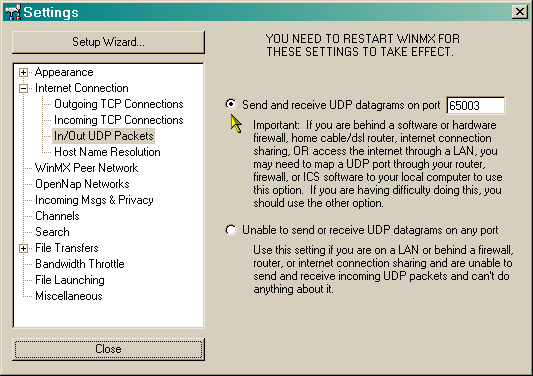
5. Under the Send and receive UDP datagrams on port field, type in the port number that you plan on using and note this number down.
6. Click the Close button to close the dialog box and exit WinMX.
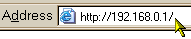
7. In your browser, type in your router's web configuration IP address in the address bar (refer to your router's user manual for this information) and press the Enter key.
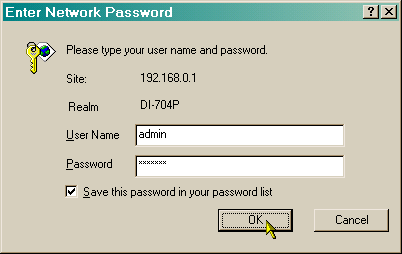
8. Enter the user name and password, if necessary (again, your router's user manual should have this information).
9. Navigate through the router's web configuration interface to the Virtual Server/Port Forwarding section and supply the required information as shown below. You'll have to set-up the router twice -- first is the TCP protocol with the port number from Step 3, second is the UDP protocol with the other port number from Step 5. In either case, the internal IP address is the same (from Step 1).
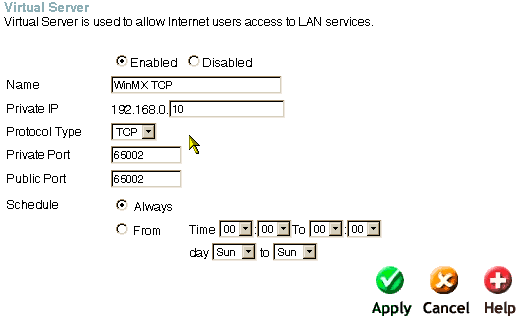
TCP setting
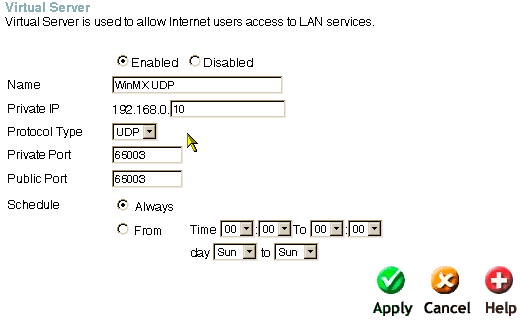
UDP setting
10. Hit the Apply button for every setting and restart your connection, if necessary.
Basically that's it.
Did this page help you solve
your problem?
| Tell me what you think
| What
others have to say | Back
to main page |
 TIPS AND TRICKS