|
If you're interested in learning about different computer programs, you're now in the right site! Our website includes beginner's instructions to different computer programs.
If you want to create your own webpage, just click onBeginners' guide to creating a Web Page. It teaches the steps on how to create a basic HTML file. Through this, you can learn about the HTML tags you can work with to come up with a creative webpage design.
And if you're fond of Winnie the Pooh and his friends, just click on A guide on how to use Disney's Winnie the Pooh Print Studio It teaches the steps in making computer outputs such as banners, greeting cards, calendar, letterheads, and many more!!!
Promotions:
Bluven Bistro and Billiards
GAL Shoe Shop
|
|
Create Your Own Web Page!
 Do you want to be known across the world without Do you want to be known across the world without 
leaving your home? Do you want to be linked to the rest of the world? All these are possible with HTML.
Now you might be wondering what HTMLstands for and what it means. HTMLstands for Hyper Text Markup Language which means a computer based on text that allows one to make his own web page and have it link to the rest of the World Wide Web in a "hyper" or non-linear fashion.
Materials:
To make your own web page, you will need the following materials: - a computer
 - a text editor or notepad (if you have windows)
- a web browser (Netscape Navigator or Microsoft Internet Explorer)
Procedure: - How to get started?
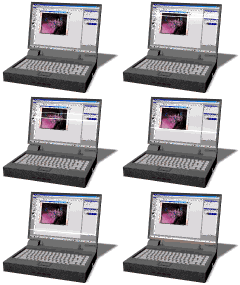
To get started, find notepad on your computer. To find notepad, click  the "Start" button, go to the "Programs" folder, then to the "Accessories" folder. At the "Accessories" folder, double click on the icon notepad. the "Start" button, go to the "Programs" folder, then to the "Accessories" folder. At the "Accessories" folder, double click on the icon notepad. - The basic format of an HTML file
Once notepad is open, you will see a blank page. There you can create an HTML file.
To create an HTML file, place the <HTML> tag at the very start of your document. This will signal the beginning of an HTML file. You can open a title section with a <HEAD> tag. To craete a title for your page, use the <TITLE> tag. However, this will not show up in your web page. On the other hand, everything that will be displayed on your page will be in the body section. Open this with a <BODY> tag.
Remember to close each tag. Place the </HTLM> tag at the very end of the document.
A basic HTML file will look like this:
| <HTML>
<HEAD>
<TITLE> My Web Page </TITLE>
<HEAD>
<BODY>
Welcome to Kristine's Web Page!
<BODY>
</HEAD>
|
Notes:
You might be wondering what are HTML tags. An HTML tags always begins with a less that sign (<) and ends with a greater than sign (>). They always come in pairs of opening and closing tags. The operation used to perform begins with an opening tag and ends with a closing tag, which is exectly the same as the opening one except for a slash. For example, the head tag ends with </HEAD>
- Making variations in the appearance of your text
To make your text appear in different ways, here are some tags to work with:
- <B> </B> bold text
- <U> </U> underline text
- <I> </I> italics
- <STRIKE> </STRIKE>
- <CENTER> </CENTER> centers text
Notes:
You can use more than one tag at a time. Place the opening tags before the text and then close them afterwards. Remember that your text is affected by every tag before it, that has not been closed. The effect only ends when each tag has been closed.
| Example:
<B>I'm bold!</B>
This will show up on your page like this:
I'm bold!
<B>I'm<U>bold!</U></B>
This will show up on your page like this:
I'm bold!
|
- Creating Titles or Section Headings
The following are tags useful for creating titles or section headings:
- <H1> </H2>
- <H2> </H2>
- <H3> </H3>
- <H4> </H4>
- <H5> </H5>
- <H6> </H6>
| Example:
<H1>Large Heading</H1>
This will show up on your page like this:
Large Heading
<H5>Smaller Heading</H5>
This will show up on your page like this:
Smaller Heading
|
- Using Line Breaks and Paragraphs
To make the text move to the next line, use the line break tag. The tag for a line break is <BR>. It does not need a closing tag. When the tag is inserted to your document, the text will go to the next line. It is like hitting the "enter" key.
| Example:
Thanks for visiting<BR>Kristine's Web Page!!
This will show up on your page like this:
Thanks for visiting
Kristine's Web Page!!
|
However, to skip a vertical space, use the paragraph tag, <P>. This tag tells you where a new paragraph begins.
| Example:
<P>I'm taking up Communication Research at UP</P>
<P>I enjoy going out with my friends and watching movies.</P>
This will show up on your page like this:
I'm taking up Communication Research at UP
I enjoy going out with my friends and watching movies.
|
- Manipulating the Font size and color
You can change the font size by using this tag: <FONT SIZE="x">text to change</FONT>. Replace the "x" by your desired number with a + or a - sign in front of it. If you want to make the font larger, you can use the tag with a +2. Likewise, if you want the font smaller in the same way, you can use the tag with a - sign.
| Example:
<FONT SIZE="+4">I'm bold;</FONT>
This will show up on your page like this:
I'm bold
<FONT SIZE="-4">I'm bold;</FONT>
This will show up on your page like this:
I'm bold
|
You can change the color of the font using this tag: <FONT COLOR="color">text to change</FONT>. Replace the word color with the color name or hexidecimal color value of your choice. Suppose you want to change the font color to purple, replace the word color with purple.
| Example:
<FONT COLOR="PURPLE">Purple</FONT> is my favorite color.
This will show up on your page like this:
Purple is my favorite color. |
- Add an image to your page
To add life to your page, you can add an image. The image tag is: <IMG SRC="image.jpg">. IMG and SRC stand for image and source respectively. The source of the image is the net address. However you can just type the file name of the image.
- Some more text tags
- The <NORB> and <WBR> Tags
So as not to make the text break to the next line, even if it already reached the end of the browser window, place it between the <NORB> and </NORB> tags. However, you can use the <WBR> tag inside the <NORB> tag to break to the next line.
- The <BLINK> Tag
The text you will place between the <BLINK> and </BLINK> tags will blink.
- The <UL> Tag
You may also add a list to your page using the <UL> and </UL> tags. Before each item in your list, place the <LI> tag. This will give you a bulleted list.
| Example:
<CENTER>My Favorite Things</CENTER>
<UL>
<LI>Cellular phone
<LI>TV
<LI>Clothes
<LI>Shoes
This will show up on your page like this:
My Favorite Things
- Cellular phone
- TV
- Clothes
- Shoes
|
You may also indent further by adding more <UL> tags
Example:
<UL>
<UL>
<UL>
<LI>Cellular phone
<LI>TV
<LI>Clothes
<LI>Shoes
</UL>
</UL>
</UL>
This will show up on your page like this:
- Cellular phone
- TV
- Clothes
- Shoes
|
You may also make an ordered list. Instead of using <UL>
</UL>, use <OL> </OL>.
| Example:
<OL>
<LI>Cellular phone
<LI>TV
<LI>Clothes
<LI>Shoes
</OL>
This will show up on your page like this:
- Cellular phone
- TV
- Clothes
- Shoes
|
- To create an e-mail link
Use the link tag to create an e-mail link to your page. The link tag is:<A HREF="">Display Text</A>. The A stands for anchor and HREF="" is asking for the location to link to. Use mailto: rather than http:// to begin the address. This will force the browser to read it as an e-mail link. It will look like: <A HREF=mailto:your e-mail address>E-mail me!</A%gt;. Replace the "your e-mail address" with your e-mail address.
- Using a Background Color and Image
To add a background color to your page, find the <BODY> tag in your document. Once you've found the word BODY, skip a space and add the command: bgcolor="". Your body tag should look like this: <BODY bgcolor="">. So, if you would want to change your background color to gray, you would type: <BODY bgcolor="gray">
To add a background image to your page, follow the same procedure. But this time the command is: background="". Place the URL of the image inside the quotation marks. Your command should look something like this: <BODY background=http://www.mysite.com/image1.gif>.
You can make a Web Page anyway you want it to be. It will bring out your creativity. It is interesting and exciting. Use your creative juices and create your Web Page NOW!
|