| This project results in two different results. With
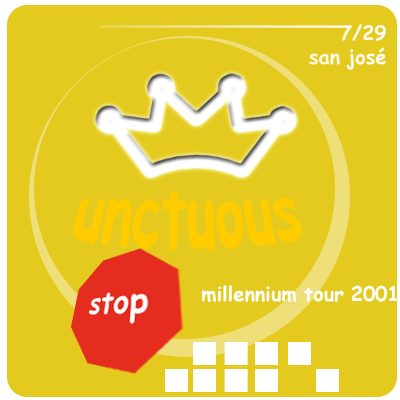
the first, I began by creating the base for the logo. |
 |
| I then, by subrtacting small squares from the layer
and aligning them, created this... |
 |
| ...and proceeded to create a small arc of pale white,
by using the intersection of two different ellipses. |
 |
| Then, using a combination of the custom shape tool,
stroke subpath tool, and the belevel and emboss commands, I placed
the illusion of an engraved crown shape into the image. |
 |
| I then placed the band logo... |
 |
| ...added a stop sign and skewed it for effect... |
 |
| ...added their tour date and name, and added a streak
effect to the tour date by using the origional text as a workpath. |
 |