
 |
Home |
Tutorials |
Exercises |
About Us |
| Using Adobe Photoshop
|
|
|
Lesson 1
Opening the Application
- Click the application Adobe Photoshop..
- Click "File", then "new", to create a new canvas..
- Change the size of the new canvas and click "ok"..
- If you dont want to create a new canvas, and you just want to edit picture, click "File", then "open"..
- Click the image you want to edit..
|
Lesson 2
Tools
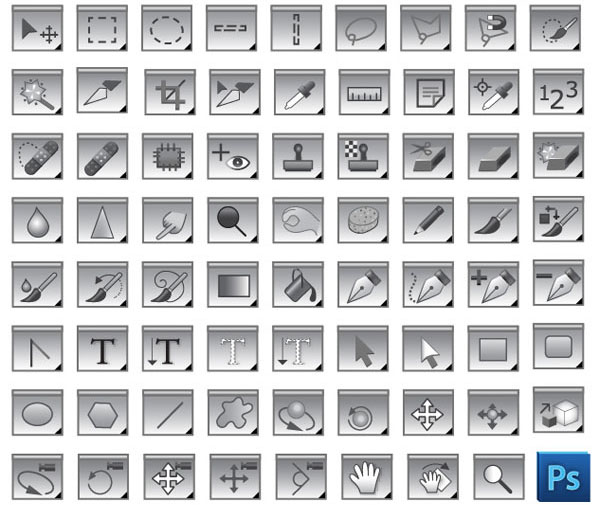
Different Tools
- Selection Tools
- Alterartion Tools
- Vector Tools
- Assisting Tools
|
Lesson 3
Selection tools
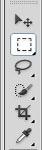
- Rectangular Marquee -this tool selects rectangular and square areas.
- Elliptical Marquee -this tool selects ellipses and circles.
- Lasso Tool -the tool allows creating freehand selection.
- Polygonal Lasso -the tool makes freehand selections, but its contour is made up of straight segments..
- Magnetic Lasso -this tool makes a freehand selection.
- Magic wand -this tool selects a consistently colored area. You can set Tolerance in the Options palette of the Magic Wand tool. The higher is the value, the more colors will fall into the selected area.
|
Lesson 4
Alteration tools
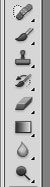
- Blur Tool -tool is useful for removing small facial blemishes and smoothing out wrinkles. It's easy to get a bit carried away with the blur tool when working on a face. Things will be looking great as you start, but if you overdo it, your image will begin to have an obvious retouched appearance if you're not careful. One way to avoid overdoing it is by using the lighten and darken blend modes with the blur tool.
- Smudge Tool -is grouped with the retouching tools, but it's actually used more often in painting. For retouching purposes is can be use to quickly rub out a minor blemish, touch up the shine on someone's lip stick, and so on. It can also be useful for blending out the jaggies that can sometimes occur when sizing up an image..
- Dodge Tool and Burn Tool -The dodge and burn tools work best on grayscale images. On color image the dodge tool will wash out color and details, the burn tool will just turn the area black or sunburned-looking. In a grayscale image, these tools are used to lighten shadows or overexposed areas and to darken underexposed areas. They have a unique option for "range" with choices of highlights, midtones, and shadows..
- Sponge Tool -allows you to adjust the color saturation where you paint.
|
Lesson 5
Vector tools

- Type Tools -are used for creating and setting type in an image. Both vertical and horizontal type can be created.
- Pen Tools -are used to create clear shapes and paths which can be used as vector objects that can be scaled to any size.
- Custom Shapes Tool -are vector objects that can be created on the fly from a list of presets (including user created shapes).
|
|
>>>
|