| Forte Agent Configuration - Page 1 |
|
|
1. - Install Agent - If you need help doing this shut your computer off and do not continue. 2. - Run Agent when prompted after installing or if you have chosen to exit the installer start Agent from the start menu. 3. - The next step is to either enter your registration number or to continue with the evaluation. 4. - Next you will see the following screen to enter your configuration informaion. I have include sample text in the screen shot. If, for example, you use "someisp" as your Internet service provider you can simply type "news.someisp.com" for News NNTP Sever and "mail.someisp.com" for your Mail SMTP Server without the quotes. If "news" or "mail" doesn't work your ISP requires a different set up. Call your ISP or visit there home page for technical support.  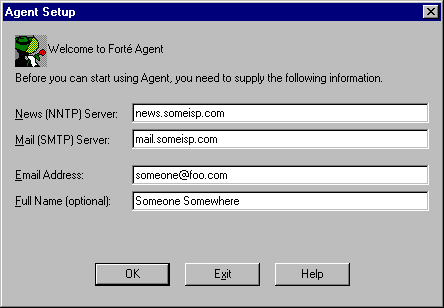 5. - The next thing that will happen is Agent will open a window asking if you want to go online and retrieve a list of newsgroups. Choose yes. If you are on dialup this can take quite a long time. Sit back and relax. If you choose no Agent will start and you need to choose "online" then "get new groups".  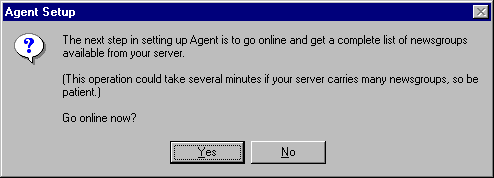 6. - Agent now opens and starts to download the groups list. You will notice in the bottom left hand corner the group count. This can be any number of groups as not all servers carry every newsgroup. There are approximately 80,000 active newsgroups.  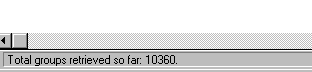 7. - After Agent is finished retireving the groups you will see the group list in the top left hand corner of Agent as shown below.  8. - CLick on "Edit" and then "find" (or press ctrl and F) and type in alt.binaries.movies.shadowrealm and click on "Find First" or press enter. 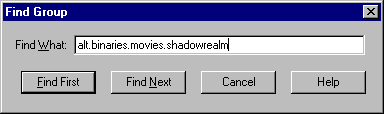 9. - Double click on the group Agent has just highlighted and you will see the message box below. Click on "Subscribe to Group". 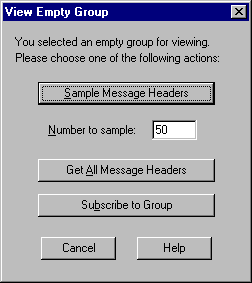 10. - In the top left section look at the title bar where it says "All Groups". Click the title bar until it says "Subscribed Groups". You now see only the groups you are subscribed to. 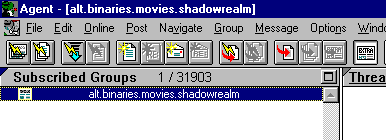 You are now finished basic setup of Agent. |
| Back up |