Hiding extras and Removing audio: (with DVD-Remake)
Before you proceed Make sure you're in 'Advanced' Mode.

Hiding extras and any other video segments has a major benefit to encoding DVDs. Even though CCE is a very good program, it can't compress full DVD9's without some video quality loss. Hiding extras allows the overall size of a DVD to be reduced, therefore increasing it's output bitrate. If a DVD ends up having a low bitrate, it's a good idea to 're-do' the DVD with DVD-Remake Pro to strip some extras.
|
In this section: |
Locating the video you want to take out is sometimes difficult. The best way is to just search each individual VTS until you find the video you're looking for. Use common sense, extras are usually a good sized chunk of video, but nowhere close to the size of the main feature.
In this example, All of my video is in VTS1. If I want to strip the extras, I would look in the 'Program Chains' which is where video is located.
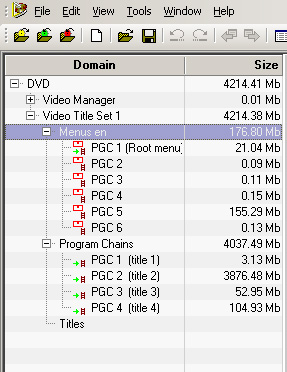
Most DVDs have multiple VTS's which all contain individual extras.
Vocabulary: VTS - The Video Title Set is a group consisting of Menus and Program Chains. The DVDs menus and main feature video is stored here.
Menus - Menus are used to navigate between other menus or used to start playback of a certain PGC. Menus have a user interface such as buttons where the user can easily navigate the DVD.
PGC - The Program Chain is where the Main Feature video is stored and where commands are given on what order the video is to be viewed. PGC's are the components of VTS's that consist of video that doesn't have any user interface attached to it, like navigating buttons.
Here I find a trailer for InuYasha, which I don't want to keep. Right click on the trailer's PGC and Hide all blocks to remove the video from your DVD.
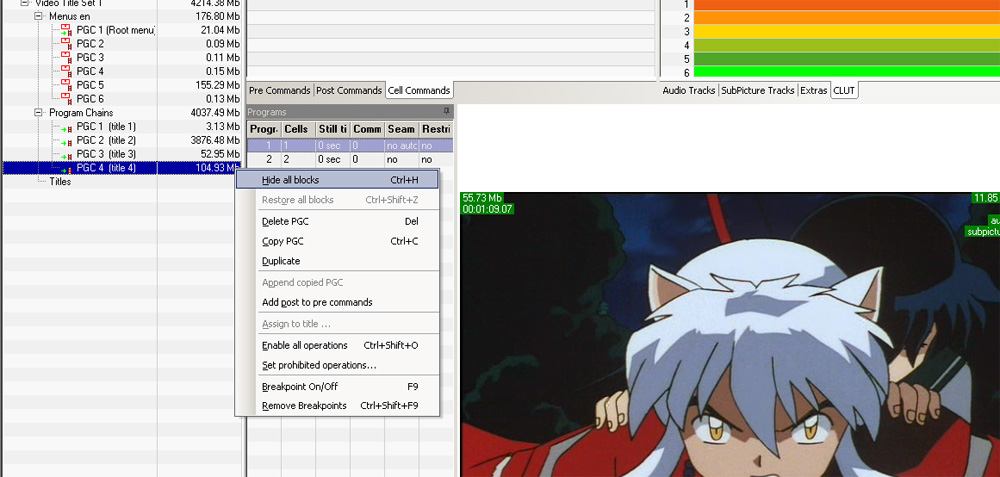
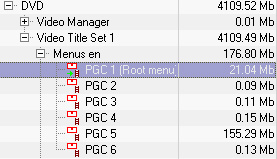
The Preview pane to the right becomes black, and you'll notice your DVD size decrease.
Before: After:
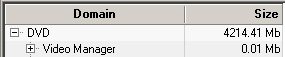

Sometimes there are different video segments in the same PGC.....
Everybody gets annoyed looking at FBI warnings and distributor logos every time they start up a DVD. These video segments are usually located in their own VTS and are very easy to remove.
Advanced User Tip 1 - Relinking
Removing Links or Buttons (Top)
Right after I've removed the InuYasha Trailer, I should go and remove the button that links to that video. The most annoying thing when I get a DVD is trying to watch some extras and have it just loop back. This way you won't be able to select the extra so you won't have it loop back.
The menus for the DVD are usually located VTS1 under the Menus en drop down. English menus are in Menus en, Spanish are in Menus sp, and Japanese are in Menus jp usually.
The 'Root Menu' is the Menu that is first played when you insert a DVD. This is a good starting point to find any other menus you might need to edit.
My favorite way to find menus is to right click on the button in the Root Menu and Open destination. That will link me to the extras menu in this case.
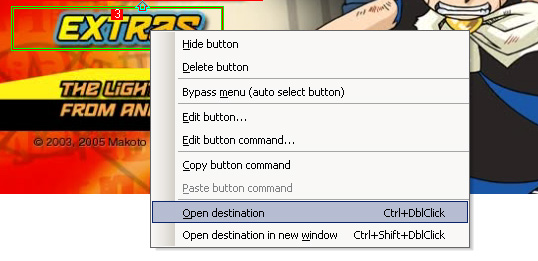
The Extras menu. Remember that I hid the InuYasha Trailer, and I see a button here called 'Viz Media Trailers'. Right click and Hide Button (similar to Hiding Video)
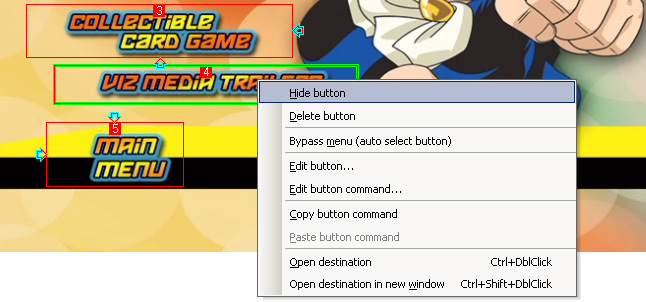
NOTE: There can be more than one 'extras' menu with the same links. You'll have to hide the button on each one of these menus in order for it to work. The only difference between these multiple menus is usually background video or audio.
What are angles
How to find angles
Stripping angles
Note on Relinking with angles
If you have 3 or more audio streams, it is usually a good idea to take one of them out to save even more space in your finished product.
Please click Here for removing an audio stream.
Before You Export - Check to make sure your DVD size is close to 6000mB. Try to get it under that size, because anything greater than that will result in a notice quality drop in your finished backup.
It's good to export a test DVD before you move on to make sure everything was taken out properly and that there are no dead links. A test DVD is just one where you can test menu's and things like that, but not export the full size of the video (quick export)
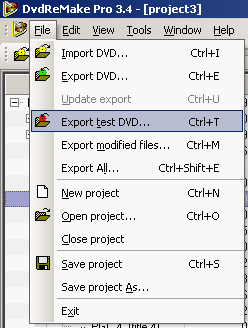
When you're ready to export your final copy, click on the Export DVD button and save it in a directory.