Preparing your DVD:
|
In this section: |
Before you rip your DVD there is one crucial setting that needs to be turned on. I'm sure everybody has experienced a DVD that played a long segment of video before giving any control to the user. That restriction is called a PUO. DVDDecrypter is able to remove PUO's from a DVD while ripping it to your hard drive.
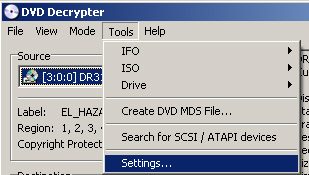
Go to the settings menu:
Click on the ISO Read Mode Tab and tick 'Remove IFO PUOs' and 'Remove VOB PUOs'
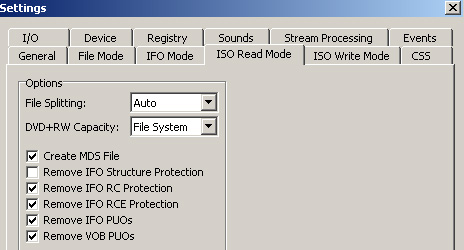
Click OK and move on to the next step.
Go to Mode>ISO>read
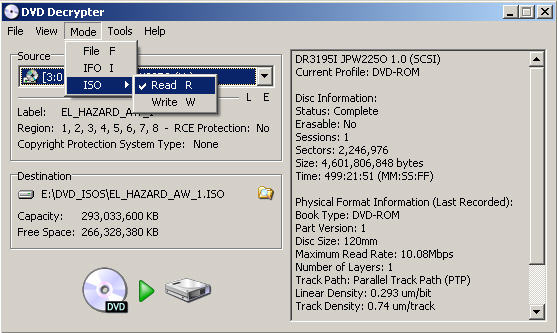
Select your Destination path and Rip
After you install Daemon Tools, you'll see a little red lightning bolt in the quick launch at the bottom right of your computer.
Right click on there and go to Virtual CD/DVD-ROM>
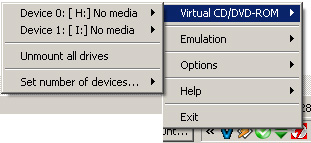
Select Device 0:
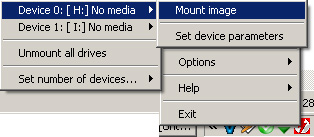
Daemon Tools emulates a CD-ROM drive. In this way, you can 'insert a disk' into your virtual drive without having to burn it to hard media. Mounting an image is the same thing as inserting a DVD into your drive.
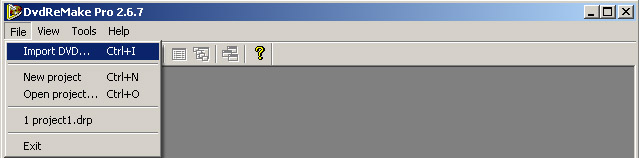
Open with DVD Remake Pro (top)
Import the DVD
Select the VIDEO_TS.bup from your mounted image:
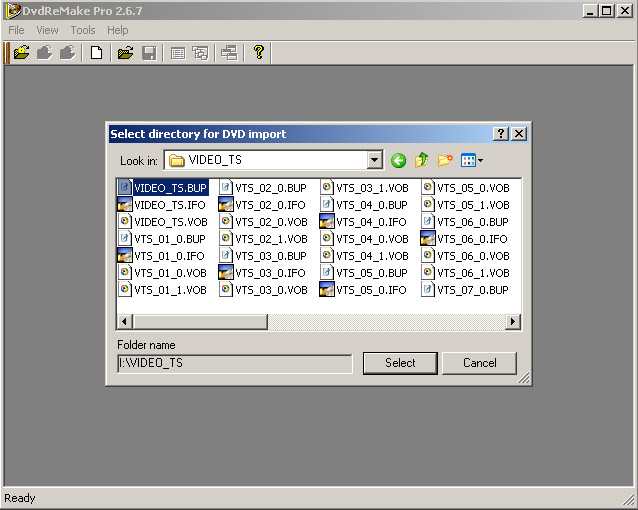
Hit Select
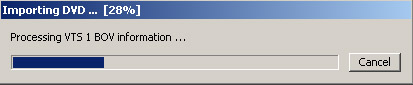
It should take about 3 minutes to import.
At the end you'll see this screen or something similar (depending on the version you use):
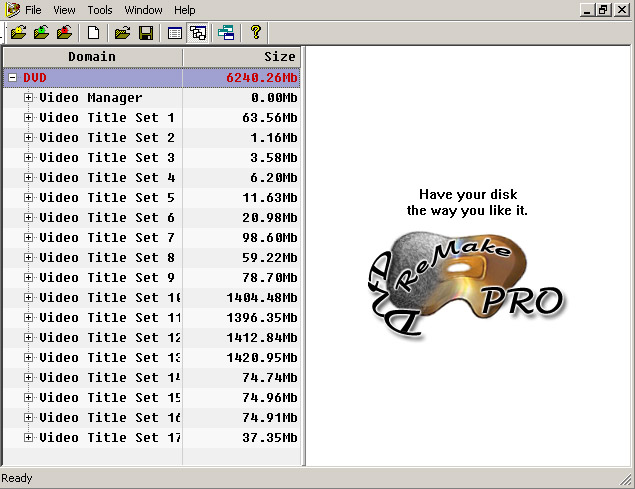
It’s big so I want to take out some stuff…