Creating a Realistic Light Bulb ...
Creating the Bulb object
- Load the bulb object (bulb.iob) into the detail editor.
- Display the attributes dialog for the object
- set the fog length of the object to .1 (this is required for the next step)
- add Ingvar Lybing's new NOSHADOW.ITX texture to the object.
- add the ABATTRIBS.ITX texture.
- Restrict ABATTRIBS.ITX to the subgroup BOTTOM.
- Set the base color attributes to "201" for all colors (red, green & blue)
- Set the specular color to "179" for all colors (red, green & blue)
- Set the hardness value to "51"
- Set the reflectivity values to "40" for all colors (red, green & blue)
- add the RIBBED.ITX texture (this will be used for the threads on the metal portion of the bulb)
- Restrict RIBBED.ITX to the subgroup BOTTOM.
- Move the z axis of RIBBED.ITX to "-261.627319"
- Set the Rib Width to ".87"
- Set the Number of Ribs to "10"
- Set the Bump Smooth to ".5"
- Set the alignment of the "y" axis of the texture to "-13"
- Leave all other texture settings at their default
- add the bulb brightness map (bulbbright.jpg)
- Restrict the map to the subgroup BULB
- Set the map to a wrapping type of "Cylinder around Z"
- Set the map to a type of "Bright"
- add the ABFAKENC.ITX texture
- Restrict ABFAKENC.ITX to the subgroupBULB
- On the "Options2" tab page, activate only the Side Brightness control and set it to
"177" (this changes the brightness at the sides of the bulb, but allows the bulbbright.jpg map
to modify the brightness of the front of the bulb).
- add the bulb text map (bulbtext.jpg)
- Set the Mix/Morph setting of the map to ".05" (this is so that the map isn't too visible on the lit bulb)
- Restrict the map to the subgroup TOP
- Set the alignment of the " x" map axis to "-90"
- Set the size of the "x" and "z" map axii to "90"
- Set the position of the map axis to "x=335.22522", "y=-38.15889" and "z= 102.948395"
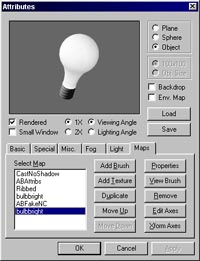
That finishes the creation of the light bulb. If everything went according to plan, the attributes window should now show the following:
Now, onto the glow around the bulb ...
Next
Previous
Back to Stills
Home