Author: Hiran Ekanayake
Date: 04 December 2005
Program the Microcontroller
This was not an easy task for me. This is the first time you expect things to work correctly, but things go wrong. Please be careful, otherwise you will burn your microcontroller or ports of your computer.
Take the microcontroller programmer you developed and plug the microcontroller PIC16F84 correctly to the base. Now, plug the programmer to the serial port of you computer (DB9 connector). You should see the light from the green LED! That would be an indication that your module is working correctly.
My computer had following configurations,
- Its AMD Athlon XP 2200+ (1.8 GHz)
- Operating system is Windows XP and XP is installed to C:\ drive
Now, lets start our work.
You need some tools to do the work. This [R004008] is a good resource.
- MPASMWIN 4.01 for Windows (2160K) - free assembler from Microchip [R004009]
- IC-Prog 1.05D (553K) - free PIC programmer [R004010]
Our mission is,
Assembly Program (count.asm) --> [MPASM Assembler] --> HEX file (count.HEX) --> [IC-Prog Programmer] --> Burn the program to Microcontroller PIC16F84
I am using the same assembly program which can be found from [R004001] (or download). (I am assuming that the file is now available in C:\MicroLab\Samples\)
Unzip the MPSAM (MPASMWIN401.zip) to an appropriate location (e.g. C:\MicroLab\MPASMWIN401\)
Unzip the IC-Prog (icprog105D.zip) to an appropriate location (e.g. C:\MicroLab\ICProg\) . You also have to unzip the help file (icproghh_eng.zip) and driver file (icprog_driver.zip) to the same location.
Now, run the MPASMWIN.EXE. You should see the window dipicted in figure 00400111.
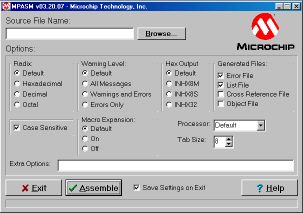
Fig00400111: MPASM assembler
Press the Browse button at the top and select the C:\MicroLab\Samples\count.asm file. Other configurations are same as you see from the figure, except you can select the Processor as PIC16F84. Now, press the button Assemble. You should see a file created as count.HEX in the folder C:\MicroLab\Samples\. Next, we are using IC-Prog to burn this file to the microcontroller.
Now, run the icprog.exe. You should see a window like figure 00400112 when you run it for the first time (or later Settings > Hardware).
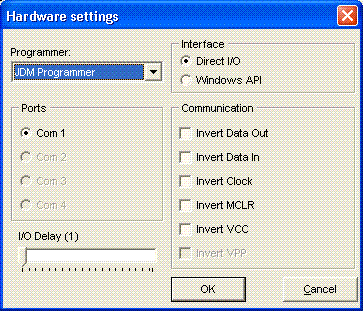
The window shows configurations I used (background readings suggest I/O delay slider to be in 10, but it depends on the speed of your computer). Please read the troubleshooting if you see error messages after you press OK button.
After pressing the button OK, if successful, you should see a window like figure 00400113.
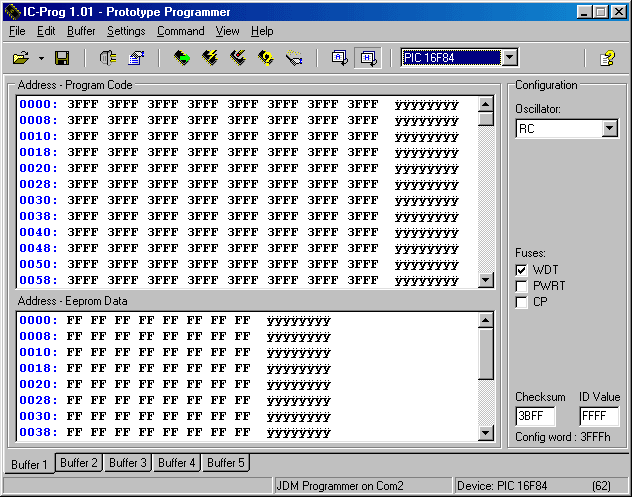
Note that you have selected PIC16F84.
Now, you have another configuration to be set. Go to Settings > Options > Misc Tab> ENABLE NT/2000/XP driver (Tick On).
Lets do an experiment. Locate the buttons Real All, Program All, Erase All and Verify. Press the button Read All, you must see Red and Yellow LEDs blinking in you programmer. Also, numbers will change in the window beneath the "Address - Program Code" window.
Now we are going to burn the hex file into the microcontroller.
Follow File > Open File to locate the count.HEX file. You will see the values changing in "Address - Program Code" window.
Can you see the configuration panel on the right of the window in figure 00400113. The values should be like this.
Oscillator: RC
Fuses:
WDT: Off
PWRT: On
CP: Off
Now press the button "Program All" (make sure that the programmer is connected to the serial port). If the burning process has successful you should see a message saying that "Device Successfully Verified!". If you didn't see anything press the button Verify.
If you don't see any error message during the burning stage, it would be an indication that you have successfully transferred the program to the microcontroller. Now remove the microcontroller from the programmer and plug it into the demonstration board you developed earlier and give the power through the power supply unit. You should see LEDs are blinking in a pattern representing binary counting. If you don't see the pattern, it is an indication that something has gone wrong at somewhere (may be troubleshooting will help).
Troubleshooting
Note my settings,
- My operating system is Windows XP.
- My IC-Prog is in the C:\ drive with the other required files (icprog.exe, icprog.sys, icprog.chm).
- My serial port gives the correct voltage levels to operate the programmer.
In addition,
- Check your circuitry and make sure that you have correctly implemented the schematics.
- Make sure that electronic components are functioning correctly (not burnt).
- If you get the error message "verify failed at address ...", change the I/O Delay in the Settings > Hardware and check whether it can solve the problem (also try changing the interface to Windows API).
- If none of the above suggestions are useful, please check the Internet to see how other people have solved their problems.
If you like to learn more about PIC microcontrollers, this [R004011] is a good free tutorial.
Building the Circuits References |