






www.homecomputers.za.net
Applications
Reviews Tutorials Wallpapers

How to record music from cassette tapes or the radio to MP3’s

This is a lot easier to do than you might think. You will need the following before you can begin….
1.) A cassette tape player, a CD player, a radio, a Hi-Fi or anything else that will work.
This tutorial show how to record MP3's with Audacity on your computer.Every effort has been made to provide correct information, if however, you find anything that is not correct, please contact me. Note that I do not claim to be an expert, so if you feel something should be done differently then go ahead and do what you feel comfortable with. I am only providing this information to help, not to dictate.  Although this tutorial are for Windows XP, it should still work the same on Windows 98/ME/2000.
2.) A special cable that you can make yourself.
3.) A computer with sound and Audacity pre-installed.
4.) Some determination. (It always makes things easier)

1.) You can use any radio or Hi-Fi that you can plug earphones into. (There should be a hole with “phones” or something similar written next to it)
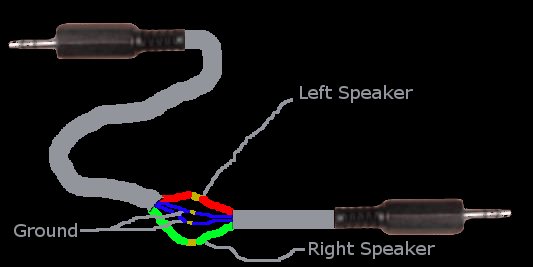
2.)  To make the special cable you need two old earphones (just buy the cheapest ones you can get). Cut the earphones off and join all the wires so that you have one cable with male plugs at both ends. (See the picture below). Please make sure that the wires are joined properly and correctly and isolate them with tape so that they do not touch each other. (Please ask someone to help you if for some reason you choose not to do it yourself). Well, the cable are not so special after all!


Once you have the cable made up, plug the one end into the radio where it says the earphones are suppose to go. Plug the other end into your soundcard at the back of your computer where it says “Line In” (It's the blue hole on new computers). Switch the radio on and if  all went well you will hear the sound from the radio come out the computer speakers. If you don’t go to Checking Settings below!

Now open Audacity.

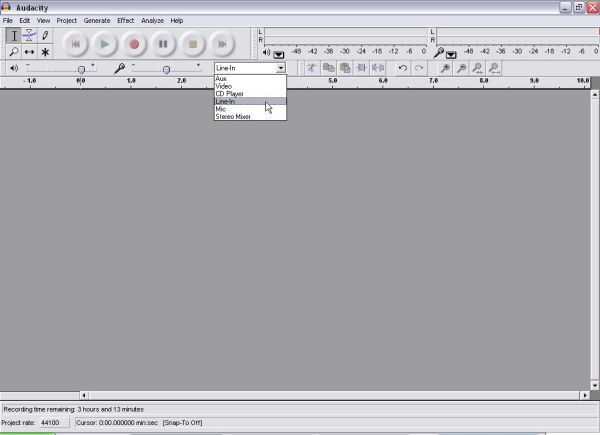
Select the "Line In" option from the drop-down box as shown in the picture above...

Insert the tape into the Hi-Fi and press play...

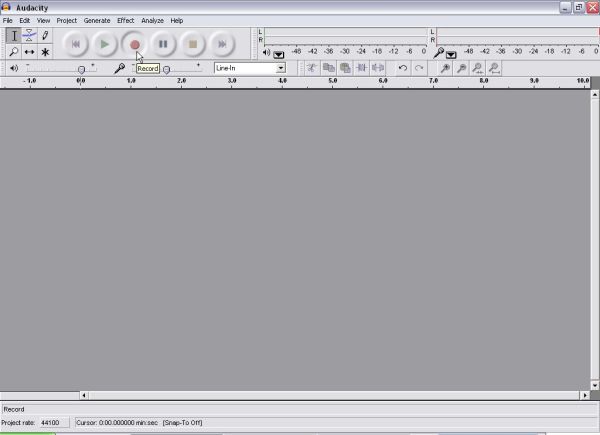
Click the red "Record" button as shown above...

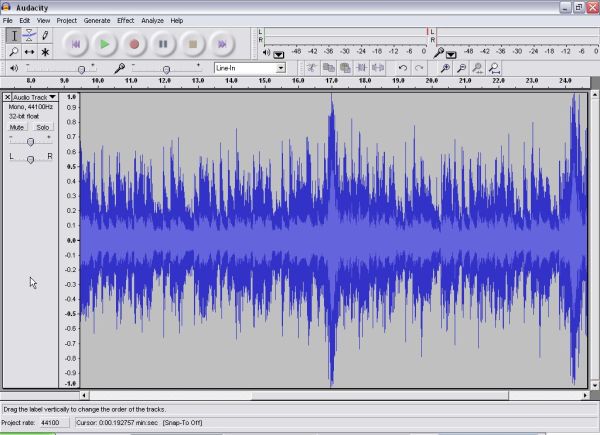
When the song that you want to record stop playing, click the yellow "Stop" button to stop recording...

You can also delete the beginning or end of the recorded song if you started or stopped recording  too early or late...

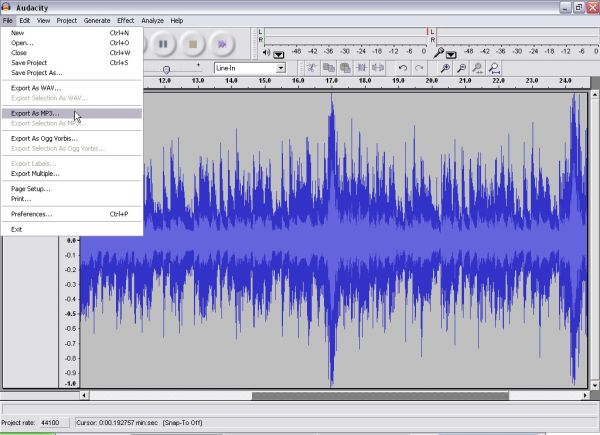
Now to export the recorded song to MP3...

From the "File" menu select "Export As MP3"...

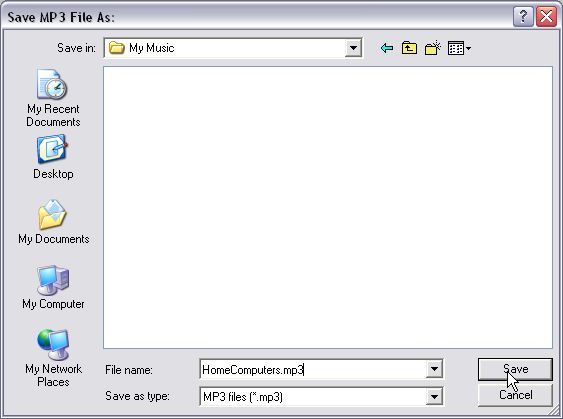
You will be prompted to save the file some ware...

Type in a name and click on "Save"...

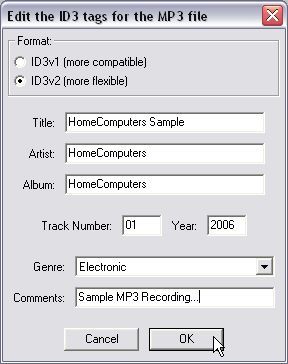
Enter the ID3 tag information...

Fill in all the fields and click on "OK"...

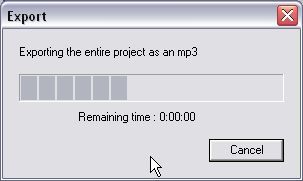
Wait a while...

Depending on the length of the song this might take some time to export the file. It is in my opinion one of the programs that don't waste to much time when creating MP3's.

Once you have the MP3 you can use MediaPlayer, Nero or any other program that can create Audio CD's to burn the recorded MP3's to a CD.
The same procedure described above can be used to record old records, songs from a radio or to record your own voice to CD.

Checking Settings

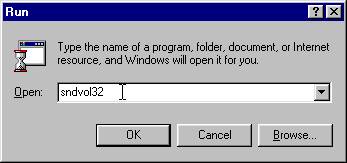
Click on Start, Run and then type sndvol32 and press <ENTER>.


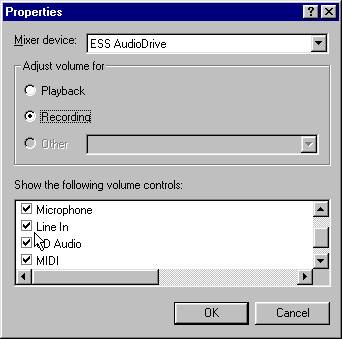
Go to “Options”, select click on “Properties” and select Recording. Make sure that the “Line In” option are enabled.


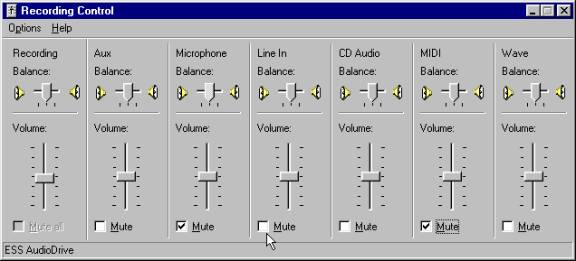
Click OK and the next box will appear. Make sure that “Line In” is not on Mute.


When the HI-FI or whatever you may have plugged into the computer is playing you should hear the sound from your computer speakers. If you hear no sound  come out the PC speakers just play around (this is where the determination comes in), check your cable and make sure that you plugged the cable in the right hole on the sound card.

_*_*_*_*_


Hosted by www.Geocities.ws

1