






www.homecomputers.za.net
Applications
Reviews Tutorials Wallpapers

Tutorial - Install Audacity on Windows.

This tutorial show how to successfully install Audacity on your computer.Every effort has been made to provide correct information, if however, you find anything that is not correct, please contact me. Note that I do not claim to be an expert, so if you feel something should be done differently then go ahead and do what you feel comfortable with. I am only providing this information to help, not to dictate.  Although this tutorial are for Windows XP, it should still work the same on Windows 98/ME/2000. Visit the Audacity website for more details.
1.) Download the installation files from www.audacity.org.
2.) Double-click on the downloaded setup file.

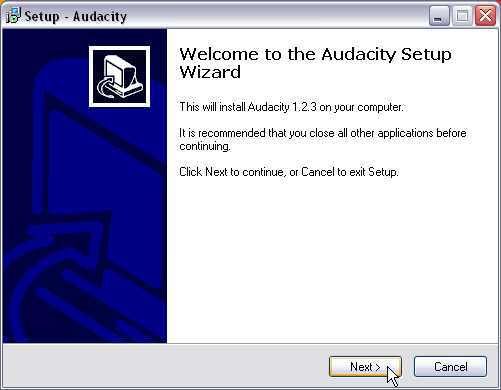
The Setup Wizard will pop up in a few seconds...
Audacity Setup
Click on next...

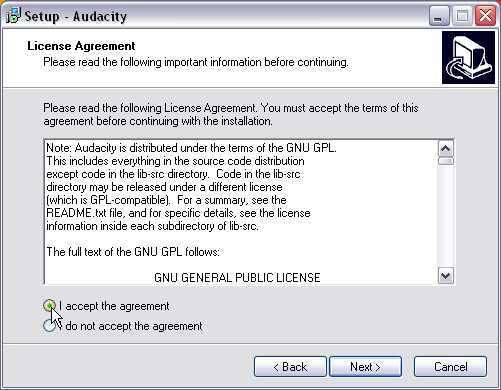
Read trough the Audacity License Agreement....
Audacity Setup
Click on I accept (if u do) and click next...

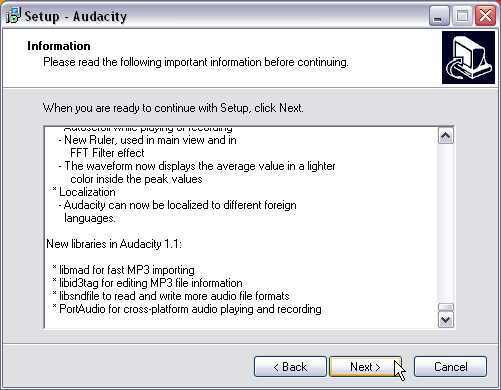
Read some more interesting stuff about Audacity...
Audacity Setup
And click on next...

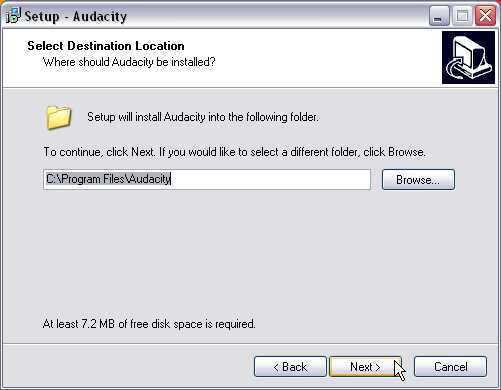
Leave the destination folder as is unless you have a better idea...
Audacity Setup
Click on next...

Select your preferences...
Audacity Setup
Click next...

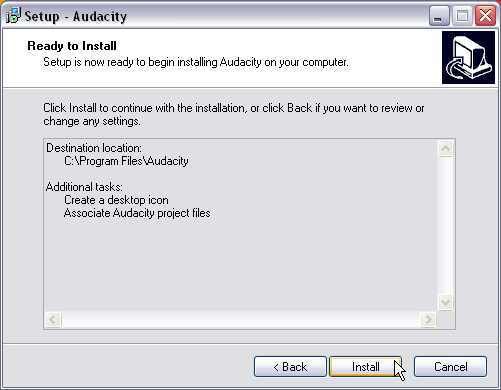
And finally the end id in sight...
Audacity Setup
Click on install...

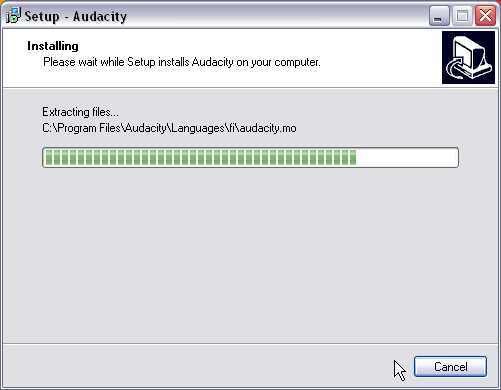
Do a little waiting....
Audacity Setup
Just wait...

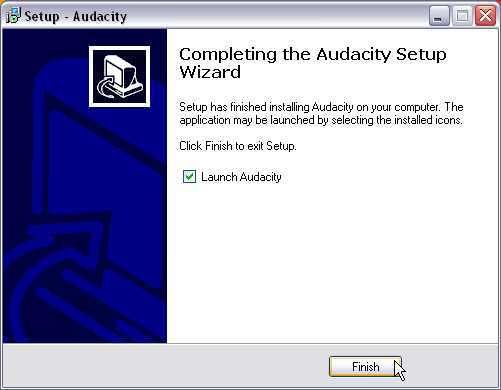
And it's done...
Audacity Setup
Click on finish...

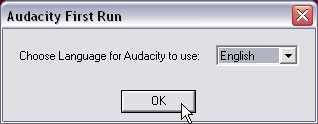
Select your language...
Audacity Setup
Click OK...

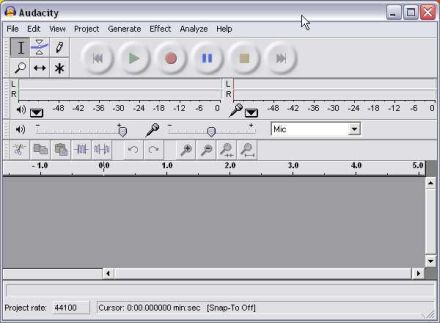
This is what you should see now...
Audacity Setup
Download the lame_enc.dll file from www.free-codecs.com or do a search at www.google.com then download and place the file named "lame_enc.dll" in the "C:\Program Files\Audacity\Plug-Ins\" directory. If you have trouble downloading the file it might be in " C:\Program Files\Common Files\Ahead\AudioPlugins\" if you have Nero installed. Just copy it from there. If you still have problems getting the file click [here], save the file some ware, unzip it and run the "lame_enc.exe" file.

Now we have to enable MP3 encoding so we can make some MP3's...
Audacity Setup
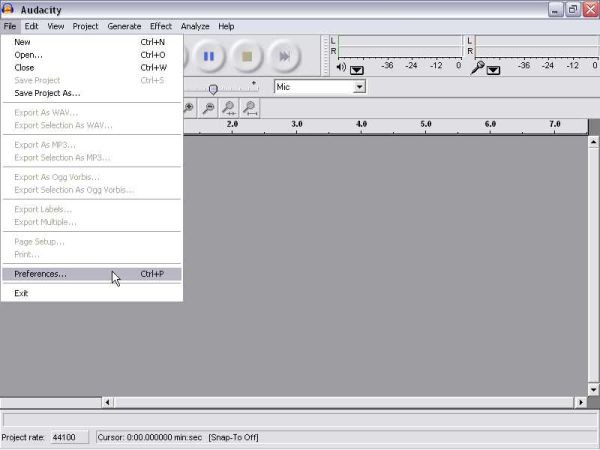
Go to "File" and click on "Preferences"...

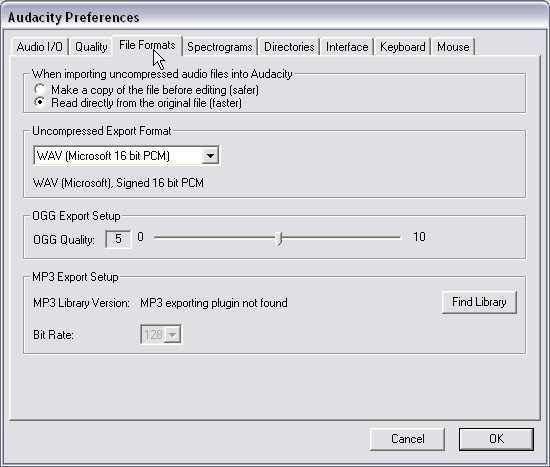
Go to "File Formats" as shown in the picture below...
Audacity Setup
Click on "Find Library"...


Audacity Setup
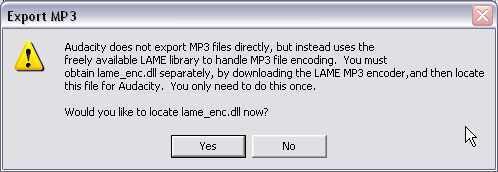
Click on "Yes"...

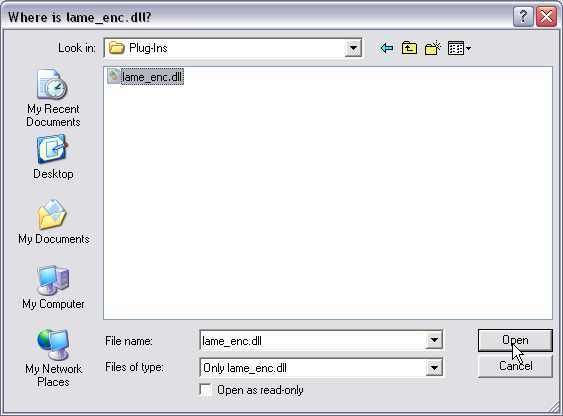
Go to the Plug-Ins directory where Audacity is installed...
Audacity Setup
Select the lame_enc.dll file and click on "Open"...

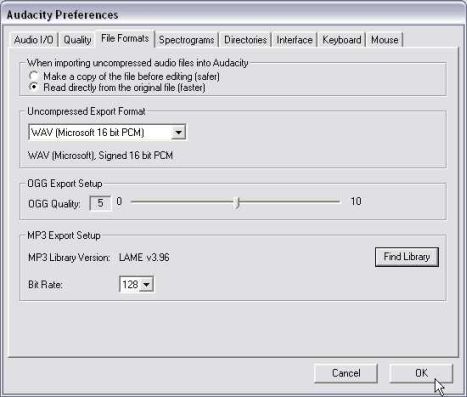
That will bring you back to the Audacity Preferences dialog in Audacity.
Audacity Setup
Click on "OK"...

Now Audacity is installed and ready to make MP3 files.


Hosted by www.Geocities.ws

1