This page is only
for Windows 95/98/ME !
This page is only
for Windows 95/98/ME !Network Configuration for Win95/98/ME
This page is only
for Windows 95/98/ME !
You should have now on your desktop the icon for the "Network Neighborhood":
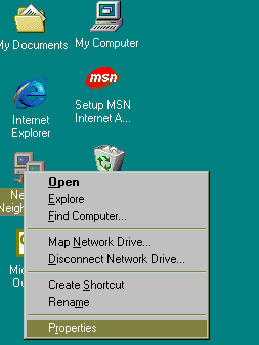 |
Right-click on "Network
Neighborhood" and select from the context/pop-up menu
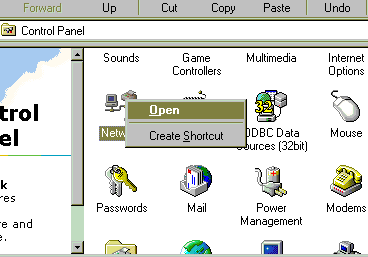
"Properties" to display the Network Configuration or via the applet "Network" in the "Control-Panel:
|
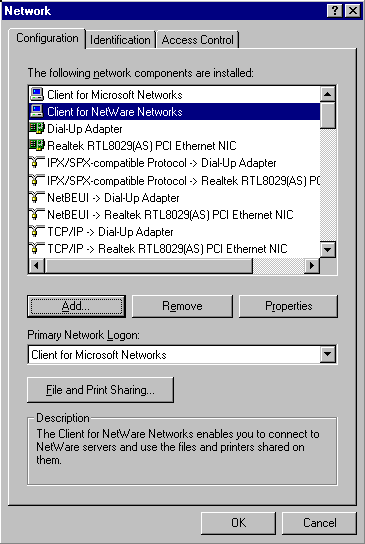
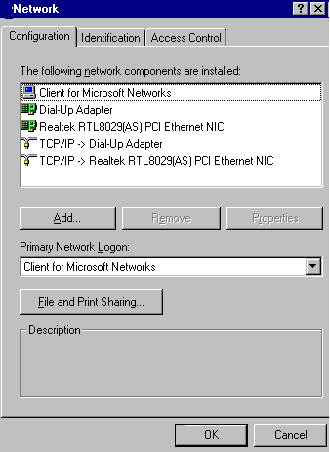
Depending on your Windows version, different items will be shown in the Network Configuration:
| windows95:
(to get all entries listed, I copy/pasted all entries into one |
windows98orMe:
Starting with Windows98, only the |
| Note: There is no need to be concerned about making mistakes in the Network Configuration: |
|
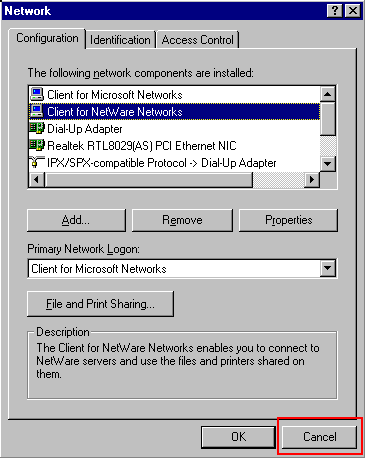 |
if you made a mistake and deleted
too much (or you think you make a mistake), just exit the Network
Configuration by selecting "Cancel":
then none for your changes made since calling up
the Network Configuration will be stored ! This allows to start again to make modifications |
If you like, you can start all-over again:
- select the PCI-network card and click on the button "Remove"
to delete it.
Then exit the Network Configuration by selecting "OK".
You will be
prompted to reboot, and when you reboot windows will again detect
the network card allowing you to start again the configuration.
A word on the network protocols and its usage on Network adapters:
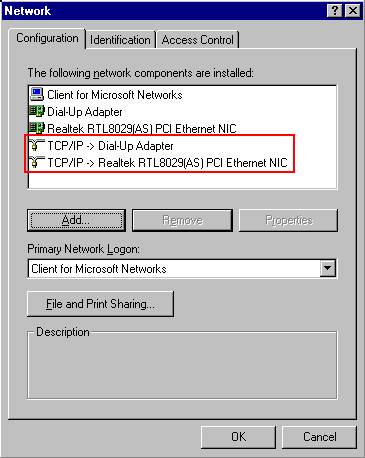 |
Have a look at the lines for
Protocol:
Sometime protocols are listed multiple times, with the
"arrow ->" to different adapters: |
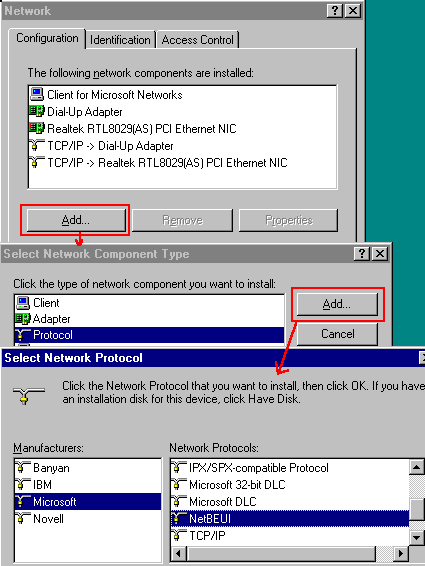
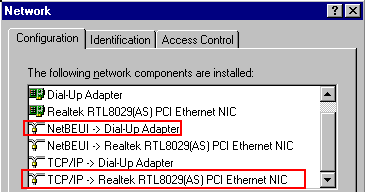 |
When adding a protocol, Windows
assumes that you like to use it to communicate on all defined network adapters. Select
now the un-wanted combinations (in my example: NetBEUI on the Dialup- adapter and TCP/IP on the LAN) and "Remove" them |
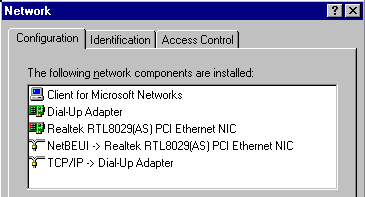 |
This system is now configured to
communicate on the Dial-Up Adapter (to the Internet) using TCP/IP protocol
and on the local network (using the PCI Ethernet card) using NetBEUI protocol. |
Lets adjust the Network configuration to our needs:
1) Delete everything, which is NOT required
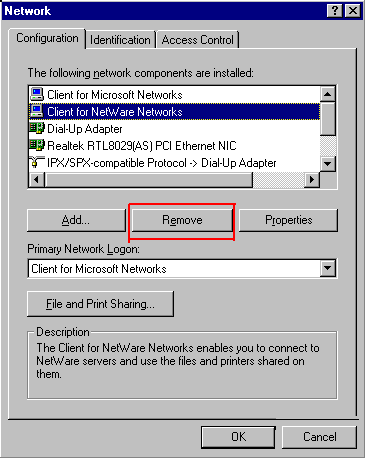 |
You have a Home network (or a company network) without a Novel-Netware Server? no need for the "Client for Netware Networks", select it (single click) and "Remove " it |
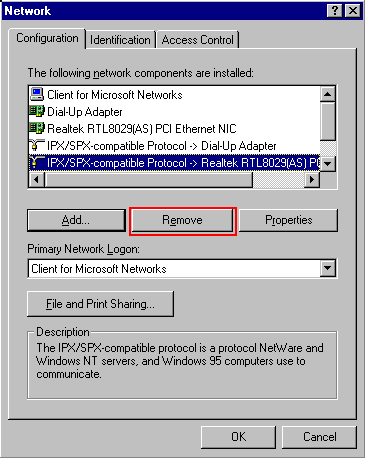 |
You had previously decided on the Network
Protocol to be used? for the protocols NOT required( or the
"Bindings"=Combination of Protocol to Network adapter not required), select
the line listing the protocol and "Remove" them. (example: a home network without a Novell-server and no need to use IPX/SPX due to games, so I am deleting it) |
2) Configure the protocols
| NetBEUI: |
Nothing to Configure |
| IPX/SPX
compatible |
On a network WITHOUT a server , you need to define the Frame-Type |
| TCP/IP |
I hope , that you first had a look at TCP/IP basics, so that you know what you are now configuring: |
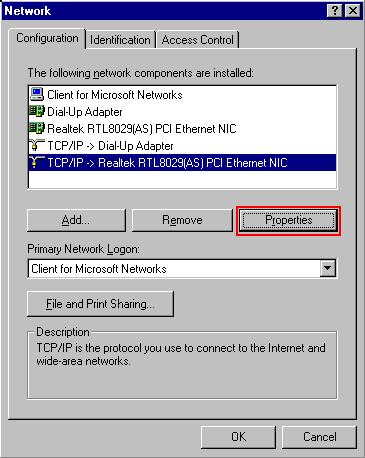 |
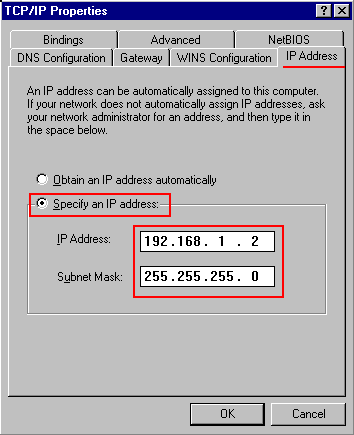
There is usually no need to configure TCP/IP for a Dial-Up Adapter, the default values work for most connections (unless otherwise requested by your Internet Service Provider) Select the TCP/IP for your PCI-Ethernet card, and ask for the "Properties": On the tab: "IP-address" , by default your system is configured to "obtain an IP-address automatically" (via a DHCP-server or Windows98 Auto-IP Configuration).
|
 |
Select to "Specify an
IP-address" and enter your IP-address (usually: 192.168.1.1 or 192.168.1.2 or 192.168.1.3 or....), then enter "Subnet Mask": 255.255.255.0 For a simple home-network, that is all what is
|
3) Activate File and Print Sharing
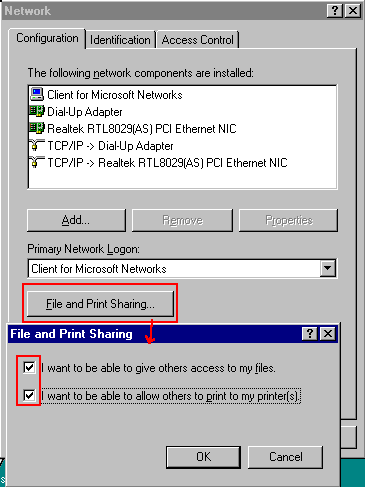 |
By default, Windows only install the network components to allow your system to connect to a network to access data/files and printers on other computers. But since you purchase a network to exchange data between multiple systems, you need now to configure this system to allow other systems to get to the data on your disk and to print on your printer: click on "File and Print Sharing", select to give access to your files and to your printer. |
4) Select your "Primary Network Logon"
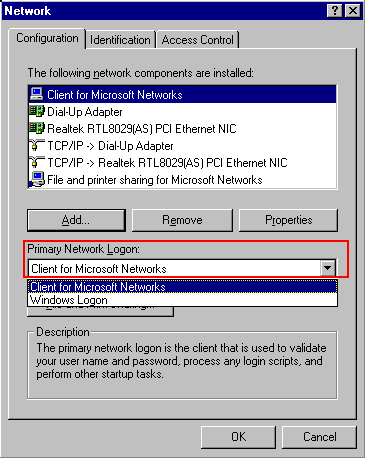 |
You will need later to Logon to the network: to identify yourself. Please, select as "Primary Network Logon" to use the "Client for Microsoft Networks" |
5) Define the names for the computer and workgroup
 |
You have decided already on the name for your
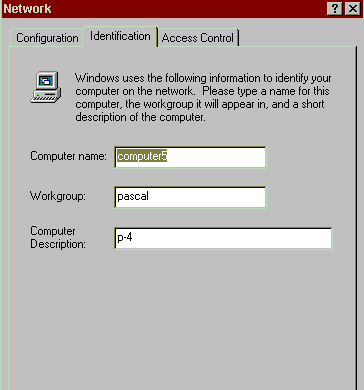
computer and for your workgroup (you may have been prompted already after the first reboot to define these names). Select in the Network configuration the tab: "Identification" and enter your "Computer name" (MUST be UNIQUE on the network) and your "Workgroup" name (MUST the IDENTICAL(same) on all systems) |
just to cover the Network applet completely:
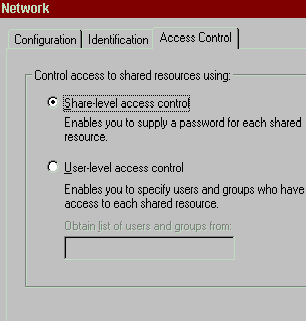 |
tab : "Access Control" Windows 95/98/ME is only offers limited security, one of the limitations is that you can only use "Share-level access control" when later sharing a disk, folder or printer ("User-level access control" is only available , if there is either an NT-system or Novell Netware server on the network, from which Windows can borrow a real User-Database). |
Once everything is configured, select "OK" to close the
Network applet.
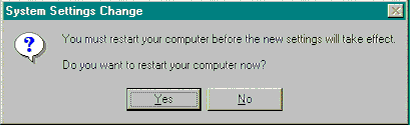
Any change to the network will require a restart:
Next Step: Test the Network Connection