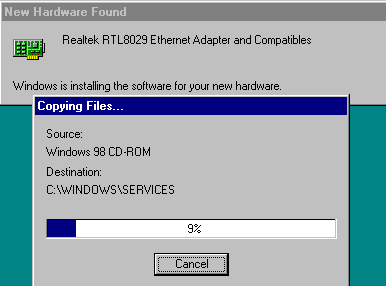
Installation of Network Card Driver
Once you installed a new network card (PC-card/PCMCIA in a
notebook or PCI-card in a desktop), Windows will detect the card , it will first
display a message like:
"PCI Ethernet Card detected" and then it depends, whether your version
of Windows knows already the type of network card:
Windows
identified the Network card and has a driver for it in
its own library:
|
it will start installing immediately the driver and other network components (if windows setup files are not stored on your disk, it will prompt you for the windows CD-ROM) |
Windows could NOT identify the network card and does NOT have a driver for it:

You are prompted to provide the floppy disk/CD-ROM
provided by the manufacturer of the network card. Please verify the path in
"Copy manufacturer's files from" to point to the location of
the network card drivers. If your windows setup files are not stored on the hard
disk you will also be prompted for the windows CD-ROM.
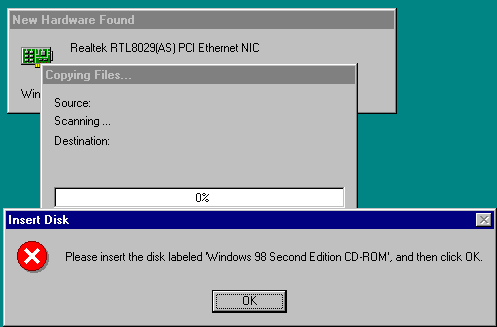
Insert your CD-ROM, wait a few seconds (to allow the CD-ROM to
spin up) and then click OK.
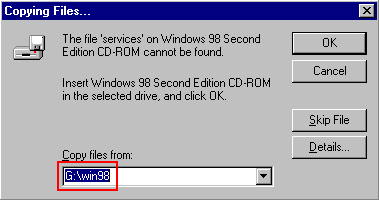 |
If you get the window "Copying
Files", then you need to verify, that the path for
"Copy files from" is correct and
pointing to the location of the Windows SETUP-files (either on the CD-ROM
or on your harddisk). You will also get this message when inserting the Windows Setup CD-ROM and you clicked too quickly on OK, the CD-ROM drive was not yet ready, click again on "OK". |
Once Windows has copied the files, you will be prompted to
restart your system:
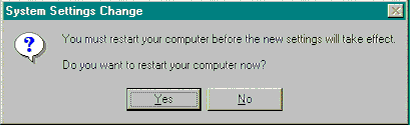
Please, select "Yes", otherwise the network drivers will not be loaded and not become active.
Once the system has rebooted, check
that the device driver for the network card has been
installed and is properly working:
In the "Control-Panel", start the "System"
Applet, select the tab: "Device Manager":
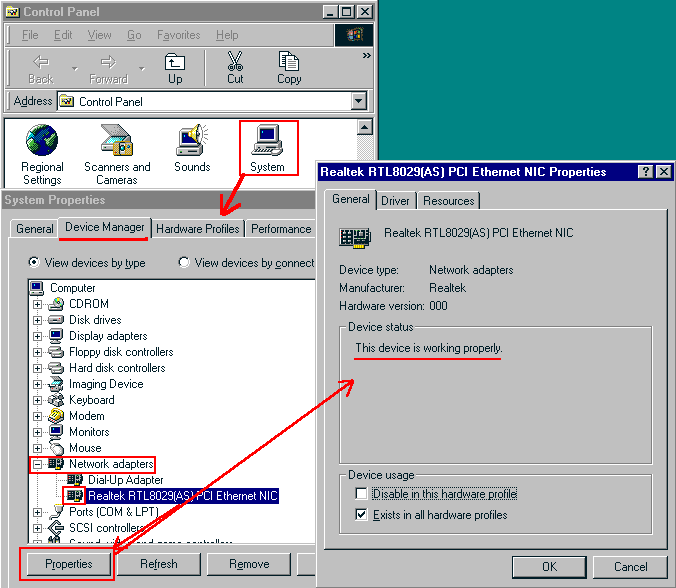
Look at "Network Adapters",
click on the "+" to display all installed adapters:
- does it show as symbol the  ?
?
- display for the Network card the
"Properties"
- does it show as "Device status &qquot;: "This device is working
properly" ?
If there is no yellow mark or red-cross on the adapter icon and if the device is
listed as
"working properly", you are ready to continue to Configure
Your Network