1 - Fonts


Font? What is a font, anyway? At its simplest, it is the set type you are using. The font
allows you type with letters that are straight up and down or slanted, have serifs or not.
There are many features you can select from. The default font for Word 97 Is Times New
Roman. Word, however, provides many more fonts for you to choose from.
1 - How do I change a font?
Before we can change the font on a piece of text, we need to tell Word exactly which piece of text we want to change. We can do this by highlighting the text. To highlight a piece of text :
- Move to the first character of the text you want to highlight
- Click, but do not release the left mouse button
- Drag the pointer through the word or section of text you want (Did you notice the text you selected has changed from black text on a white background to white text on a black background? This indicates which text you are selecting).
- Release the mouse button
Click on the font box arrow,
scroll through the list until you see the font you want. Drag the pointer to the font you want, then release the mouse button. The text will change immediately to the new font, but remain highlighted.
You don't like the font you selected? The selected text will remain highlighted if you haven't clicked anywhere else in the document yet. So just scroll again and pick another font. You will be able to see the change immediately. One important thing you want to think about before selecting a font? Will this font be readable once it is printed? It might look really cool, but some fonts are more suited for headings, not content text.
2 - Now that I like the font, how do I increase the font size?
Size types are measured in points. 12 or 14 point font size are usually the best for your class papers. Actually, 12 point was the average size on a typewriter (for those of you who remember what a typewriter is).
Before we can change the font size on a piece of text, we need to tell Word exactly which piece of text we want to change. We can do this by highlighting the text. To highlight a piece of text :
- Move to the first character of the text you want to highlight
- Click, but do not release the left mouse button
- Drag the pointer through the word or section of text you want (Did you notice the text you selected has changed from black text on a white background to white text on a black background? This indicates which text you are selecting).
- Release the mouse button
Click on the font size box arrow,
scroll through the list until you see the font you want. Drag the pointer to the size you want, then release the mouse button. The text will change immediately, but remain highlighted.
You don't like the
font size you selected? The selected text will remain highlighted if you haven't clicked
anywhere else in the document yet. So just scroll again and pick another font size. You
will be able to see the change immediately.
2 - Text Style: Italic, Bold, Underline
To change the style your text you must first highlight the text. To highlight a piece of
text :
- Move to the first character of the text you want to highlight
- Click, but do not release the left mouse button
- Drag the pointer through the word or section of text you want (Did you notice the text you selected has changed from black text on a white background to white text on a black background? This indicates which text you are selecting).
- Release the mouse button
To italicize text:
- highlight the text
- from the formatting toolbar select the italic icon

To bold text:
- highlight the text
- from the formatting toolbar select the bold icon

To underline text:
- highlight the text
- from the formatting toolbar select the underline icon

 Many of the buttons on
the formatting toolbar are toggle buttons. This means if you click on them once you will
format the highlighted text. If you click on them again, you will remove that formatting
from the highlighted text.
Many of the buttons on
the formatting toolbar are toggle buttons. This means if you click on them once you will
format the highlighted text. If you click on them again, you will remove that formatting
from the highlighted text.
3 - Centering and Justification
This text is "centered" in relation to the document. To center text move the cursor somewhere in the text you want to center. From the formatting bar, select the center icon.

This text is "aligned left." This means the left edge of the paragraph is straight and to the left of the document. To align text to the left move the cursor somewhere in the text you want to align left. From the formatting bar, select the align left icon.

This text is "aligned right." This means the right edge of the paragraph is straight and to the right of the document. To align text to the right move the cursor somewhere in the text you want to align. From the formatting bar select the align right icon.

This text is what is called "justified." This means that both edges of the paragraph will be straight in relation to the document. To "justify" text move the cursor somewhere in the text you want to align. From the formatting bar select the justify icon.

4 - Bulleted Lists
Bulleted or numbered lists are used to help information stand apart from other information
or to help emphasize key points. Bulleted or numbered lists are also a good way to
communicate step by step instructions or flow of information. You will probably use this
feature in your papers and reports no matter which discipline you are in. If you know
before you type a list that it is to be numbered or bulleted, you can add the bullets or
numbers while you type. Place the flashing cursor where you want to begin your bulleted or
numbered list. On the toolbar, click on the bulleted list icon  or the numbered list icon
  . Begin typing the list.
You decided you
don�t want a bullet after you already started typing? Simply click the bulleted or
numbered list icon again to return the bulleted text to normal.
You can also add bullets or numbers after you type the text. Place the flashing cursor
anywhere in the text you wish to bullet and click on the bulleted list icon or the numbered list icon .
5 - Checking Spelling
To check the spelling of a document on demand, place the flashing cursor at the beginning
of the text you want to spell check. You can also highlight a specific paragraph or text
that you want to spell check. Click the spelling icon  . Word begins checking the document from the flashing cursor or
from the beginning of the highlighted text. If Word comes across a word that is not in its
main dictionary, Word displays the Spelling dialogue box.
. Word begins checking the document from the flashing cursor or
from the beginning of the highlighted text. If Word comes across a word that is not in its
main dictionary, Word displays the Spelling dialogue box.
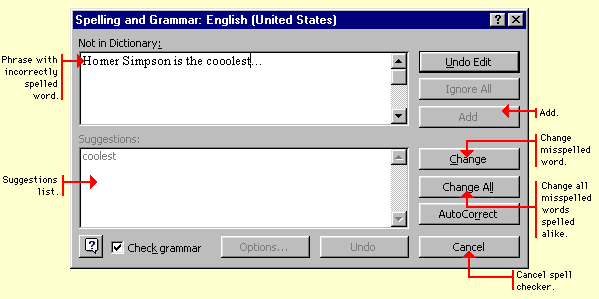
 , Word ignores that specific word and all future occurrences of
that word throughout the document until it finds another error.
, Word ignores that specific word and all future occurrences of
that word throughout the document until it finds another error.  , Word will change the mis-spelled word to whatever is in the
Change to text box.
, Word will change the mis-spelled word to whatever is in the
Change to text box. when you want to add a word to the existing dictionary.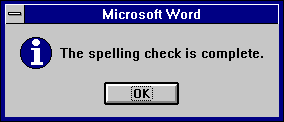
 . To correct the mis-spelled word, place the mouse pointer over the
mis-spelled word, select the right mouse button. You will get the Spelling dialogue box.
Select one of the words offered and click on the Change button.
. To correct the mis-spelled word, place the mouse pointer over the
mis-spelled word, select the right mouse button. You will get the Spelling dialogue box.
Select one of the words offered and click on the Change button. 
