
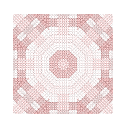
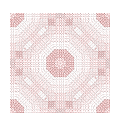
Your image should look like this:
1. flood fill: #5C6E5C
2. weave color: #056505
3. Gap color: #D2E4D2
Your image should look like this:


|
|
|
|
|
|
|
|
|
|
|
|
|
|
|
|
|
|
|
|
|
|
|
|
|
|
| ~ 3 ~ | |||||||||||||||||||||||||
| Next, reduce the image to 100 x 100, then to images, sharpen, sharpen; then to layers, properties and reduce opacity to 30%, and merge layers. Go to image, sharpen, sharpen more. Your image should look like this: |
|||||||||||||||||||||||||
|
|||||||||||||||||||||||||
| Our final step for our red mosaic is: go to images, plue-ins, Simple, quick tile. Save this image. Your final image should look like this: | |||||||||||||||||||||||||
|
|||||||||||||||||||||||||
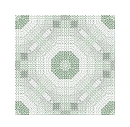
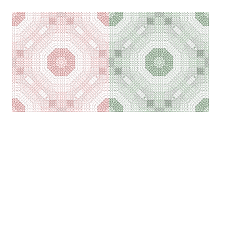
| Repeat this steps for your green mosaic, using these colors... 1. flood fill: #5C6E5C 2. weave color: #056505 3. Gap color: #D2E4D2 Your image should look like this: |
|||||||||||||||||||||||||
|
|||||||||||||||||||||||||
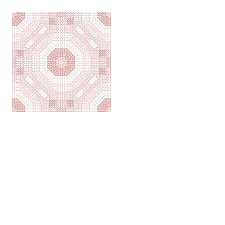
| Now we will put our mosaics together to form our tile. Open a new image 200x200, transparent. Go to edit, copy and copy your red tile. Click on your new image. Go to edit, paste, paste as new layer and place image as below: | |||||||||||||||||||||||||
|
|||||||||||||||||||||||||
| Repeat with your green mosaic and place as below: | |||||||||||||||||||||||||
|
|||||||||||||||||||||||||
|
|||||||||||||||||||||||||
|
|||||||||||||||||||||||||