 An example would be like in Figure 2
Tip #1
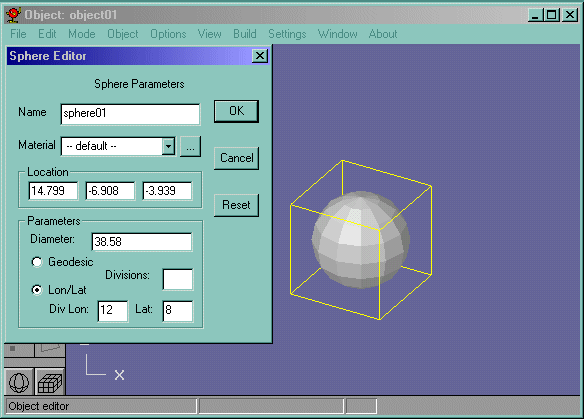
For Parametric boxes(outlined in yellow), double click them to view their properties. You can create them exactly the right size and in the exact position you want them to be in. You can also double click any type of mesh, but only their position will be available to be edited. See Figure1
Figure 1
Tip #2
To make extra vertices, edges, faces, use the line tool
An example would be like in Figure 2
Figure 2

Tip #3
Make sure your object is whole. Like if you are modelling half of a creature, make sure the faces in between are deleted. The proper way to seal two objects is to; mirror the object as close to the axis as you can, "Join solids", delete the attached faces, then select all the vertices in the center, and weld them. They should be close enough so that you dont have to go over .5. At this setting, the vertices cant all be joined together. (unless they are all REALLY close together.) This is how I check to see if my creature is "whole":
Make the creature or whatever and mirror it, join the solids, and merge the vertices. Then goto object edit mode and smooth the creature.
 See how it is messed up? Well go back and select the face in the middle.
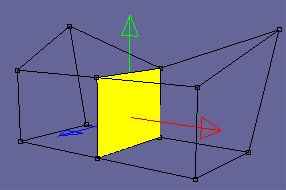 Delete that face and try it again. Sometimes it works, but this time it didnt. So what you do now, is you select the whole model and check for purple edges. In the case of this model, its edge was the top one.
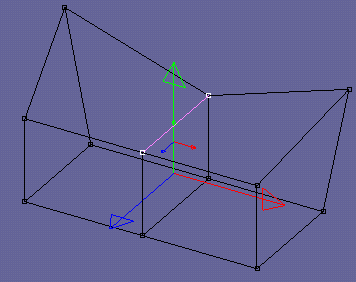 Delete that edge. If there is still an edge, delete that one.(I think the purple edge in this case meant that there were 2 edges occupying that edge space) do the process to fill in the empty faces.(to check, go to object edit mode, and rotate the view or the object. If you see any holes, go back and fill them. Sometimes, if the object is small enough, as in edges, you can select the whole model and do the fill holes command.) Ok, now smooth again and you should have this:
Tip #4
Beveling, mess around with it and learn what it can do. Not only can you Bevel once face, but you can bevel groups of faces, faces on mesh corners, and more. Example:
 beveled to
 beveled to
Tip #5
Associate *.an8 files with Anim8or!Tip #6
Click here to see the animated gif of my View selectioin tip.
Tip #7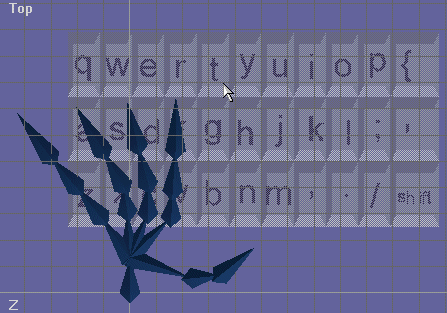
Take a look at that picture. This is how I have my left hand positioned when I model for most efficiency. What I do, is I have my thumb on the space bar, my pinky on shift, my ring finger on "A", my middle finger on "W", and my index finger on "D" or "F". What I use with this setup is this:
1: With pinky and ring finger do "Ctrl+Shift" to go temporarily into Arrow select mode.
2: With pinky on shift and middle finger on "W", AND with my index finger on "F", I do "Ctrl+W" and "Ctrl+f" to go back and forth from wireframe and solid rendering mode. Its a good technique for getting UV coords all lined up.
3: With pinky on Shift and index finger on "R", I switch to "Arc Rotate" mode so that I can move all around my model.
4: With pinky on Shift and index finger on "C" and "V", I can copy and paste rapidly and efficiently. Also, I can hit "Delete" but then I have to rearrange my hands, so I can also do "Ctrl+X" to Cut an object.(cut = delete.)
5: most importantly, I have my index finger on "Alt" when I animate so that I can use anim8or's "2-button - 3-button" mouse emulation. (using Alt+Right click simulates a middle mouse button.)
Overall, Steve has a great keyboard layout for Anim8or. I dont use the arrow keys because gridsnap works for me, but I have used it before. its nice, but I use gridsnap more, now that its available in the upper toolbar (good job again Steve.).
Tip #8 Click here to view tip 8