|
Function:
When The pay method selected in room occupancy form is client account, the bill value including all outlet services and variant expenses are posted (added) to the client account in check out. In this form, the user may exclude some outlets and/or outlet items to be paid by the guest. In this case the room bill are separated into tow bills one for the client include the accomodation cost and the none execluded outlets and outlet items and the second includes the execluded outlets and outlet items to be paid in cash by the guest.
If all the outlet services paid by the guest, the method of payment must be client account with no outlets. The system, in thsi case will issue two bills also one for the client and includes accomodation cost only and the second for the guest and includes all outlet services and variant expenses.
Opening Page:
This form is opened from Room Occupancy Form by clicking on the Exception button for a room of status check in.
Data Fields:
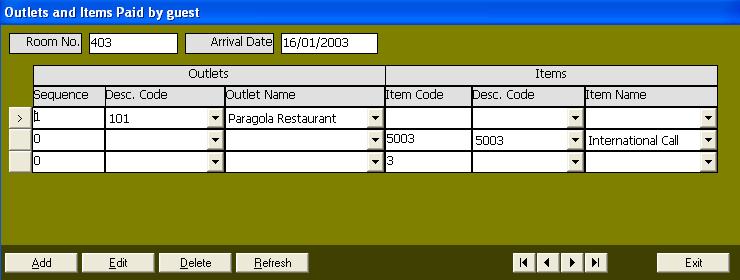
The form includes two read only fields: the room no. and arrival date, the user can not change them. Other data items are entered and updated by user. they are displayed in a grid. Each row of the grid represent an exception of either outlet or outlet item. So, the row is divided into two sections, one for outlet exceptions and the second for item exceptions.
Outlet Exceptions User may execlude a specific Outlet by selection from the outlets list of all outlets defined in the basic data module. The selection of execluded outlet is done either by descriptive code or by name.
Item Exceptions Execluding items may done by execluding specific item or execluding a category of items. Execluding specific item is done by selection of the item from the list of items defined for all outlets in the basic data module. The selection of item is done by the same way of selection of outlets, i.e. either by item descriptive code or item name.
User also may enter part of the descriptive code in the first field (Item Code) to execlude a category of items not only specific item. As example of categories that may be execluded are food, or special kind of drinks, ... etc. In the picture above, we execlude a specific item by selection from the list which is international calls, and execlude a category that starts with the code "3" which is food in our test data, and execlude Paragola Resturant as outlet. That is guest may make local calls and their cost added to client bill. He may take any peverages and any sort of items (except food) served in any outlet (except Paragola resturant which is execluded in first line) and the cost will be added to the client. any food items served in any cofe shop will be paid by guest. Any sevice on Paragola Resturant will be paid by guest.
Function Buttons:
The form includes the following functions:
Add To add outlet or item exception.
Edit to change the current exception by changing item code or selecting outlet.
Delete to delete current exception record.
In add or edit mode the form shows the cancel button to cancel changes, and Update button to accept and save changes. Duplication of outlets or items is not allowed.
In addition to above functional buttoms the form also include buttons to browes the exception records: The first, last, next, and previous. It also include a button to close the form.
Function/Short cut Keys:
|
Function
|
Key
|
|
Move between fields
|
tab
|
|
Update
|
F2 Or Alt-U
|
|
Cancel
|
Esc Or Alt-C
|
|
Add Record
|
Alt-A
|
|
Edit Record
|
Alt-E
|
|
Delete
|
Alt-D
|
|
Set Focus to Exception grid.
|
F4
|
|
Close
|
Alt+Q
|
|
Last Record
|
End
|
|
First Record
|
Home
|
|
Next Record
|
Down Arrow Or Page Down
|
|
Previous Record
|
Up Arrow Or Page Up
|
|
For Combo Box, select previous or next item
|
Down Arrow/Up Arrow
|
|
Open Combo Box
|
Alt-Down Arrow
|
|