Basics!
To Load Songs --
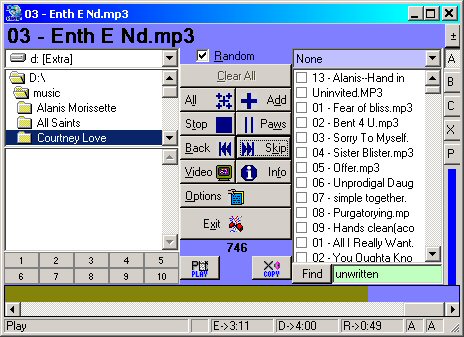
Loading songs is done on the left side of the player.
Start at the top, select the drive on you computer to load the songs from.
Next move down to the file selector. Double click on the folder you
want to look in. Move down again to select the songs you want to play. Now
three ways are posable to add songs.
1. Click on the song and click ADD!
2. Double Click on the song you want to add
3. Click ALL to add all the songs in the file box
You can also Drag Audio Video files in to the Box on the Right of the Player! Click
PLAY when you want to hear music.
TIP: If you hold cntr and press All, it will add supported media in folders also!
Remove Songs
If you add a wrong song (like a Spice Girls, or an Eve6 song), select the track
and press Delete on the keyboard (or hold Cntrl and double Click it!)\
I Gota Hear this Song NOW
Ok ok, keep your shorts on! Double click it. Done.
If you are listening to a killer track but want to hear a different track check the check
box next to it. When the current song is done, the checked songs will be played
next!
Skip'n Around
Skip will play the next song in the playlist. Back will skip back to the
start of the song! To play paticular parts of a song, use the right mouse button and
click on the time bar at the bottom the the player!
Options!
Setup
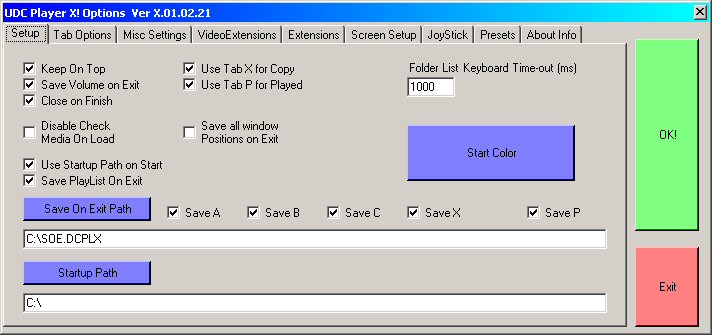
This tab lets you select basic features. This is also where you can set the start
color for the program and where your save on exit playlist is kept (and if you want one).
Tab Options
This is where you setup your copy places and played playlists for auto playlist
generation. You can also specify where to save everything.
Misc Settings
This stuff did not fit anywhere else, so it went here!
Extensions and Video Extensions
Here you can add new extensions for the program to recognize. For most users the
defaults should work.
Screen Setup
This tells the Video screen how to function.
Joystick Setup
Programming the joystick is easy!
1. First make sure that it is installed correctly in windows.
2. Check the Joystick check box next to the joystick you want to use. (Auto Check
for Sticks will do this for you)
3. Press and hold the button or buttons you want to use for a paticular feature (Like
Play\Stop or Paws)
4. Click (with the mouse) the feature you want to use (like Play\Stop or Paws)
5. Repeat untill you run out of features or joystick buttons
For analog volume, check the check box, select which stick to use and the Axis to
use. Move the axis to the minimum value and click set Min. Move axis to the
Maximum and click Set Max. If you are using a auto centering stick for volume, check
the "Use joystick button to change volume" and set a joystick button.
NOTE: You can use 2 or more buttons for a single feature! I use 4 button
pressed at once to exit the application.
Preset
To set a preset follow these steps (Following other steps will do something else, but not
set a preset)
1. Click the Preset number you want to set
2. Find a file in the folder you want to set (Example - find your napster folder and
select any song)
3. Click Open
Playlist
In order to load a playlist you first must save one!
1 Make a PlayList using using the load instruction above
2 In DC Player Use the Right Mouse Button on the right playlist window.
3 Click save and then choose Current playlist to save a *.DCPL of
the current tab, All playlist to save a *.DCPLX to save all the playlists, or Update SOE
(Save On Exit).
Load PlayList
What is the point of a playlist if you cant load it?
Select your playlist on the right, just like anyother file for UDC Player X.
Find
2 types of find exist. Find (green) and Move (Red)
Find (Green) 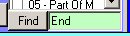 -
This will find the text typed in, in the current selected playlist
-
This will find the text typed in, in the current selected playlist
Move (Red) 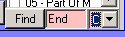 - this
will move everything that has the typed in text to the playlist selected in the drop down
box. This is great for finding covers!
- this
will move everything that has the typed in text to the playlist selected in the drop down
box. This is great for finding covers!
Is That All
No, there are more small things, but that is for you to discover!
(try clicking on the text near the top of the form, try holding Cntrl while doing
it!)
I want a new feature
Really, Let me know and maybe I will add it!