Creating an XBOX Image File and Burning it with Nero Burn
-Overview: To load any cd-rw or dvd backup, you need to make a xbox image file of the files and then burn it to the cd-rw or dvd with Nero Burn.

Software/Programs:
xISO
Neroburn
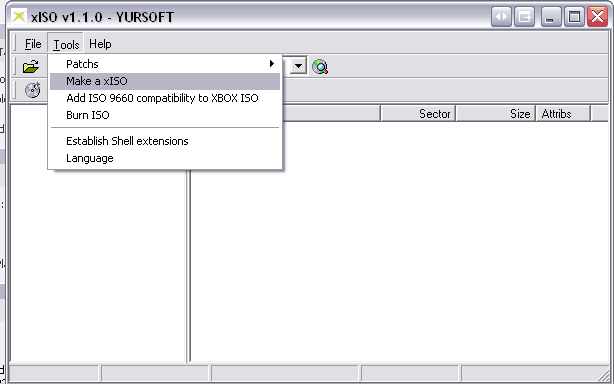
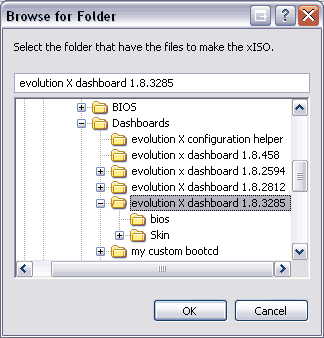
Step 2. It will popup a Browse for Folder window.
Choose the folder where you saved the evolution x boot files (evox.ini, default.xbe, skins folder, and bios folder) or game.
-For games: we want to select the D folder we copied from the xbox and renamed to the game. See example
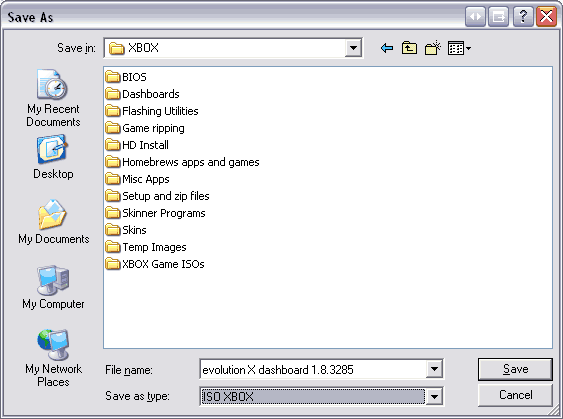
Once you click Save. You'll get a dialog box popup showing the status of the xISO we are creating.
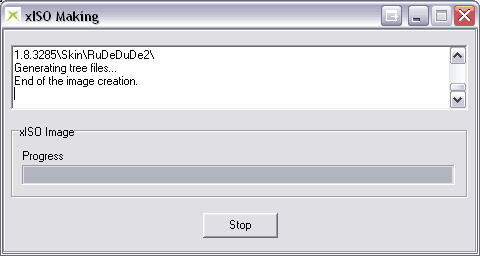
Once it finishes it will popup this box.
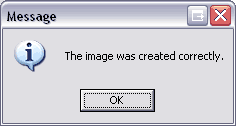
We are done creating the xbox iso file we'll burn with nero.
Step 3. Burning the .iso file to a cd-rw or dvd with Nero Burn
Open up Nero Burn and if you get the wizard popup, click the "Close Wizard" button. It should bring up a new menu like this (see right)
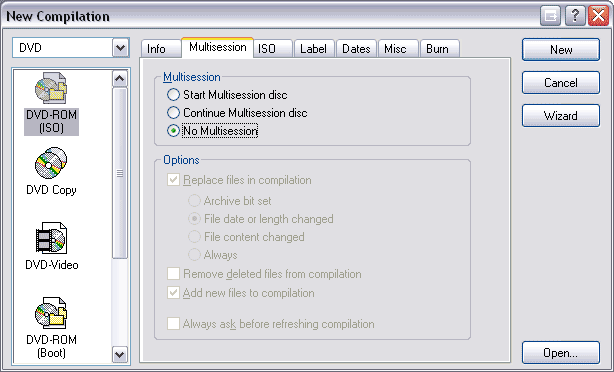
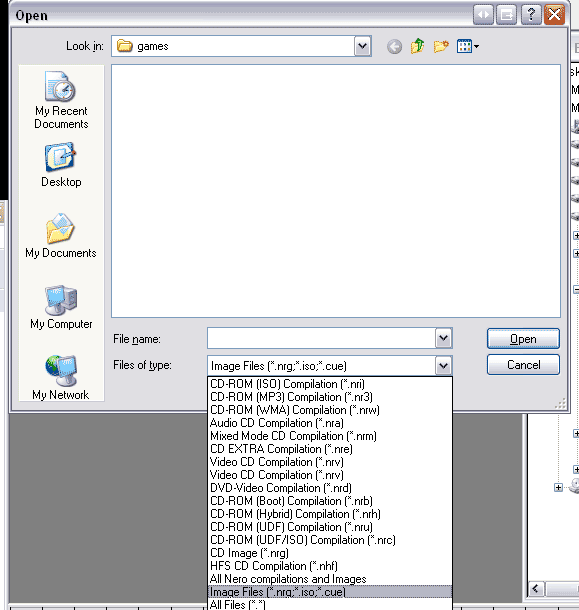
Click on Open. To open the .iso file, you'll need to change the Files of Type: to Image Files (*.nrg,*.iso,*cue) (See right)
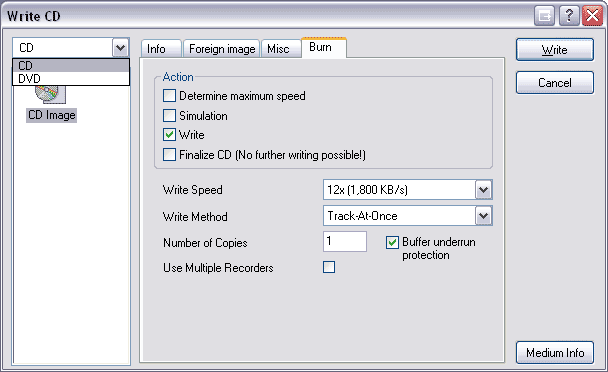
After you open the .iso file, it will popup this screen. Make sure to put a check next to Finalize CD.
(if your burning games, you'll need to change the CD to DVD. I had problems figuring that out right away.. haha the easiest thing too!)
Then click Write and it will burn your boot cd-rw or game to disc.
Now we have our boot cd-rw, we are ready to see what this evolution x dashboard looks like.
We can go back to Step 3 - Booting with the cd-rw