FTP into the XBOX and Installing the Evolution X Dashboard to your XBOX
-overview: To backup games and install programs, the easiest way is to FTP into the XBOX via a router or network card and crossover cable.
Software/Programs:
FlashFXP
Evolution X Dashboard version 1.8.3285
Any other homebrew apps or games you want to install.
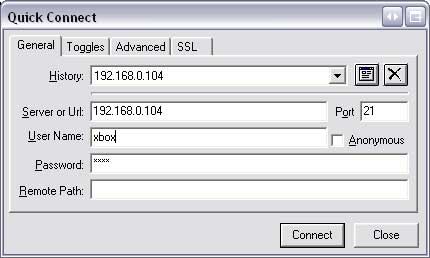
Step 1. Boot your XBOX with the Evolution X Dashboard boot cd-rw we made and let it load up. Then open up FlashFXP and click the Quick Connect button. Put in the IP address we found in the Settings part of the Evolution X Dashboard here.
Mine was IP: 192.168.0.104
Username: xbox
Password: xbox
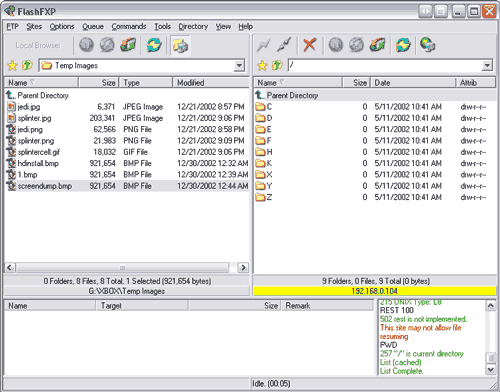
Once you click connect, you'll get a list of folders on the right. These are the different drives on your XBOX.
C: folder is the main folder
D: is the dvd drive, when you put in a game, you will want to copy this folder over to your computer and then make an xISO of the folder and burn it to a blank dvd and voila! a xbox backup!
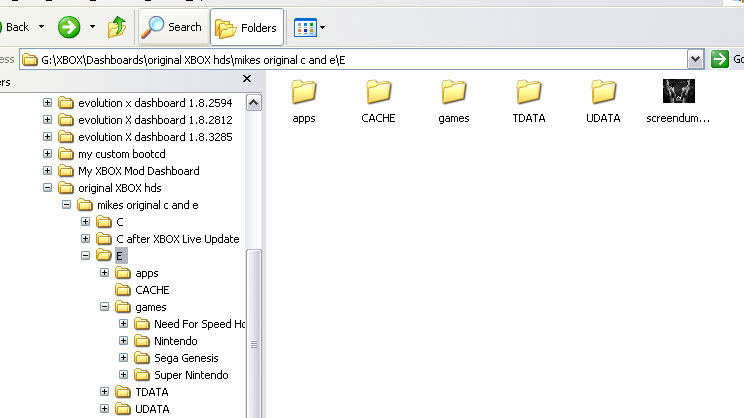
E: if you have the factory harddrive in your xbox, this is where you'll want to save your games and programs. This drive is only about 5-7 GBs of free space. Don't delete the folders already there, just add two new folders: apps and games. click to see pic. Then to install games or apps, just make a folder in either games or apps and then copy the files over to it. Click here to see Need for Speed example.

F: if you have added a harddrive into your xbox (i'll explain how to later), this is the largest drive. You can save your games and programs here just as described above. otherwise, if you have the factory drive, you can't save anything to this folder.
the other drives, are just temp storage folders for when you play a game. Leave them as is.
(see right)
READ!!
Before we go and do anything. We want to make a COMPLETE BACKUP of the XBOX's C: folder and E: folder and save them to your computer. JUST IN CASE.
Step 2. Installing Evolution X Dashboard to your XBOX (Don't need to boot from cd-rw)
Again, boot your xbox with the boot cd we made. Connect to your XBOX with FlashFXP (described above). Go into the C: of your XBOX. Copy over the folder where we made the boot cd from (the one that has the default.xbe, evox.ini, skins folder and bios folder) into the XBOX's C:
Then rename the default.xbe to evoxdash.xbe. This way your xbox will load up evolution x dashboard instead of the microsoft dashboard (xboxdash.xbe in the c: folder) and also you might not have as much troubles with xbox live messing up your dashboard, etc.
This is the nice thing about evox bios. It will look for the evoxdash.xbe file first, then the xboxdash.xbe if it can't find the evoxdash.xbe. I tested this out just ot be sure, and it works.
Now disconnect from the XBOX and reboot the XBOX without the CD and it should load up the same evolution x dashboard as before. If not, you might have to boot from the boot cd and then FTP into the xbox and rename the xboxdash.xbe (microsoft, factory one) to msxboxdash.xbe. Then rename the evoxdash.xbe to xboxdash.xbe. Then reboot and it should work.
Now Evolution X Dashboard is installed onto your XBOX's Harddrive.
Now lets go on to
Installing games and programs to your XBOX's hard drive and making backups of games
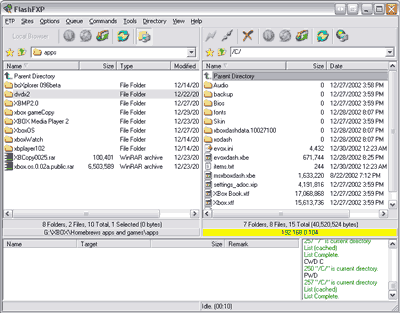
Here is what my xbox'c c: drive looks like (its different cuz i installed xbox live on mine and had to tweak it a little)