|
|
|
|
To create more pages for your web site, click on the new page button on the toolbar. The new page icon looks like a clean sheet of paper with the top right corner folded over.
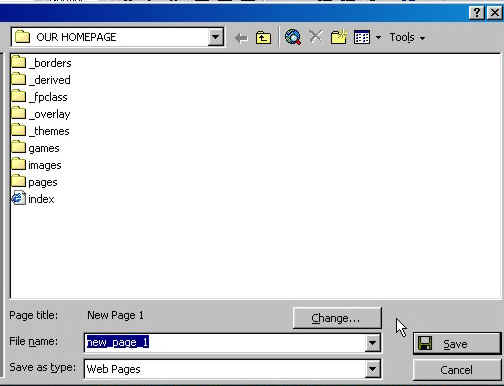
A new page will open formatted with the theme you have chosen and with all of the shared borders you picked to share. To save your new pages, click on the floppy disc icon in the tool bar. When you save the page for the first time a box like the one below will pop up wanting information.
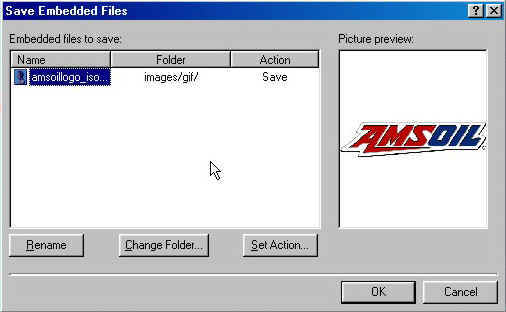
Where it says "PAGE TITLE," click on "CHANGE" to create a title for this page. Name the page for what it is. The title will show up later on your navigation bars and as the name of your page banner. In "FILE NAME" name the file a name you will remember in the future by just the name. The only rule here is that your main page, or homepage, MUST be named "index." This is what the WWW uses as a default page for any website out there. Use lower case letters only and if you need a space, use the under score instead. If there is a picture on the page, a new box will pop up like this one.
You now have the chance to "RENAME" the file or "CHANGE FOLDER", the place where the page will be saved to or set the file "ACTION" of your picture. Once all of the choices are to your liking, click on "OK" and your done. Try to put common pages in the same folder and likewise for pictures. FrontPage automatically makes a folder named images, create your own for the rest of your pages, this makes finding you files easier later.
|
| ||||||||