|
|
|
|
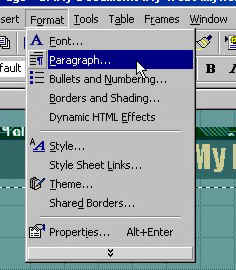
You can format the text and paragraphs on a page very simply with Front Page 2000. To format the look of a paragraph, simply click on the page where you want you paragraph to start the click on "FORMAT" and then "PARAGRAPH" in the tool bar.
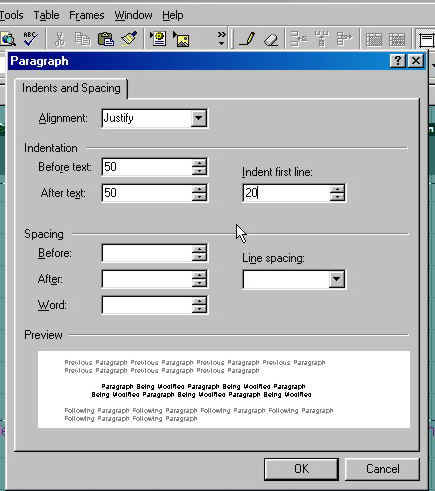
A box will open with all of the format properties available for paragraphs. Pick how you want your paragraph aligned on the page. Click on "ALIGNMENT" and you will have the choices of LEFT, RIGHT, CENTER or JUSTIFIED. Then how much indentation you want before and after the text and if you want your first line indented more. You can also specify spacing on letters, words and lines.
To change the font, font size, or color of the text or any other attribute of your text use the font toolbar. Normal keeps the text size to the original theme standard. Same so for the "default font". The "B" will make you text BOLD the "I" will format your text in "ITALIC" and the "U" will "UNDERLINE" your text. Select them all for a sentence like this.
In the next part of the text toolbar, you have the choice of how to position your text. Starting on the left of the example below are Left, Centered or right. The next four buttons are for bulleted lists which I will cover later and the next to are for text color. The first button in yellow will highlight the background directly behind your text to a specified color like a highlight pen and the last button changes the color of you text so you can do this: Highlight
|
| ||||||||