Now that you have a picture on your page there are many choices on ways to improve upon it. When you click on the picture, a picture toolbar appears at the bottom of the page. Here is a quick rundown on what the buttons mean.
 Lets you insert text on a picture. This will automatically convert you pictures to
GIF format.
Lets you insert text on a picture. This will automatically convert you pictures to
GIF format.
 Makes a small picture, that when clicked on, opens a larger picture. Makes page
loading with lots of pictures much faster.
Makes a small picture, that when clicked on, opens a larger picture. Makes page
loading with lots of pictures much faster.
 Flips and turns your picture anyway you want in the direction of the displayed
arrow.
Flips and turns your picture anyway you want in the direction of the displayed
arrow.
 Adjusts the brightness and contrast of the picture to your liking. If you change
your picture and don't like it, click "Edit" and "Undo" on
the tool bar at the top of the page before you save any changes and all changes
will go back to original.
Adjusts the brightness and contrast of the picture to your liking. If you change
your picture and don't like it, click "Edit" and "Undo" on
the tool bar at the top of the page before you save any changes and all changes
will go back to original.
 Lets you "Crop" your pictures to fit on your pages better. Click on
this button and a dashed outline shows up. Drag this outline to the outline of
what you want the picture to look like a click it again.
Lets you "Crop" your pictures to fit on your pages better. Click on
this button and a dashed outline shows up. Drag this outline to the outline of
what you want the picture to look like a click it again.
Another way you can edit your pictures is to right click on it and choose "Picture Properties."
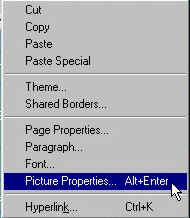
This will open a picture properties box with even more choices. This is where you can make a picture file size much smaller for faster browser down loads. On the first tab of the properties box you will see a box named "Text." This is where you enter the text you want visitors to see when they hover the mouse over you favorite pictures.

At the top of the box click on the tab that reads "Appearance." Click in "Specify Size" and "Keep Aspect Ratio" and change the size of your picture to fit your page. Don't try to make the picture bigger, only smaller if it is too big for your page. You can also set the Alignment on the page here.
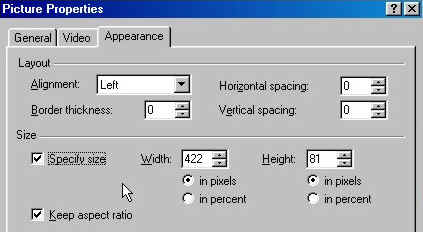
After you have changed the size of you picture, click on the resample icon in the picture toolbar and front Page will help compress the file size for you. Look in the lower right hand corner and it shows you seconds it will take to load this page at the given dial up speed.

Now lets move on to setting up some navigation on your site and finally using those left and bottom shared borders.