 |
 |
 |
 |
|
|
|
|
THIS IS A LONG SCROLL PAGE. Go to the bottom of the Page.
Lesson 3: ToolBox
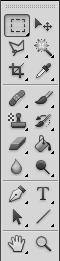
1.Marquee Tool- used to select certain part of an image with the desired shape of the marquee.

2. Move Tool- moves selected image of a layer.

3. Lasso Tool- selects image by dragging and clicking the sides of the image.

4. Magic Wand Tool- selects same colored area of an image.

5.Crop Tool- crops and reduces the image canvass by selecting the part you only want to appear.

6.Brush Tool- colors manually with the use of dragging the mouse.

7.Healing Brush Tool- brush tool made to remove imperfections on a certain image.

8.History Brush Tool- it undo's the drawing.

9.Hand Tool- moves a certain object in a pathway.

10.Paint Bucket Tool- it colorizes the whole canvass.
11.Clone Stamp Tool- Clones the image you have inserted.

12.Eraser Tool- erases the pixels of the image.
13.Zoom Tool- magnifies the image.

14.Blur Tool- it blurs the selected part of an image.

15.Path Selection Tool- It selects an image with its path vector.

16.Text Tool (Horizontal & Vertical)-allows you to type text and place it accordingly.

17.Eye Dropper Tool- selects the color of the foreground.

Lesson 4:Selection Tools
Selection tools are used to select move, drag and arrange different layers or images according to your pleasure.
Tools such as: Move Tool, Marquee Tool, lasso Tool, Magic Wand,Quick Selection, Crop Tool.
Lesson 5:Alteration Tools
This is the fundamental need of graphic designers, modelling companies and other magazine publishers. It contains tools that has the power to change and alter the image you have provided.
Tools such as:Spot Healing Brush, Patch Tool,Stamp Tool,Brush Tool, Gradient Tool, Paint Bucket Tool, Smudge, Sharpen, Blur and etc.
Lesson 6:Vector Tools
Tools like this are used in special typing projects, or for tarpaulin making for different special occasions. vector tools such as: Type Tool, Path Selection Tool,Custom Shapes, Line tool and more.
You can make different form of artwork with the use of blending colors and text effects.
Lesson 7: Assisting Tools
This are the tools that will assist you in your workspace or canvass.
Tools such as: Zoom Tool, and Hand Tool.
Lesson 8:Tools KEYTIPS
1.Add Shape (+)
2.Subtract Shape (-)
3.Decrease Brush Size ([)
4.Increase Brush Size (])
5.Decrease Brush Softness by 25% (Shift+[)
6.Increase Brush Hardness by 25% (Shift+])
7.Previous Brush (<)
8.Next Brush (>)
9.First Brush (Shift+<)
10.Last Brush (Shift+>)
11.Paint Brush Tool (b)
12.Crop (c)
13.Default Colors (d)
14.Eraser (e)
15.Gradient (g)
16.Dodge/Burn Sponge (o)
17.Pen (p)
18.Blur/Sharpen/Smudge (r)
19.Clone Stamp (s)
20.Type Tool (t)
21.Select Shape Tool (u)
22.Move Tool (v)
23.Magic Wand (w)
24.History Brush (y)
25.Zoom (z)
26.Lasso (l)
27.Marquee (m)
Lesson 9: EDITING KEYTIPS
1.Copy (ctrl+c)
2.Copy Merged (ctrl+shift+c)
3.Cut (ctrl+x)
4.Duplicate Free Transform (Ctrl+Alt+T)
5.Fill w/ Background (Ctrl+Backspace)
6.Fill w/ Foreground (Alt+Backspace)
7.Liquify (Ctrl+Shift+L)
8.Pattern Maker (Ctrl+Alt+Sift+X)
9.Inverse (Ctrl+Shift+I)
10.Transition Again (Ctrl+Shift+T)
11.Step Forward (Ctrl+Shift+Z)
12.Step Backward (Ctrl+Alt+Z)
13.Paste (Ctrl+V)
14.Adjustment (Ctrl+Shift+F)
Lesson 10:VIEW KEYTIPS
1.Grid (Ctrl+')
2.Guides (Ctrl+;)
3.Menu Bar (Shift+f)
4.Rulers (Ctrl+r)