IMP: Please save this Web Page and read the Instruction leisurely as you may not be able to grasp the concepts in the first go. Right Click here and select "Save Target As" option
Winzip is a very powerful tool for the Net Surfer. Almost 85% of all files you download are Zipped files (west.zip etc). To open these files you need Winzip. What Winzip does is it compresses a huge file into a smaller file. For example a Wallpaper File of 1 Mb can be compressed upto 50 kb. No information is lost when there is file compression.
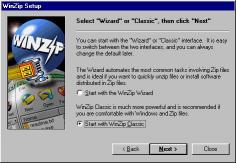
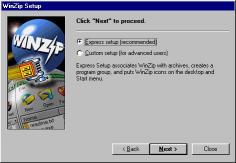
Winzip is a shareware program. You can use for as long as you want but you will have to put up with the "Buy Me Sign" whenever you run Winzip or if you open a file. You can download the latest version from www.winzip.com. Once downloaded, please install the software before continuing with the tutorial. After Installation when you come across these two windows in succession.
|
|
|
Please select "Winzip Classic" and then select "Express Setup". Now you are ready to start to use Winzip.
The most common operation which you do with Winzip are:
1. EXTRACTING FILES TO A CERTAIN FOLDER
To help you understand how to extract please have a file ready with you or if you don't, download this sample file (Sample.Zip).
Double Click the file you want to extract. After the "Buy Me" window you will come enter the program i.e (off course if you downloaded the sample program).
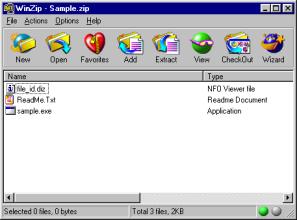
You can now either selectively extract files or simply extract the all the files in one go. If you want to extract selective files then hold the "ctrl" key on your keyboard and simultaneously select files with your mouse button. The selected files will be highlighted in blue.
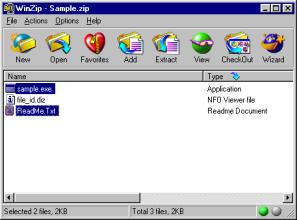
To deselect just click on the highlighted files.
Offcourse if you want to extract all the files skip the above paragraph. Now click on Extract. You will now come to the extract dialogue box.
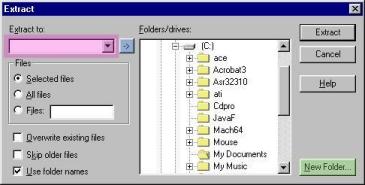
You can now type in the Destination Path in the "Extract to" Space (Highlighted). Even if your directory does not exist, Winzip automatically create the directory for you.
Tip: use the pull down menu in the "Extract to" button to see the list of folders to which you have already zipped files
Alternatively you can browse in the "Folder/Drives" to your destination folder. This works just like the Windows Explorer. (How??).
You can also create a New Folder in a certain directory. Do this by clicking on the "New Folder" button.
The Little Arrow button next to the Extract To button (higlighted blue ) will take you to folder to which you had last extracted (extremely useful when you are unzipping Nintendo And Supernintendo Roms)
2. Installing Software
When you download a program, many times it may come in a zipped
file. Normally the file will contain a special kind of program/file which says
"Install" or "Setup". You identify these files because they usually have computer
icon  or a disk icon.
Just double click on the file.Then this dialogue box will come.
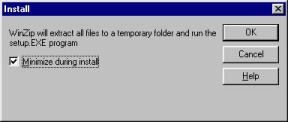
Just click on "OK". Winzip will minimize automatically and the installation program will come up.
After you have installed the program go to back to the minimize window and click on the Ok button. Now You can safely close the winzip file.
GENERAL TIPS
You can learn about the other features in Winzip if you read the Winzip help file.
HOMEPAGECheck out other exciting and informative tutorials like this one. You won't regret clicking here.