Many users need to utilize geometry to accurately see the effects of lip sync on their models, but on all but the most powerful machines this playback mode doesn't approach real time. To provide real time playback with geometry mode, a new playback mode has been provided that effectively "playblasts" the geometry frames.
To the right of the playback button, a new button that has the playback symbol and a small "S" has been added. In addition, the reference playback window has a pull-down menu that selects between "Reference", "Playback", and "Off".
When the new playback button is pressed, Soundsync will play forward, one frame at a time, on the current selected region. If no region is selected, it will play back the entire width of the window. It will grab frames from the "Mixed" keyset window and prepare them for playback in the Reference window. This process is NOT INTERRUPTIBLE. Once the frames are grabbed, the frames in the Reference window can be replayed in real time.
The keysets required are as follows:
| Mood | containing Happy and Sad. |
| Speak | containing Lips tightly closed, Mouth half open, Mouth fully open, and Mouth in O shape. |
| Eyes | containing Look Left, and Look Right. |
| It is not necessary to create the keyshapes with increments of 10 frames between them, the frames can be adjacent. This is done for the example. |
The information in the above chart is important; you will use it to construct a keyset file later to get your data into SoundSync.
SoundSync can also work with keysets created using Shapeshifter nodes in Alias. Shapeshifter controls a set of clusters on one or more surfaces through a single control value. Ashapeset (rather than a keyset) in SoundSync allows you to manipulate that control value.
When you are constructing a model, do not put any keyframes on the control node and make certain that its static value is set to the minimum or zero value. You can use as many Shapeshifter controls as you like. You need to know the name of the control node, the channel being used, and the range of the control value when you construct your shapeset.
Keyset functionality within SoundSync references keyframes that you have set in your wire file. Shapesets allow you to directly manipulate control sliders to affect geometry or attributes through the use of expressions. Shapesets also allow the direct manipulation of slider geometry associated with Shapeshifter.
There are several differences between keysets and shapesets in SoundSync. The most important difference is that in keysets, soundsync looks at all animated dag nodes at the frame you specify within a keyset block after each "key" entry. When using shapesets, there is no keyframe information to reference, but by using the "key" entry, you specify a value for control slider geometry.
You can set keyframes for sliders for use in SoundSync, but this would be referenced within the keyset file as a keyset block instead of a shapeset block.
Again, shapesets do not reference keyframe information, but instead apply a value to the control dag node.
Below is a sample keyset file with two shapeset blocks...
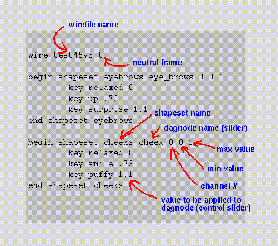
The following sample contains all of the required elements of a shapeset.
begin shapeset cheeks cheek 0 0 1
In the above example, an image could be specified after the value for a particular key. The use of images is a keyset or shapeset is totally optional; however, this can improve the appearance and usability within the SoundSync user interface.
To reference a rendered image, change the key entry as follows:
Where "cheek.relax" is an Alias pix image that represents the relaxed cheeks.
If an image name is not supplied, default images will be generated when the keyset file is retrieved in SoundSync.
ShapeShifter provides a simple mechanism for controlling a complex series of interpolations between key shapes with a single control.
A keyset file might look like this (see head.keyset in the clip directory):
begin shapeset Hat hatmorf 0 0 1 key droop 1 key windblown -0.5 key normal 0 end
begin shapeset <keyset-name> <dag-name> <channel> <min> <max>
key <key-name> <value> ... end
Alternatively, you can leave the <min> and <max> parameters off and the software will assume 0.0 and 1.0:
begin shapeset <keyset-name> <dag-name> <channel>  key <key-name>
<value>  ... end
The <channel> parameter is a number indicating which dag channel is changed to alter the shapeset; 0 is X_Translate, 1 is Y_Translate, and so on.
Soundsync will tesselate the <min> and <max> positions. By moving the slider, any intermediate position can be achieved; the keys are provided as a convenience.