The menu bar is located at the top of the SoundSync window. It is always displayed and appears as follows:
The items in the menu bar menus are accessed by clicking the name of the menu with the left mouse button and dragging down the list of menu options until you reach the item you want to select. Release the button and the function either toggles or opens an option box.
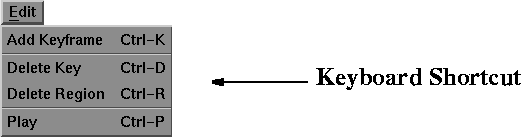
Many menu commands have keyboard shortcuts that let you make menu selections by typing special keys on the keyboard. Shortcuts are displayed at the end of the menu item as in the following example:
To use the keyboard shortcuts, hold down the Ctrl key while you type the letter key.
Keys used as shortcuts to menu items are affected by the state of the keyboard. In particular, Num Lock and Scroll Lock can disable shortcuts. If you normally use the Num Lock or Scroll Lock keys, SoundSync detects this and resets the menu shortcuts appropriately. However, if you change the status of these settings while SoundSync is running, it cannot detect this and the keyboard shortcuts will not work. Therefore, it is best not to change these settings once you have begun working in SoundSync.
Some menu items are toggles and have an On or Off state. If the item is On, a diamond shape appears to the left of the menu item. If the item is Off, the diamond disappears.
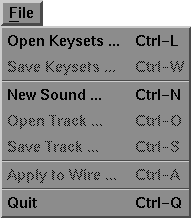
The File menu appears as follows:
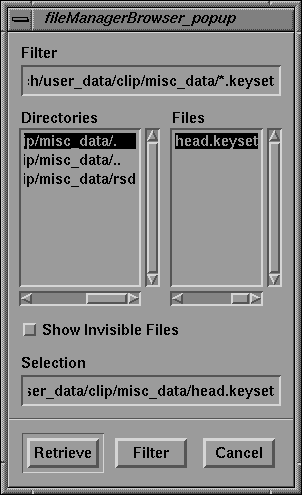
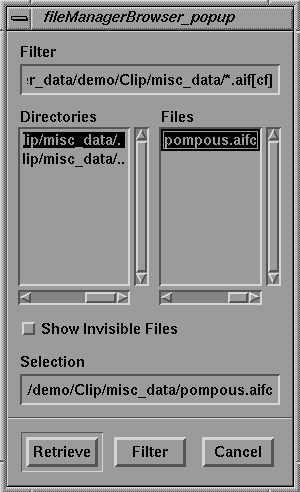
Selecting Open Keysets... opens the fileManagerBrowser_popup window which appears as follows:
Click the name of the directory under the Directories list that contains the file you want to load. The list of files in the selected directory displays under Files.
Click the name of the file you want to retrieve and it highlights.
Click the Retrieve button and SoundSync loads the keyset file.
The Filter button activates the Filter edit field. The Filter edit field is used to specify a UNIX-style string matching prototype for the types of files shown in the Files column. The Filter variable is automatically set to the appropriate value for each different type of file being loaded. In the above example, the browser lists all files that match the *.keyset prototype. The Filter button is the same in all file browsers.
Keyset files are assumed to contain only the wire file name, the keysets, and any related recognizer configuration information.
Open Keysets... is a convenient mechanism for using the same basic animation on a different sound track.
The key sequence Ctrl-L is the keyboard shortcut for this menu item.
Save Keysets... appears grayed out unless there is a keyset loaded that needs to be saved.
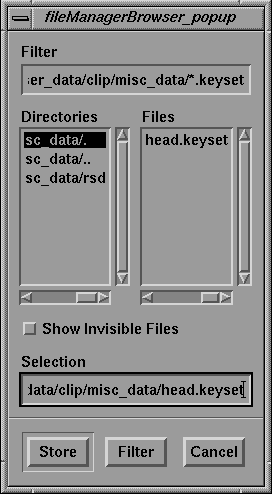
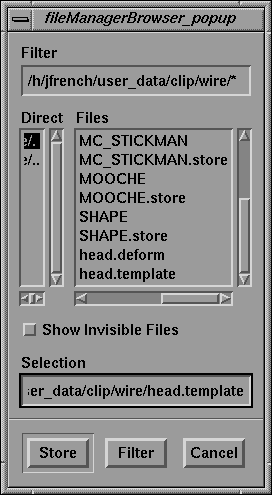
Selecting Save Keysets... opens the fileManagerBrowser_popup window which appears as follows:
Click the name of the directory under the Directories that you want to save the keyset in. The list of files in the selected directory displays under Files.
Click the name of the file you want to store and it highlights.
Click the Store button and SoundSync stores the keyset file, recognizer configurations, and the wire file name. Information about the current soundtrack, marktrack, or any of the keytracks is not saved.
The key sequence Ctrl-W is the keyboard shortcut for this menu item.
Selecting New Sound... opens the fileManagerBrowser_popup window which appears as follows:
Click the name of the directory under the Directories list that contains the file you want to load. The list of files in the selected directory displays under Files.
Click the name of the soundtrack file you want to retrieve and it highlights.
Click the Retrieve button and SoundSync loads the soundtrack file makes it the current soundtrack.
All existing animation (keytracks) and the marktrack are deleted. Any current keysets or recognizers remain.
The key sequence Ctrl-N is the keyboard shortcut for this menu item.
Open Track... appears grayed out unless there is a keyset file already loaded.
Selecting Open Track... opens the fileManagerBrowser_popup window which appears the same as when Open Keysets... is selected except that only track files are listed.
When you select the file you want to open and click Retrieve, SoundSync loads the track file. All existing animation, soundtrack data, keysets, and configured recognizers are deleted prior to loading this new track.
The key sequence Ctrl-O is the keyboard shortcut for this menu item.
Save Track... appears grayed out unless there is a soundtrack file already loaded that needs to be saved.
Selecting Save Track... opens the fileManagerBrowser_popup window which appears the same as when Save Keysets... is selected except that only track files are listed.
When you select the file you want to save and click Store, SoundSync loads the track file. The marktrack, soundtrack, and all keytracks are saved.
The key sequence Ctrl-S is the keyboard shortcut for this menu item.
Selecting Apply to Wire... opens the file ManagerBrowser_popup window:
Click to highlight the name of the directory where the wire file you want to apply animation to is stored. The files are listed under Files.
Click to highlight the name of the wire file you want to apply animation to. Click the Retrieve button.
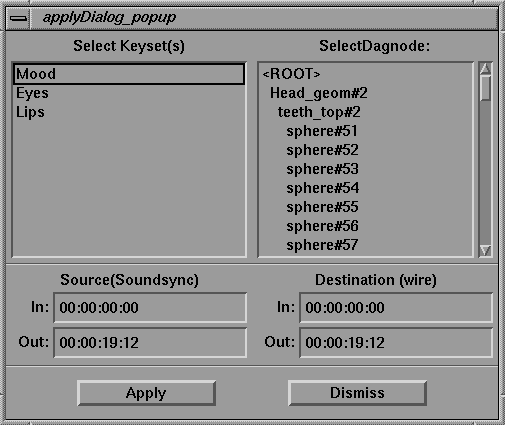
The applyDialog_popup window is used to determine which keysets will be applied to which dag nodes. It is also used to determine how much of the animation is applied to the wire file and where the animation occurs.
The keysets are all listed under Select Keyset(s). You must select at least one keyset.
Under Select Dagnode the dag node structure for the wire file is displayed. SoundSync uses the names of the nodes in your original wire file to match nodes in the new wire file for applying the animation. This dag hierarchy is provided so that you can control the application point for the animation data.
Select the keysets that you want to apply to the wire file. Select the dag nodes that you want to apply the animation to.
| Selecting a dag node does not apply the animation to only that node. SoundSync attempts to apply the animation to that node and all the nodes below it. |
| If a wire file contains two heads with identical structures and names, they are distinguished only by the suffix #2 on the dag node names. Since SoundSync drops the # suffix when matching node names, it is confused as to which node is meant to receive the animation. |
| By placing the two heads in separate hierarchies and selecting the top node of one head or the other, you can control where the animation is placed in the wire file. |
At the bottom of the window are Source and Destination frame numbers for the animation. The Source side is used to select how much of the animation is applied from SoundSync. Frame 0 is the start of the soundtrack.
The Destination side is used to select where the animation is applied. SoundSync does not accept timewarps. Therefore, the In and Out values in the Destination must be the same as in the Source. For example, selecting 100 as the In point for the Destination means that the first frame selected on the Source side, say 0, is put at frame 100 in the wire file.
The default animation region in SoundSync is the whole animation. The default frame range on the Source side encompass the full range, beginning with frame 0.
Click in the edit area and drag to highlight the number or numbers you want to change. Type the frame number you want and press Enter.
When you have selected where you want the animation applied to the wire file, click the Apply button. The following file browser appears:
Select the name of the file you want to store the newly animated wire file as under Files, or type the name you want to store the newly animated wire file as at Selection.
Click the Store button and SoundSync stores the file where you indicated in the fileManagerBrowser_popup.
The key sequence Ctrl-A is the keyboard shortcut for this menu item.
Selecting Quit exits SoundSync.
The key sequence Ctrl-Q is the keyboard shortcut for this menu item.
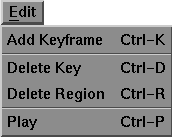
The Edit menu appears as follows:
Selecting Add Keyframe works in two different ways:
The smoothing type of the new keyframe is Ease.
Selecting Edit  Add Keyframe is the same as clicking the Add Key button in the soundtrack edit controls. The Add Key button appears as follows:
The key sequence Ctrl-K is the keyboard shortcut for this menu item.
Selecting Delete Key works in two different ways:
Selecting Edit Delete Key is the same as clicking the Delete Key button in the soundtrack edit controls. The Delete Key button appears as follows:
The key sequence Ctrl-D is the keyboard shortcut for this menu item.
Selecting Delete Region works in two different ways:
Selecting Edit Delete Region, is the same as clicking the Delete Key Region button in the soundtrack edit controls. The Delete Key Region button appears as follows:
The key sequence Ctrl-R is the keyboard shortcut for this menu item.
Selecting Play plays the current sound or sound selection.
Selecting Edit Play is the same as clicking the Play Forward button in the soundtrack edit controls. The Play Forward button appears as follows:
The key sequence Ctrl-P is the keyboard shortcut for this menu item.
If Image mode is selected for the Keyset preview window, selecting At Midpoint makes the transition between images occur at the midpoint between two keyframes during playback.
If Image mode is selected for the Keyset preview window, selecting At Keyframe makes the transition between images occur at the keyframe point during playback.
If Image mode is selected for the Keyset preview window, selecting Dissolve makes the transition between images occur as a dissolve between the keyframes during playback.
If Geometry mode is selected for the Keyset preview window, selecting As Points displays the geometry as dots at each vertex.
If Geometry mode is selected for the Keyset preview window, selecting As Lines displays the geometry as lines connecting the vertices.
If Geometry mode is selected for the Keyset preview window, selecting As Polygons renders the objects in the scene with a best guess as to which side of the polygon is facing outward.
If Geometry mode is selected for the Keyset preview window, selecting As Polygons (CW) renders the polygons in clockwise order to determine the outward normal.
If Geometry mode is selected for the Keyset preview window, selecting As Polygons (CCW) renders the polygons in counterclockwise order to determine the outward normal.
If Geometry mode is selected for the Keyset preview window, selecting As Polygons (Both) renders both sides of each polygon, in both clockwise and counterclockwise order, to determine outward normal.
Selecting Toggle Textures toggles texture mapping on and off for models that have loaded textures.
If Geometry mode is selected for the Keyset preview window, selecting View --> Images runs the geometry through each of the keyshape positions and replaces the images with snapshots of the geometry. This can be useful if geometry display is slow but you want to get a close look at a part of the geometry during sound playback.
Select the view you like in the Keyset preview window, and switch the Keyset preview window back to Image.
The Keyset preview window displays a new view of the keyshapes that appears almost as if you had rendered it.
Selecting Restore Images returns the keyset images to their original state when loaded.
Selecting Load Geometry toggles whether or not geometry will be tessellated when loaded into the program.
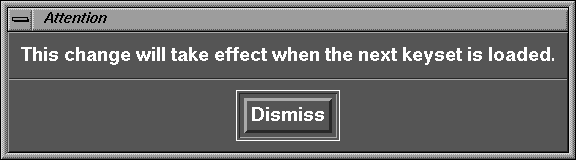
When you select Load Geometry, the following message is displayed:
The radio button to the left of the Load Geometry option indicates that geometry will be tessellated when loaded into the program.
If there is not radio button to the left of the Load Geometry option, only images are loaded into SoundSync.
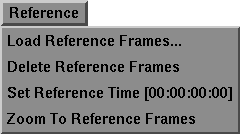
The Reference menu appears as follows:
Selecting Load Reference Frames... opens the file browser.
Click the name of the file you want to load reference footage from for SoundSync to display with the soundtrack. When the file you want to load is highlighted, click the Retrieve button.
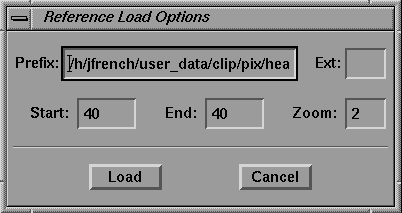
The following window is displayed:
Click-drag in the edit fields and then type to replace the values.
When you have selected the Start and End frames you want to use, click the Load button.
SoundSync looks at the frame number of the file you chose and loads all images from that point forward until the sequence ends. For example, if you have the frames test.0 through test.100 and you select test.0 in the file browser, frames 0 through 100 are loaded. If you select test.50, only frames 50 through 100 are loaded.
| Any missing frames break the sequence. Therefore, if the frame test.67 is missing, selecting test.50 only loads frames 50 - 66. |
The Ext edit field is used to specify the file name extension of the file you are loading. For example, if the filename was image, the Ext was pix, the Start value was 20, and the End value was 25, SoundSync would load the images image.0020.pix, image.0021.pix, and so on through image.0025.pix.
The Zoom edit field is used to specify the amount that you want the reference frames zoomed in the soundtrack area when they appear.
Selecting Delete Reference deletes any reference frames you have previously loaded.
Selecting Set Reference Time [00:00:00:00] sets the reference frames playback to begin at the current position of the time slider.
Once you have selected Set Reference Time [00:00:00:00], when you next look at the option, [00:00:00:00] is replaced by the time value at the preview display area.
Selecting makes the reference frames fill the width of the Soundtrack display area.
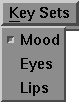
The Key Sets menu varies in appearance as it displays all loaded keysets by name.
If there are no loaded keysets, the menu appears as follows:
If there are keysets loaded, the menu displays a list of the keysets. A typical menu with keysets loaded appears as follows:
When you select a keyset, a pushed in radio button appears to the left of the name of the keyset to indicate that it is the active keyset.
Selecting a keyset makes that keyset active and displays the keytrack associated with this keyset in the soundtrack display area.
If the keyset selected has any recognizers, any previously active recognizers are closed, and the selected keyset's recognizers are displayed.
The default Recognizer menu appears as follows:
The Pitch and Volume recognizers are included with SoundSync and you can use them as a basis for creating any other recognizers you might want.
| For further information about creating plug-in recognizers, see the "Recognizers" section later in this chapter. |
All configured recognizers stored in the appropriate plug-in directories are listed in the Recognizer menu.
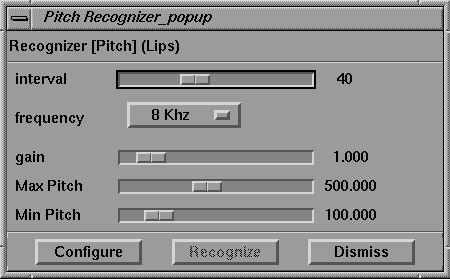
Selecting Pitch when you have a keyset and a soundtrack loaded opens the following window:
| Selecting Pitch when you have no keysets or soundtracks loaded does nothing. |
The pitch recognizer uses an FFT and cosine transform to estimate the pitch of the sound signal. These estimates are quite accurate but can require significant computation time, especially for a long audio sample.
The interval slider refers to the timeslices at which SoundSync matches the soundtrack to a recognizer target. You need to balance execution speed, number of matches, and level of detail to obtain the best result.
The frequency menu controls the accuracy of the matches and also the computation time. The higher the frequency selected, the greater the accuracy and the higher the computation time.
The gain value is used to compensate for volume changes, and the Max Pitch and Min Pitch values are used to determine the pitch range for the computation.
When the recognizer control panel first appears, the Recognize button is grayed out because it cannot be used until all of its targets are linked to keyshapes.
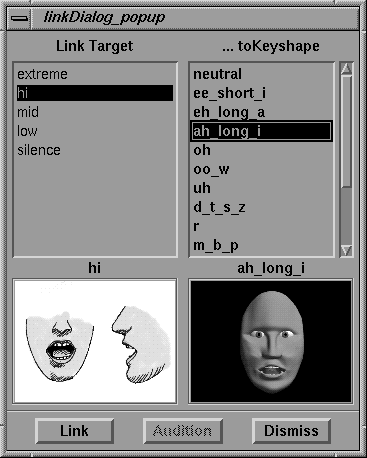
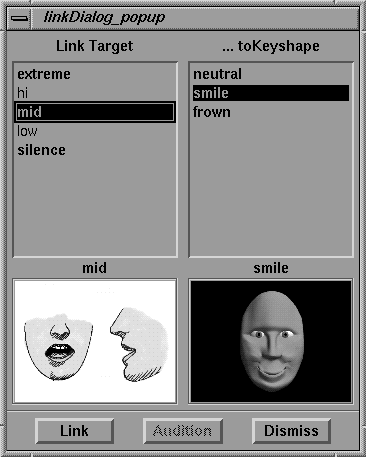
Clicking the Configure button opens the following dialog box:
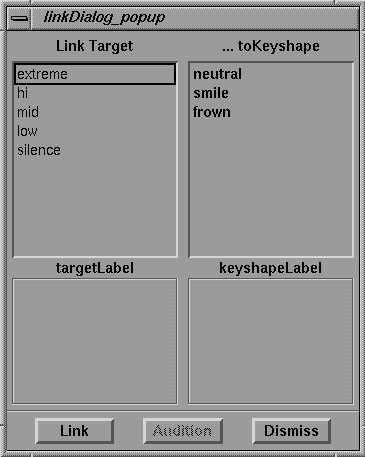
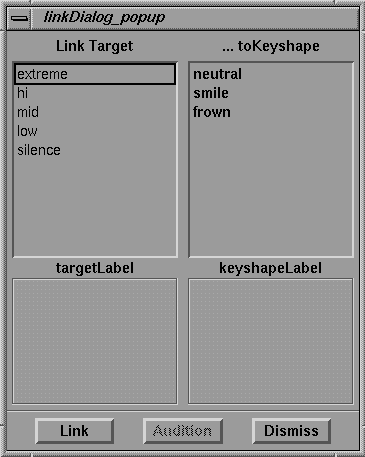
| Until you select a Link Target and a ... toKeyshape the linkDialog_popup may appear as follows: |
On the left side of the dialog box, all of the targets are listed by name. On the right side, all of the keyshapes for the current keyset are listed by name.
To link a target to a keyframe:
Another way to link a target to a keyframes is:
Linked targets and keyframes are listed in bold text in the target list. This helps you to determine which targets have not yet been linked.
The sketch on the left, under the target list, represents a typical mouth position for the type of sound selected in the list.
The keyshape image preview window, under the keyshape list, shows the keyshape selected in the list.
Recognizers that contain sounds matched to the soundtrack have an Audition button. If you click the Audition button, the selected sound plays.
Once you have linked all the targets to keyshapes, click the Dismiss button to close the link Dialog_popup window. The Recognize button on the pitch recognizer's interface window is no longer grayed out.
Click the Recognize button to call the pitch recognizer on the selected region of the soundtrack. The recognizer does the following:
| This process cannot be interrupted. |
If the result is not satisfactory, adjust the recognizer parameters and run the recognizer again.
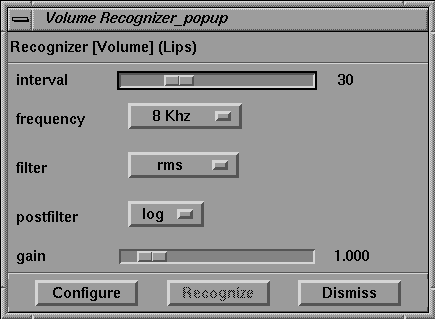
Selecting Volume when you have a keyset and a soundtrack loaded opens the following window:
| Selecting Volume when you have no keysets or soundtracks loaded does nothing. |
The volume recognizer uses several techniques to analyze a soundtrack and match it to a list of targets. The volume recognizer measures simple volume by the amplitude of the digitized signal and adds root-mean-square measurements and a log post-filter to improve the volume estimate. All of these parameters are controllable through the volume recognizer control panel shown above.
The interval slider refers to the timeslices at which SoundSync matches the soundtrack to a recognizer target. You need to balance execution speed, number of matches, and level of detail to obtain the best result.
The frequency menu controls the accuracy of the matches and also the computation time. The higher the frequency selected, the greater the accuracy and the higher the computation time.
The gain slider is used to bias the sound so that consistent results are obtained regardless of the overall sample volume.
When the recognizer control panel first appears, the Recognize button is grayed out because it cannot be used until all of its targets are linked to keyshapes.
Clicking the Configure button opens the following dialog box:
On the left side of the dialog box, all of the targets are listed by name. On the right side, all of the keyshapes for the current keyset are listed by name.
| Until you select a Link Target and a ... toKeyshape the linkDialog_popup may appear as follows: |
To link a target to a keyframe:
Another way to link a target to a keyframes is:
Linked targets and keyframes are listed in bold text in the target list. This helps you to determine which targets have not yet been linked.
The sketch on the left, under the target list, represents a typical mouth position for the type of sound selected in the list.
The keyshape image preview window, under the keyshape list, shows the keyshape selected in the list.
Recognizers that contain sounds matched to the soundtrack have an Audition button. If you click the Audition button, the selected sound plays.
After you have linked all the targets to keyshapes, click the Dismiss button to close the link Dialog_popup window. The Recognize button on the volume recognizer's interface window is no longer grayed out.
Click the Recognize button to call the volume recognizer on the selected region of the soundtrack. The recognizer does the following:
| This process cannot be interrupted. |
If the result is not satisfactory, adjust the recognizer parameters and run the recognizer again.