


Purpose
This tutorial shows you how to sample in real time by connecting a Biped filter to the Ascension Flock of Birds (or other real time magnetic device).
|
This tutorial assumes that a Flock of Birds is the device being used for motion
capture, and that the motion capture is being done on a biped figure.
Configuring the hardware to operate the Flock of Birds is complex. Careful
study of manuals provided by both Ascension and XYLogics is recommended.
|
- Load the wire file Tutorial3.wire using File
 Retrieve Model. This file contains the MC_STICKMAN character.
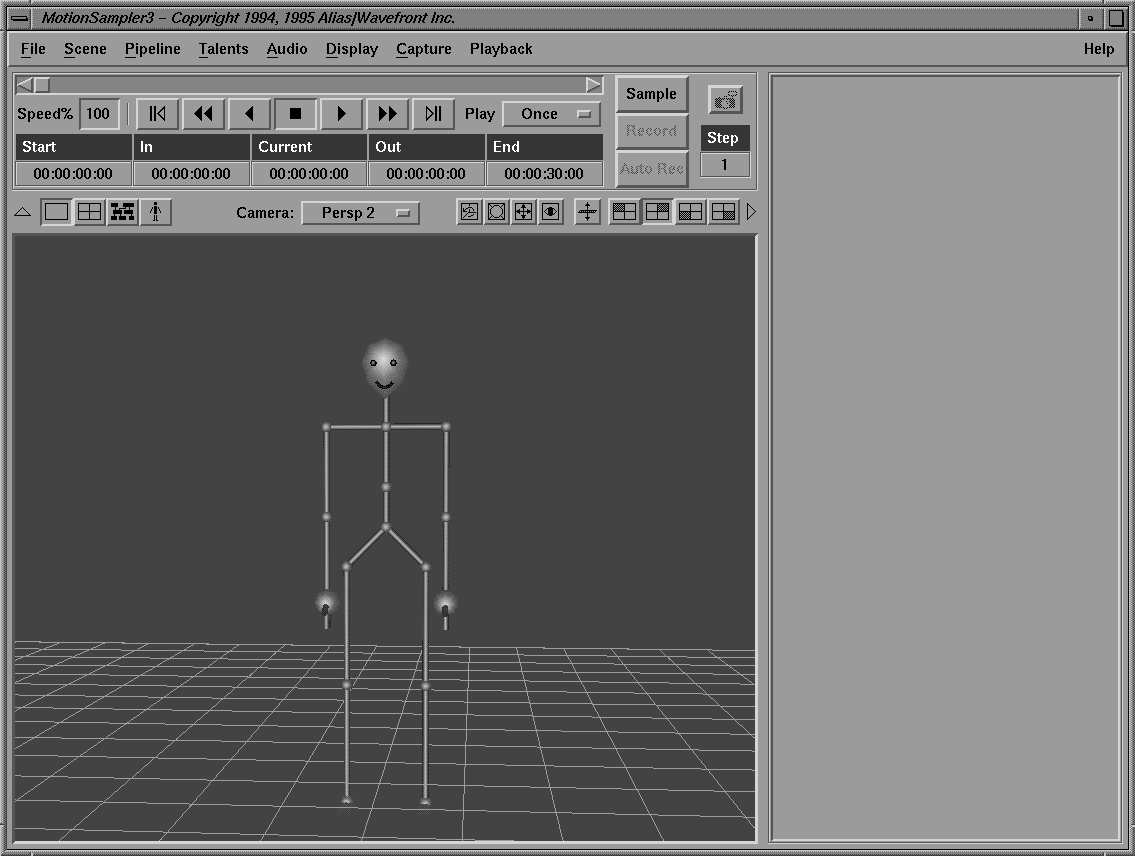
- Dolly the camera back to obtain a view similar to the following:
Retrieve the pipeline Tutorial3.pipe using File Retrieve Pipeline.
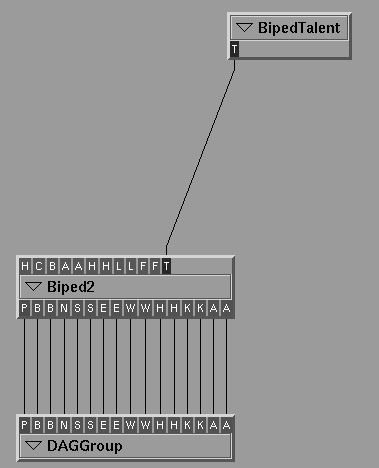
This pipeline contains the bottom half of the Biped2 hierarchy and a pre-configured DAGGroup (see Tutorial 2) for MC_STICKMAN.
Switch your view to the pipeline editor and examine the pipeline which should appear as follows:
- Add an AFOB (Ascension Flock of Birds) Source Module to the pipeline.
|
Initially it has no outlets. You have to configure it to provide the sensor
outlets needed for the Biped2 filter.
|
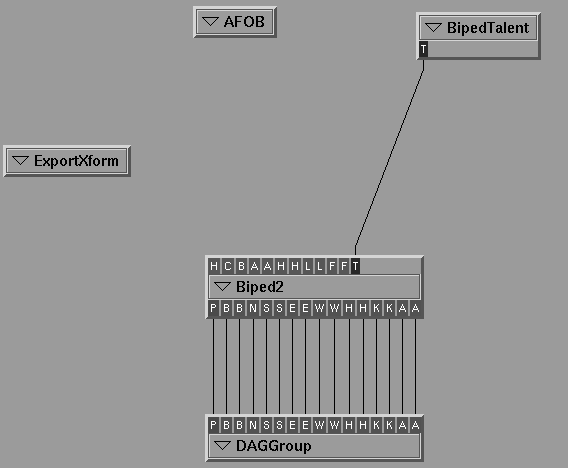
- Add the sink module ExportXform. This module lets you generate the raw sample data files in addition to the real time playback. This is useful because it allows re-calibration after the sampling session is complete.
- Rearrange the modules in the pipeline editor to resemble the following:
Editing the AFOB Module
- Select Edit in the AFOB module's menu to open the Module Text Editor with the module's default configuration as follows:
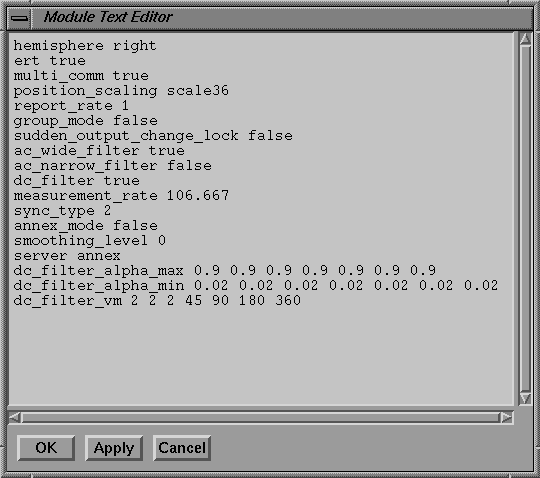
The parameters specified in the Module Text Editor determine how the Flock of Birds operates, including sampling rate, orientation, and whether or not an XYLogics Annex terminal server is being used.
- Click with the cursor on the AFOB source module to select it from the Source Modules list.
- Click the Module Help button located below the module listers. The help file for the AFOB module is displayed. This file provides additional information about the AFOB source.
|
While most of the commands listed in the help file control how the Flock of
Birds operates, the sensor command actually connects sensors to outlets.
|
- Close the module help window and move the Module Text Editor window to the side so that the AFOB module is visible.
- Type the following line to the bottom of the commands in the Module Text Editor window:
sensor 1 Back

This tells the AFOB source to connect sensor 1 to the outlet Back.
Click the Apply button at the bottom of the Module Text Editor. Notice that an outlet named Back has been created.
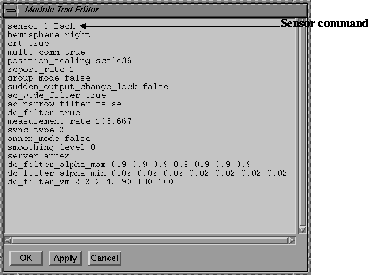
The configuration of sensor numbers to body positions depends on the construction of the body harness and the assembly of Flock of Birds hardware. As a result, configuration will vary from site to site. A common configuration is shown in the following Module Text Editor window:
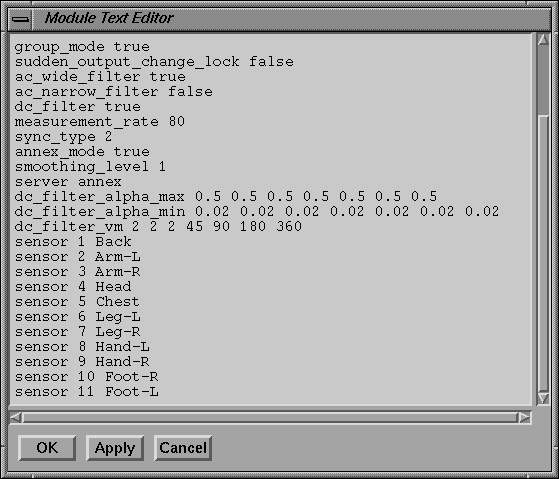
Type the remaining sensor information in the Module Text Editor window so that it looks like the above window.
Click the Apply button.
The AFOB module now has outlets corresponding to the sensor information you entered in the Module Text Editor window.
Click the OK button to close the Module Text Editor window.
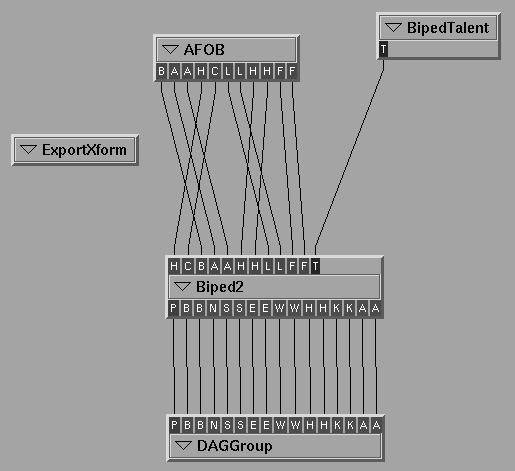
Connect the AFOB module's outlets to the inlets of the Biped2 filter once you have linked sensors to suit positions and have created the necessary outlets.
10. Connect the outlet of the BipedTalent to the inlet of Biped2.
Your pipeline should appear as follows:
Editing the ExportXform Module
- Select Edit from the ExportXform module's menu to edit it to create a raw sample data file. The ExportXform sink commands that specify incoming data types look like the following:
inlet Head
- Type the new configuration information in the Module Text Editor window to match the inlets of the ExportXform module to the outlets of the AFOB source as follows:
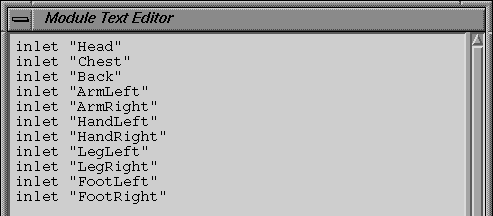
Click the Apply button. Notice that the ExportXform module now has a row of inlets.
Click the OK button to close the Module Text Editor.
Connect the outlets of the AFOB module to the inlets of the ExportXform module.
The pipeline should now appear as follows:
Click the single view icon to return to the 3D view of the scene.
The next step before you can sample data is to configure the BipedTalent and specify a filename for the ExportXform.
- Select Rename from the ExportXform module's menu.
- Change the filename to an appropriate new name, such as Test.rsd.
- Click the downward pointing arrow to open the BipedTalent control interface in the Toolbox.
- Click the Get button to load a talent file.
- Load the talents.tal file.
- Select one of the actors and the character MC_STICKMAN from the Biped Talent Browser.
Now you have a prototype calibration for the character that is ready to adjust.
|
See Tutorial 2 for information about calibrating the character with the
BipedTalent controls.
|
With the Flock of Birds hardware connected, clicking the Sample button allows real time data from the Flock to control the character on the screen.
[email protected]
Copyright © 1998, Alias|Wavefront, a division of Silicon Graphics Limited. All rights
reserved.