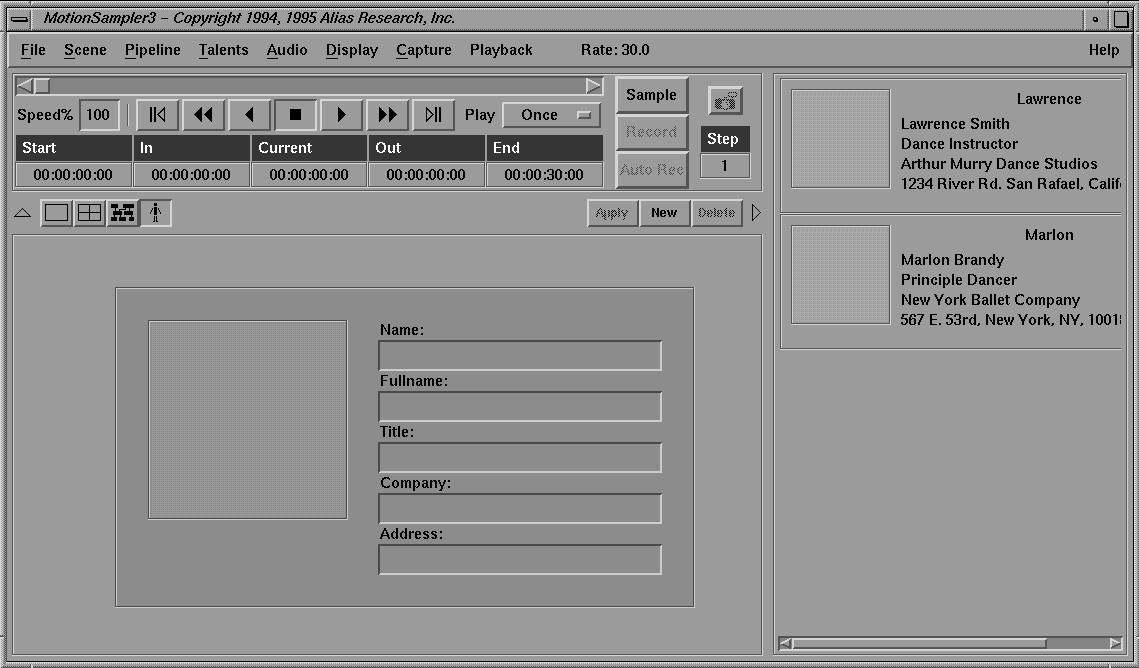
The talent editor mode is opened by selecting Talents  Edit Talents or by clicking the talent editor icon below the shuttle. MotionSampler appears different in talent editor mode than in single, four view, or pipeline editor mode as you can see below:
When the talent editor mode is active, the Camera menu, the 3D view buttons, and the view controls are not available. The view/edit area is occupied by the Talent Editor, and the toolbox contains the saved listing of talents. The shuttle remains the same.
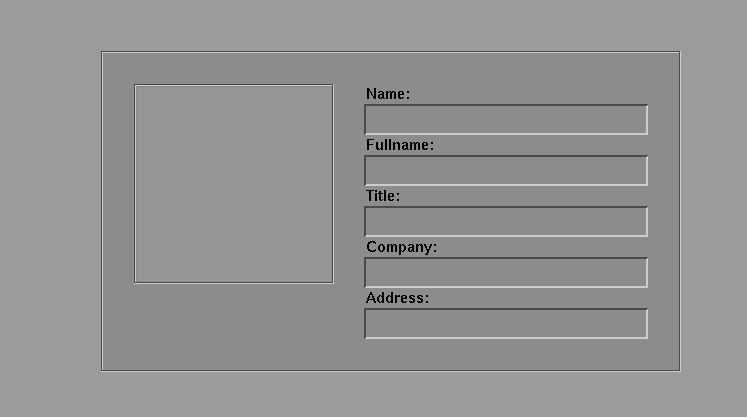
The talent mode view/edit area is referred to as the Talent Editor:
A talent is an actor or movement artist who performs movement that is captured by MotionSampler. The talent can be a dancer, mime, puppeteer, stage actor, martial artist, gymnast, athlete, or anyone who moves in a way that you want to sample.
Obviously, each human talent has a distinct size and shape. MotionSampler works best if some of these measurements are known. The measurements and calibration data associated with a talent are managed in MotionSampler by a software object called Talent. Each Talent object contains information such as name, address, and other information found on an ordinary business card. The rest of the information in a Talent object is organized in blocks called calibrations.
| The sampling-related data about a talent is defined by plugins and is not managed in this editor. For more information about calibrations, see the section about calibrating a talent later in this chapter. |
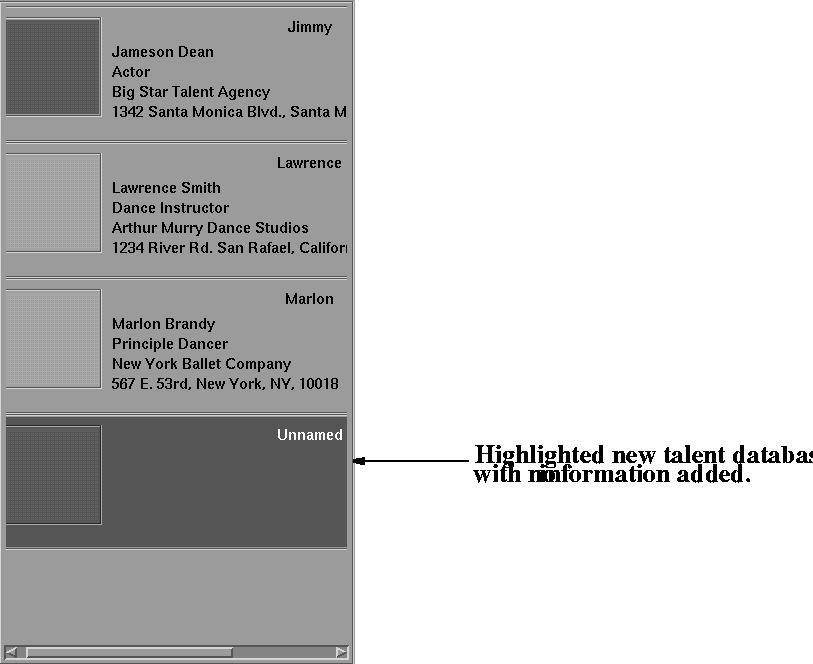
The talent editor manages a database of information about individuals who perform motion for MotionSampler to capture. This information is presented as a set of widgets that resemble business cards. Each card contains data about the person and can also contain an image of what the talent looks like.
Below the shuttle bank there are three buttons that only appear in talent editor mode. They appear as follows:
The buttons are used as follows:
The toolbox appears as follows in talent editor mode:
A new Talent object is usually created whenever a new talent's motion is sampled using MotionSampler. If the talent is employed again at a later date, the calibration data associated with that talent can be reused, modified, or expanded.
To enter information about a new talent:
A new business card appears in the toolbox labeled Unnamed as in the picture above.
When you press Enter, the information is entered in the database business card in the toolbox.
| If you press Enter each time you enter the information in an edit field in the view/edit area, the Apply button is grayed out and is not available. The information is entered in the toolbox area when you press Enter, so clicking the Apply button is not necessary. Click Apply if you press Tab after entering information in an edit field. |
To change information in the database about a talent:
The business card highlights a dark grey color and the information appears in the edit fields of the view/edit area.
The old information is deleted when you type the first character of the new information.
Deleting a Talent's Database Entry
To remove a Talent's information from the talent database:
The business card highlights a dark grey color and the information appears in the edit fields of the view/edit area.
The database business card disappears and the information in the edit fields of the view/edit area disappears.