light <name> (procedure=<procedure name>, <component list> ) ;
This defines a source of illumination.
A light is an object that may be instanced in the MODEL Section. Light is used to illuminate a scene when the rendering mode is raytrace or raycast. Lights are ignored when the rendering mode is wireframe. Only lights of type spotlight can cast a shadow in the RayCaster, but any type of light may cast a shadow in the RayTracer. A light may be specified as a literal or a variable. If specified as a variable, it must have a name. Any of the following components may be given between the parentheses. Please note that particle system components are described following the light data type section.
All components are specified using a keyword=value form. The components may appear in any order. When more than one component is used, they must be separated by commas. Not all components are optional. Components which are not specified take on their default value. If any component is specified more than once, the last such specification will be used, and all previous ones will be ignored. Not all components are meaningful in all combinations. In situations where a component is not meaningful, any specification of it will be ignored with no ill effect.
light sun(model=directional, direction=(1,1,1));
A switch which turns the light off if it is FALSE and on if it is TRUE.
This component may be animated. active is appropriate for all lighting models.
active = fmod(frame,2)
0.0 to 1.0. Values outside this range are replaced by 0 or 1 as appropriate, and a warning is issued.
Defines the omnidirectionality of an ambient light.
This component may be animated. If ambient_shade is set to 0.0, the total illumination will come from all directions and objects will show no edge definition. Set to 1.0, the illumination will come solely from the light position and objects will show definite edge contrast. ambient_shade is only appropriate for the ambient lighting model.
ambient_shade = 1.0
This value defines the portion of the swept volume. A value of 360 degrees represents the entire volume.
This value is only applicable to the CONE, SPHERE, TORUS and CYLINDER volume lights.
arc = 360.0
bias = ( <scalar> , <scalar> )
This parameter is now obsolete
Used for RayCasting only. The two <scalar>s are interpreted as the minimum and maximum values, respectively. Together they define the range for which each surface point is randomly moved towards the eye before it is determined whether or not it is in shadow. The minimum must be smaller than the maximum. Either or both of the <scalar>s may be animated.
The bias component is required to prevent incorrect self shadowing on an object when a z value of a point on the surface is compared to the depth map z from a nearby, but different point on the same surface. If the depth map z is smaller, the point on the surface will appear to be in shadow when it isn't. The stochiastic bias allows the user to correct this while still allowing a surface to curve over and legitimately shadow itself without aliasing. This, unfortunately, has the effect of moving the shadow boundary away from its true position. bias values must therefore be large enough to eliminate self-shadowing artifacts, yet small enough to avoid any noticeable problems from the offset boundary positions.
From a practical point of view, the minimum and maximum bias are measured in world space and therefore depend on the size of the scene. For a 100 x 100 x 100 scene, a typical bias would be 0.3 to 0.4. If the shadow looks ragged in places, increase the minimum and/or maximum. If the shadow boundary has moved noticeably and looks incorrect, decrease the minimum and/or maximum. For a 10 x 10 x 10 scene, a bias of 0.04 to 0.07 works well.
bias is appropriate for the spotlight lighting model. It is ignored for point, infinite and ambient lights. It is ignored even for spotlights if shadow has not been set to TRUE. Note that depth maps are only used for RayCasting.
bias = (0.4, 0.7)
This defines the color of the light.
This component may be animated. A color component is appropriate for all lighting models. Note that if you use a negative number, the light will suck illumination away from the scene.
color = ( 0, 0, 255 )
This value defines how much the in-out direction contributes to the light direction.
This value defines the intensity of light radial to the light's central axis. For a spherical volume light, a value of 1 imitates a point light with all illumination moving out from the center. A value of -1 reverses that effect so that illumination comes from the outside of the sphere towards the central axis. With a value of 0, directional and radial values must be used to give illumination direction along the major axis or radially around the major axis.
concentric = 0.25
This value defines the radius of the end of the cone. A value of 0 makes the volume light a true cone, whereas a value of 1 effectively reduces the shape of the light to a cylinder. This value may be negative, which will have the effect of reversing the direction of the cone.
This value is only applicable to the CONE volume light.
cone_end_radius = 1.0
0, 1, 2, or 3. The value given is treated as an integer.
This is used to determine how intensity decreases with distance.
This component may be animated. Set decay to 0 for constant intensity (the light shines forever). Set decay to 1 for a decrease that is proportional to the distance from the light. Set decay to 2 for a decrease that is proportional to the square of the distance.Set decay to 3 for a decrease that is proportional to the cube of the distance. decay is appropriate for point and spot lighting models. It is ignored for directional and ambient lights.
decay = 2
This value defines how far out from the centre of the volume the decay starts.
decay_start = 0.0
This is only relevant for a shadow-casting spot light. If there is a depth_input file, then instead of generating the shadow map (expensive), it reads this file instead to get the depth values. This is useful only for non-moving objects and lights within the scene.
depth_input = "depth_input_file"
This is only relevant for a shadow casting spot light. If there is a depth_output file, then the shadow map generated is written to this file. This is useful if the depth_input is also the same filename, which means the renderer will generate the depth map just once, and write it to this file, then reuse it for subsequent frames.
depth_output = "depth_output_file"
unbounded, but cannot be (0,0,0).
This simulates placing the source of illumination at infinity.
The triple provides a direction vector pointing towards the light. The magnitude of the vector is immaterial. This component may be animated using a motion path, or by otherwise varying the value of the triple. direction is appropriate for the directional lighting model. It is ignored for point, spot, ambient, area and linear lights
direction=(1,1,1)
This value defines how much the primary axis direction contributes to the light direction
directional = 1.0
This value defines how much the direction of the light is taken into account in the lighting calculation. A value of 0 acts like an ambient light; a value of 1 acts like a directional light.
directionality = 1.0
directional_turbulence = <boolean>
Turbulence is mostly used when the volume light is used to define a wind field, but it also defines the light direction, and can be used to get flickering sorts of light effects. The turbulence is defined as if it were inside a "box", and the box is placed appropriately when you need to evaluate the turbulence at a point.
directional_turbulence = ON
If a negative number is provided, 0 is used; no error message is given. Although any positive real number can be used, the dropoff will be severe beyond the range of 5-7; numbers greater than 20 have little effect unless intensity is quite high.
dropoff describes the rate at which illumination will fall off from the center of a spot light to the edge of the cone of illumination (determined by the angle set in spread). A value of 0 means there is no dropoff - the edge is as bright as the center.
For volume lights, this value controls the rate at which light intensity decreases from the center to the edge of the light. It only applies to CONE and CYLINDER types of volume lights, and the dropoff is away from the principal axis of the light. The range is from 0 to infinity. The range usually used is from 0 to 50. Values of 1.0 and less give practically identical results, that is no discernible intensity decrease along the radius of the beam. The default value is 0.0, which means there is no dropoff. This is very similar to the way that spotlights work.
This component may be animated. dropoff is appropriate for the spot lighting model. It is ignored for point, directional and ambient lights.
dropoff = 0.5
This value defines how far out from the centre axis of the volume the drop-off starts.
dropoff_start = 0.5
If textured then each circle in the flare will contain the texture, scaled to exactly fit inside the circle. Circular ramp textures can be used to create colorful rainbow flare effects.
flare_color = (160, 160, 255),
This is the amount that the hue of individual circles is randomized about the flare color. Note that the flare_color must be at least partially saturated( that is, not white or grey ) to see this effect.
flare_color_spread = 0.5,
This controls the sharpness of circle edges. At a value of 1, the edges are totally sharp, at zero the circles are very blurry.
flare_focus = 0.6,
This parameter, with flare_vertical, controls the axis of the flare effect relative to the center of the image. As the light source moves, the flare will appear to rotate through this point.
flare_horizontal = 0,
This is the scale for the brightness of the flare effect.
flare_intensity = 1,
This controls how long the flare effect is relative to the light location. If the value is small, then all the circles in the flare will bunch up on the light. If it is large then the circles will get spread out off the edge of the image.
flare_length = 1,
This is the number of spots created along the length of the flare effect.
Very large numbers of spots can be expensive to render, especially if the size is large and the flare color is textured.
flare_num_circles = 20,
The size of the circles is randomized between these two values.
flare_max_size = 1,
The size of the circles is randomized between flare_min_size and flare_max_size.
flare_min_size = 0.1,
This parameter, with flare_horizontal, controls the axis of the flare effect relative to the center of the image. As the light source moves, the flare will appear to rotate through this point.
flare_vertical = 0,
Set the brightness of the fog illumination.
The fog illumination simulates a 3D volume of scattered light. Point lights simulate a spherical volume of fog. If the fog_intensity is too high, then the glow will look like a glowing orb. Use glow and/or halo effects in conjunction with fog glow when a bright, focused center to the glow is desired.
fog_intensity = 0.5
To allow an illuminated fog to obscure objects.
Normally the fog glow is added on top of the light in the scene. If the opacity is greater than zero, then the fog will be more opaque where it is brightest. This is useful when simulating fire and smoke effects, which frequently do not let all the light in a scene pass through. Black smoke can be created by making the light color near black and the opacity high (around 10.0).
fog_opacity = 5.0
To simulate explosion and starburst effects.
Similar to glow_radial_noise.
This effect is currently two-dimensional.
fog_radial_noise = 0.5
Any value greater than 0 up to the resolution of the shadow depth map.
This parameter is only relevant when light fog shadows are to be computed. The higher the value for this parameter, the better the fog shadow quality. Usually, the default is good enough, but sometimes where there is little detail, such a value can miss important fog shadow features, or produce jittery results. By increasing this value (up to the depth map resolution), the quality will be increased, but so will the performance.
fog_samples = 50;
fog_spread has different effects on point lights and spot lights. On point lights, it determines the size of the glowing spherical volume of fog. On spotlights, it determines how concentrated or focused the beam is (higher fog_spread creates more uniform spotlight beams, while at lower values, the center of the beam will appear brighter).
Use the decay parameter on spot lights to modify the way the beam falls off with distance from the lightsource.
fog_spread = .2
To create radial explosion effects and control fog glow direction.
See glow_star_level.
fog_star_level = 1.0
fog_type = OFF | LINEAR_GLOW | EXPONENTIAL_GLOW | BALL_GLOW
The fog_type specifies the way that the intensity of fog illumination falls off from the center of the light.
All different types currently produce a LINEAR_GLOW; however, BALL_GLOW will provide sharper thresholds at the edge when fog_opacity is not 0.0. In spot lights, the decay will determine how fast the light falls off from the center of the light.
Shadows can be cast into volumes of fog by using spot lights with shadow = ON and fog_type = LINEAR_GLOW (Raycaster Only ).
Currently fog glow is only available for point lights and spot lights.
fog_type = LINEAR_GLOW
Simulate smoke and fire effects using two-dimensional noise.
The noise is generated on a plane that is centered at the location of the light and always oriented towards the line of sight. To create the illusion of illuminated smoke around a glowing light source, set fog_2D_noise to about 0.5 and animate slowly the noise_uoffset and noise_voffset values. The smoke will appear to slowly drift by the light.
If a spotlight is rotated, the beam will appear to move through smoke in a room. If you want the noise to remain locked on to the beam as it moves (for example, for a rocket thruster), the glow_rotation will need to be animated to match the spotlight orientation.
fog_2D_noise = .5
force_type = OFF | GRAVITY | MAGNET | WIND | DRAG
To define force emission from a light.
force_type = GRAVITY
To set the intensity of the force.
force_intensity = 1.0
Set the brightness of the light glow.
If the light has a non-zero decay, then the brightness of the glow will vary with the distance of the light. As the glow of the light becomes intense, the size of the glow will appear to increase, especially when the center of the glow washes out. This simulates what would naturally happen with a real light and film. Negative glows will tend to subtract from other glows, thus a light with a negative BALL_GLOW could be put along with a light with a standard glow, resulting in a hole in the center of the glow.
glow_intensity = 3.0
To allow a light glow to obscure objects.
Normally the light glow is added on top of the light in the scene. If the opacity is greater than zero, then the glow will be more opaque where it is brightest. This is useful when simulating fire and smoke effects, which frequently do not let all the light in a scene pass through. However, it is generally better to use the fog_glow for these effects. Also, if you want the glow to appear on the background only, and not obscure any objects, then an opacity value of -1 will do this.
glow_opacity = 5.0
To simulate starburst effects and eyelashes refracting light.
Negative values will create a thicker noise. Use the radial_noise_frequency to adjust the smoothness of this effect.
glow_radial_noise = 0.5
glow_rotation = <scalar> ( in degrees )
To rotate the various glow and fog noise and star effects about the location of the light.
Affects glow_2D_noise, fog_2D_noise, glow_star_level, fog_star_level, glow_radial_noise and fog_radial_noise.
glow_rotation = 45.0
glow_spread determines the general size of the glow effect.
glow_spread also affects the size of the SPECTRAL and RAINBOW effects. Negative values can have odd but useful effects. For example if the glow_spread = -6.0 and the glow_2D_noise = 1.0, an image of a fiery bubble is created.
glow_spread = 0.1
To simulate camera star filter effects.
This is often effective when combined with a high frequency radial_glow_noise. Use star_points to set the number of points on the star. If the star_points = 1.0, comet like effects are possible. The star can be rotated by using glow_rotation.
glow_star_level = 4.0
glow_type = OFF | LINEAR_GLOW | EXPONENTIAL_GLOW | BALL_GLOW | SPECTRAL | RAINBOW | LENS_FLARE
The glow_type specifies the way that the intensity and color of a light glow falls off from the center of the light.
glow diminishes faster towards a distance from glow center specified by the glow_spread. | |
lower wavelengths (red) refract (or spread) more than the higher frequencies (blue). | |
simulates refraction due to water droplets in air. The radius of the rainbow is determined by the glow_spread parameter. | |
All the parameters associated with light glow work with all of the glow types. For instance a RAINBOW glow may be combined with glow_star_level of 1.0 and star_points of 4 to create a colored refraction grating effect.
glow_type = EXPONENTIAL
Simulate smoke and fire effects using a two-dimensional noise.
The noise is generated on a plane that is centered at the location of the light and always oriented towards the line of sight. To create the illusion of illuminated smoke around a glowing light source, set glow_2D_noise to about 0.5 and animate slowly the noise_uoffset and noise_voffset values. The smoke will appear to slowly drift by the light.
Generally fog glow (fog_2D_noise)is better for creating smoke and fire effects, because these are 3D effects. (glow_2D_noise cannot be occluded by objects, for example.)
glow_2D_noise = .5
Set the brightness of the light halo..
If the light has a non-zero decay, the brightness of the halo will vary with the distance of the light. As the halo of the light becomes intense, the size of the halo will appear to increase, especially when the center of the halo washes out.
halo_intensity = 3.0
halo_spread determines the general size of the glow effect.
halo_spread also affects the size of the RIM_HALO. Halo spread is generally greater than the spread of the glow when the values are the same.
halo_spread = 0.1
halo_type = OFF | LINEAR_GLOW | EXPONENTIAL_GLOW | BALL_GLOW | LENS_FLARE | RIM_HALO
The halo_type specifies the way that the intensity and color of a light halo falls off from the center of the light.
halo diminishes faster towards a distance from glow center specified by the halo_spread. | |
simulates a bright light source illuminating the surfaces of several camera lenses. The intensity of the flare is determined by the halo_intensity. The size of the circles created is relative to the field of view of the camera. | |
This forms a circular ring with a soft central glow. The size of the ring is determined by the halo_spread. The halo of a light is much the same as its glow, except the falloff is generally more gradual, and different falloff types are available. |
halo_type = LENS_FLARE
This turns on Hexagon shaped flare elements( instead of circles ). Other shapes are possible by texture mapping the flare color with an image of the desired shape( white on black ).
hexagon_flare = OFF,
This sets the brightness of the light.
This component may be animated. The value is checked at usage time, and if negative, stops execution. Set intensity to 0.0 for no illumination, 1.0 for normal illumination; 5.0 would be a very bright illumination. If you set intensity to a negative number, it will suck light away from the scene.
intensity = 2
LENS_FLARE = ON
model = ambient | area | directional | linear | point | spot | volume
Specifies the lighting model used for this light. The possibilities are:
The lighting model is not animatable. The value is checked to be one of the above at definition time. Improper specification terminates execution with an error message.
model = directional
This is a cutoff value for 2D noise. As the threshold is lowered to zero, fog_2D_noise and glow_2D_noise break up into smaller and smaller particles.
This is useful for simulating globular clusters, ejecta from explosions, snow and rain effects, especially when the noise u and v scale is high. It can also help make flames and smoke more patchy.
noise_threshold = 0.8
To offset the horizontal position of 2D noise.
Can create the look of smoke moving past a light when animated. Rain and snow effects are also possible.
The noise will wrap after an offset of 1.0, which is useful in creating animated loops.
noise_uoffset = .5
To change the scale of glow_2D_noise and fog_2D_noise in the horizontal.
This is useful for creating effects like layered fog and tall flames. Also, if the noise_uscale and noise_vscale are animated from high to low values, the noise will appear to fly apart like an explosion.
noise_uscale = 3.0
To offset the vertical position of the 2D noise.
Can create the look of smoke moving past a light when animated. Rain and snow effects are also possible.
the noise will wrap after an offset of 1.0, which is useful in creating animated loops.
noise_voffset = .5
To change the scale of the glow and fog 2D_noise in the vertical.
This is useful for creating effects like layered fog and tall flames. Also, if the noise_uscale and noise_vscale are animated from high to low values, the noise will appear to fly apart like an explosion.
noise_vscale = 3.0
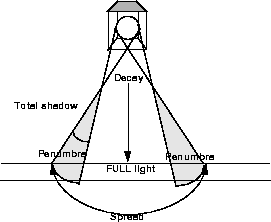
To determine the softness of the spot light's edge. It is defined in degrees that are relative to the edge of the spotlight's spread.
The following illustrates the penumbra as the area where light falls when a light bulb is partially eclipsed by a lamp shade. A penumbra displays the region of partial shadowing of the dimension of the light source.
This component may be animated.
penumbra = 20.0,
This value defines how much the spin direction contributes to the field value.
For volume lights only.
radial = 0.0
radial_noise_frequency = <scalar>
To control the smoothness of the glow and fog radial noises.
See glow_radial_noise.
radial_noise_frequency = 3.0
A boolean indicating whether this light will cast shadows or not. If shadow is TRUE, the light will cast shadows.
This component may be animated. For RayCasting, shadow is appropriate for the spot lighting model and ignored for point, directional and ambient lights. For RayTracing, shadow is appropriate for all lighting models.
shadow = TRUE
Values less than 1.0 allow a tradeoff between soft jittered shadow edges and less noisy but more defined shadow edges.
Used with soft shadowing in the raytracer. If this value is zero, then the soft shadows will break apart into multiple shadows, determined by the shadow_samples parameter. If shadow_samples = 4, then the light will appear to cast 4 separate shadows. The separation of the shadows is determined by the light radius and the distance of the light away. As the shadow_dither parameter is increased to 1.0, the four shadows would then each spread until they merged into one soft shadow.
for animations it is best to leave this parameter at 1.0, because the shadows may move a little as the view changes.
SEE soft_shadows.
shadow_dither = 0.5
Not negative; effective range is 0.0 to 4.0
This parameter is obsolete effective this software release. Similar to blurmult for textures, shadowmult is a scaling factor for the size of the sample region for the depth map. The default size of the sample region is 4 x 4 pixels in the depth map.
Values lower than 0.5 (without using shadowoffset) are prone to aliasing and banding. The actual formula used to calculate the size of the sample area is:
numpixels = (4 * shadowmult) + shadowoffset
Care should be taken that numpixels does not become negative or 0. shadowmult is appropriate for the spotlight lighting model. It is ignored for point, infinite and ambient lights. It is ignored even for spotlights if shadow has not been set to TRUE. Note that depth maps are only used for RayCasting. shadowmult is meaningless and ignored when RayTracing.
This component may be animated.
shadowmult = 3.0
unbounded; effective range is -2 to 8.
This parameter is obsolete effective this release. Similar to bluroffset for textures, shadowoffset modifies the sampling region of the depth map. shadowoffset adds a specified amount to the pixel area of the sampling region. The default sampling region is 4 by 4 pixels in the depth map. The actual formula used to calculate the sample region is:
numpixels = (4 * shadowmult) + shadowoffset
It is always square, numpixels to a side. Care should be taken that numpixels does not become negative or 0. shadowoffset is appropriate for the spotlight lighting model. It is ignored for point, infinite and ambient lights. It is ignored even for spotlights if shadow has not been set to TRUE. Note that depth maps are only used for RayCasting. shadowoffset is meaningless and ignored when RayTracing.
This component may be animated.
shadowoffset = 0.5
shadow_blend_offset = <scalar>
This is useful for removal of self shadowing.
shadow_blend_offset offsets the depth of the blended shadow samples, but not the depth of the center sample. At zero, the sample region is a plane tangent to the light direction vector. As the value increases, the sample region becomes a cone with the outer edges towards the light. Its use is somewhat similar to the old bias_max; however, it cleans up self-shadows without sacrificing the tightness of a shadow relative to a very close object.
shadow_blend_offset = .3
shadow_edge_quality = <scalar>
Sets the blur filter size for shadow depth maps.
At low values (1 or 2) slight staircasing can appear around shadow edges. Increasing the shadow_edge_quality will correct this problem, but increase rendering time a bit. Also the edge will become softer, requiring larger shadow_resolution values if hard edges are desired.
shadow_resolution should be used to control general level of blur, not shadow_edge_quality.
shadow_edge_quality = 3
To correct self shadowing problems in raycast shadows. The shadow_min_depth is the world space distance that a point is moved towards a spotlight before shadowing is calculated.
If this value is 0, than an object will shadow itself by 50%( if it casts shadows ) when the light is at an inclined angle to the surface. A relatively small shadow_min_depth value can bring the surface out of its own shadow, especially when combined with the shadow_blend_offset parameter. Also, if the surface does not need to cast shadows, only to receive them, turn shadow casting off on the object (then a shadow_min_depth of 0 is fine). The most typical example of this is a groundplane.
If shadow_min_depth is too high, shadows will not be cast from very close objects.
This parameter is similar to the old bias_min parameter, but much smaller correction values are now possible.
shadow_min_depth = 0.03
Specifies the file in which to store an 8-bit version of the depth map. This is useful if you want to create a bump map from the geometry, but is not required otherwise. shadow_output is appropriate for the spot lighting model. It is ignored for point, infinite and ambient lights. It is ignored even for spotlights if shadow has not been set to TRUE. Note that depth maps are only used for RayCasting. shadow_output is meaningless and ignored when RayTracing. For details on the differences between RayCasting with shadows and RayTracing, please refer to the User's Guide.
This component may be animated using the normal filename mechanisms.
shadow_output = "texture/new.bump" /* no frame extension */
     or
shadow_output = ("texture/new.bump"frame) /* with frame extension */
Defines the size of shadow depth maps used in raycasting. Large shadow_resolution values provide sharper edged shadows but at a cost in memory and rendering time.
Very soft and smooth shadows are possible with a shadow_resolution setting around 50. Low resolutions have the added advantage of being fast to render and taking up little memory.
The shadow_resolution is the primary factor determining the softness of shadows, but the spotlight spread and shadow_edge_quality also affect the general level of blur. The shadow map is defined relative to the cone of the spotlight; so a tightly focused spread will create sharper shadows. A spread of 90 will require a shadow_resolution 2 times that of a spread of 45 in order to match.
shadow_resolution = 55
Set the minimum number of shadow feeler rays per sample (used to create raytracer soft shadows).
A large value will result in slower rendering times, but smoother quality soft shadows.
SEE soft_shadows.
shadow_samples = 8
shape = BOX_VOLUME | SPHERE_VOLUME | CYLINDER_VOLUME | CONE_VOLUME | TORUS_VOLUME
This defines the shape of the volume light in space. The choices are:
The shapes of the volume light can be further modified by applying transformations to the dag node(s) above the volume light.
shape = SPHERE_VOLUME
Any set of coordinates in world space (but must be different than the light itself).
The triple gives the x, y and z coordinates describing the location of the center of illumination by the spotlight.
This component may be animated using a motion path or by otherwise varying the value of the triple. shine_along is appropriate for the spot lighting model. It is ignored for point, directional and ambient lights.
shine_along = (20,5,-1)
This parameter is obsolete effective this software release. size defines the resolution of depth maps used to cast shadows when RayCasting. Increasing the size will provide more detailed shadows, and will also increase the rendering time and the amount of memory used. A size of 512 uses 1 Mbyte of memory, a size of 1024 uses 4 Mbytes of memory.
This component may be animated. size is appropriate for the spot lighting model. It is ignored for point, directional and ambient lights. It is ignored even for spotlights if shadow has not been set to TRUE. Note that depth maps are only used for RayCasting. The size component is meaningless and ignored when RayTracing.
size = 256
If TRUE, then soft shadowing is enabled in Alias RayTracing.
The nature of soft shadows created is determined by the distance of the light from the object casting shadows, combined with the light_radius parameter. Shadows are generated to match a globe-shaped light with the specified radius (in world space units). If the light source is small and/or far away, then hard-edged shadows will result. Shadows become softer-edged as the light's radius increases, as happens in the real world. However, because a jittered super-sampling techique is used, the region of partial shadow (penumbra) can become noisy. To correct this, turn up the number of samples used, adjusting either the shadow_samples level (on the light) or the global aalevelmin and aalevelmax. Note that if fast_shading is turned on, the number of shadow samples per pixel will equal the shadow_samples level, and will not be affected by the aalevel. Also, due to a blending function used, soft_shadows can be useful even when the light_radius = 0 and the shadow_samples = 1. This method helps avoid jaggies on shadow boundaries when fast_shading is used.
soft_shadows works for Alias RayTracing only.
soft_shadows = TRUE
If set to ON, then the light will contribute to the specular component. It is useful to turn this OFF when using a negative volume light to remove light.
specular = ON
Appears only if psys_collisions are set to ON. This provides a limit on the speed a particle must be moving when it collides with an object to determine if the particle splits.
split_velocity_min = 5
2 to 179. The absolute value is used. This value is clipped to 179 if the magnitude is too large. Similarly, if the magnitude is less than 0.2, it is set to 0.2 to avoid numeric instabilities.
spread provides the angle of illumination from a spotlight in degrees.
This component may be animated. The smaller the value, the tighter the spotlight will appear to be. If a negative value is specified, the sign is ignored. spread is appropriate for the spot lighting model. It is ignored for point, directional and ambient lights.
spread = 15
To set the number of points on star filters. (see glow_star_level.)
Values of 1 and 2 are frequency useful. For example if star_points = 1.0 and glow_star_level = 1.0 and the glow_type = RAINBOW, then a familar rainbow arch will be generated.
star_points = 5.0
This is the ratio of the minor radius to the major radius. The default value of 0.5 gives a typical bagel, where the "hole" has been squashed down to a single point.
This value is only applicable to a TORUS volume light.
torus_radius = 0.5
turbulence_animated = <boolean>
The turbulence may be static, or it may vary over time. With static turbulence, you get dappled lighting but it doesn't change. With animated turbulence, you get flickering light. In a static turbulent wind field, the eddies are always in the same place: a stream of particles blowing through a static field would always follow the same path. In an animated field, the path itself would swirl and change.
turbulence_animated = ON
turbulence_granularity = <scalar>
This value defines the Low frequency cutoff. It is like a high pass filter. It allows for grainy patterns of turbulence.
turbulence_granularity = 0.0
turbulence_intensity = <scalar>
This defines the degree to which a volume light is turbulent.
The light or force direction is modified by the turbulence, such that when the turbulence_intensity = 1.0 then the direction is totally the direction calculated by the turbulence. When the turbulence_intensity = 0.5, then the direction will be a 50/50 blend of turbulence and light. In the case of the default SPHERE volume shape, a value of 0.5 would cause objects to move generally away from the light, but in a turbulent fashion. If the turbulence_intensity = 1, then objects would just swirl around in no particular direction. The decay of the light is respected, however, so the objects would swirl more vigorously near the light source. If you wish to increase the general level of force you must use the light intensity or force_intensity parameter. Note that this differs from the turbulence_intensity in the Environent dynamics section, as that value controls the overall intensity of force.
turbulence_persistence = <scalar>
This value represents the time scale.
Stretch out the turbulence so that it changes more slowly. For volume lights only.
turbulence_persistence = 5.0
turbulence_roughness = <scalar>
This value defines the High Frequency cutoff for the spatial portion of the Fourier spectrum. It is like a low-pass filter.
turbulence_roughness = 0.5
turbulence_space_resolution = <scalar>
This defines how large the turbulence table is in X, Y, Z.
Turbulence patterns match at the edges of the turbulence box, so that this pattern is repeated seamlessly throughout the range of the volume light.
turbulence_space_resolution = 16
This value represents the space scale.
Scale the turbulence box so that the same amount of turbulence covers a larger volume. Volume lights only.
turbulence_spread = 0.5
For animated turbulence, this defines the resolution in time. (i.e. this many 3-D tables are created).
turbulence_time_resolution = 16
This value defines the High Frequency cutoff for the time portion of the Fourier spectrum.
turbulence_variability
up is reserved for future use. In this software release, it is commented out when the SDL file is written from the ALIAS package.
use_old_shadow_map_algorithm = <scalar>
An improved shadow map algorithm has been intoduced in version 7, where the resultant image quality should be much better. This should be able to replace the old technique. However, there can be very isolated situations where the old technique is desirable - in this case, turn this option ON
use_old_shadow_map_algorithm = FALSE;
This is relevant to the raytracer/powertracer only. It is now possible to do shadow casting while in the raytracer (if this option is turned ON). This has several advantages:
For raytracer/powertracer only.
use_shadow_map = FALSE;