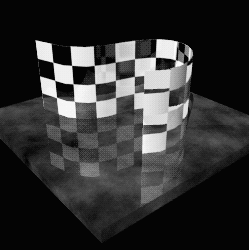
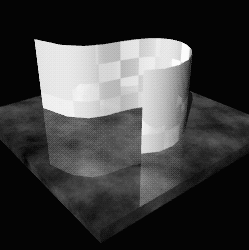
Once you have created surfaces, you will want to see them as rendered images. To make them as striking and realistic as possible, you need to apply shaders and textures to your objects. Alias uses shaders to define the appearance of your objects so they look as if they were created with real materials. Textures can also be applied to the shaders to create more sophisticated visual effects. You can even add special effects to shaders, to make them appear semi-transparent or to give them a sense of 3D relief.
For more information on Shaders and Textures, see Rendering in Alias.
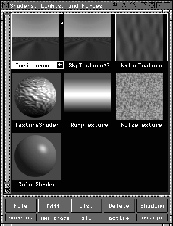
The Multi-lister is the primary interface you use to create, edit, manage and display shaders, textures, lights, and the environment. You also use the Multi-lister to access the Control Window and the Color Editor. To display only shaders in the Multi-Lister, choose Shaders from the Multi-lister's List menu.
Shaders determine what surfaces look like (for example, color, reflectivity, roughness). Once you create a shader, you can assign it to one or more surfaces. You can also layer more than one shader onto a single surface.
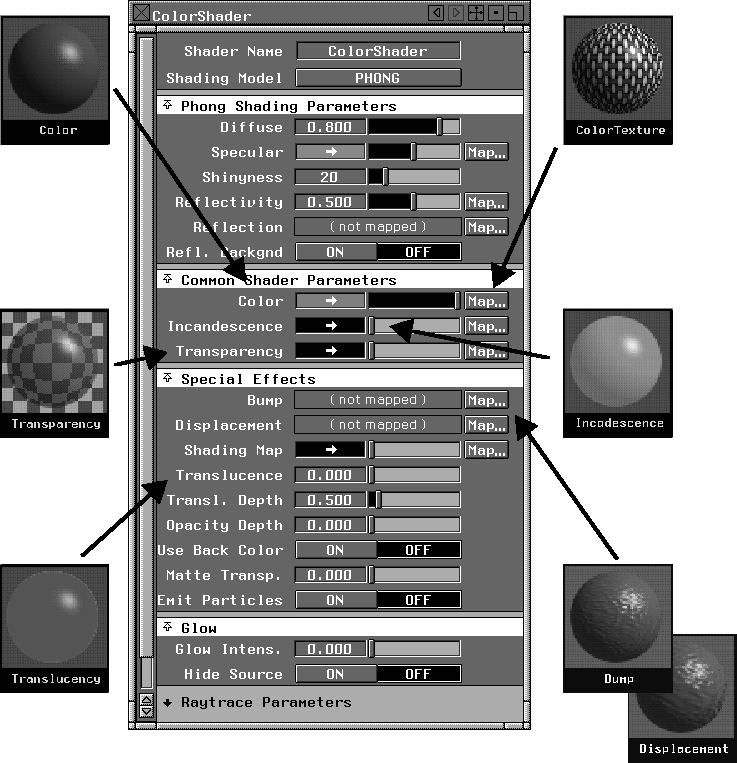
The various Shader parameters are set in the Shader Editor. You can set surface attributes such as color, finish and opaqueness, or you can add a texture map to part of the shader. You can also use Special Effects such as bump maps or translucency to further refine the final look of the shader.
To open the Shader Editor, pick a Shader icon and then choose Edit from the Edit menu, or double click on the Shader icon.
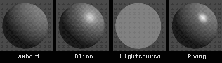
There are four main Shading Models. Each Shading Model has its own set of Shading Parameters.
Lambert - This shading model is used primarily for matte surfaces or other unpolished surfaces.
Phong - This shading model is used primarily for glass and glossy plastic surfaces.
Blinn - This shading model is used primarily for metallic surfaces.
Lightsource - A special effect. Light falling on the surface is summed and averaged, and no complex shading is performed. The surface does not act as a light.
Note: There are no shading parameters when the shading model is lightsource. |
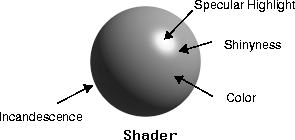
Within the Shader editor there are several key parameters that affect the look of a shader. In the diagram shown below you can see how some of those parameters work with a simple Phong shader:
The various parameters affect the look of the shader as follows:
Color - The color of the surface.
Specular - The color of shiny highlights on the surface.
Shinyness - Controls the size of shiny highlights on the surface.
Incandescence - The color and brightness of light that a surface appears to be emitting.
Reflection - Maps an image file or texture onto the surface to simulate reflections. .
Diffuse - The ability of the surface to reflect light in all directions.
Textures are two-dimensional or three-dimensional patterns which you can assign, or map, to certain parameters of environments, shaders, and lights. You can also assign textures to certain parameters of other textures.
There are three basic types of textures:
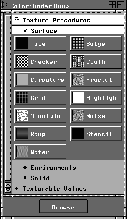
Textures are applied to surfaces using the Texture Procedures window. To open the Texture Procedures window, choose Texture Map from the Multi-lister's Edit menu.
The Texture Procedures window contains a list of all textures (Surface, Environments, and Solid) and a list of all Texturable Values for the active environment/shader/texture/light.
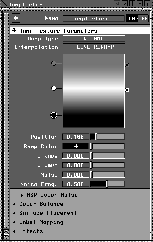
For example, a ramp texture will offer you the opportunity to edit the ramp type, the colors that make up the ramp surface and the placement of the ramp on the surface.
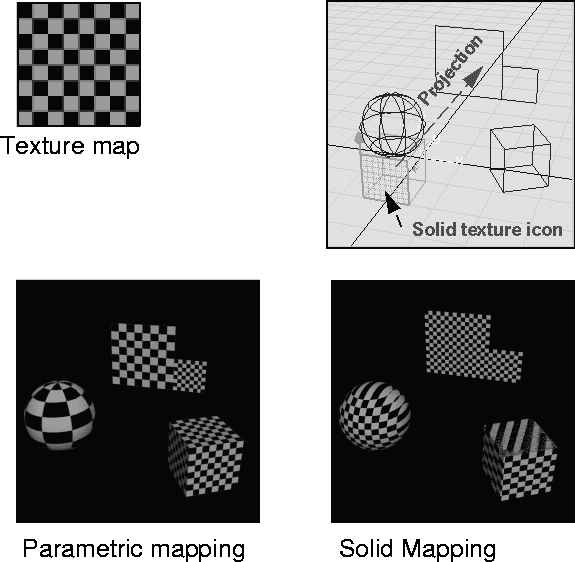
Alias uses two methods for mapping textures onto surfaces. These are Parametric mapping and Solid mapping.
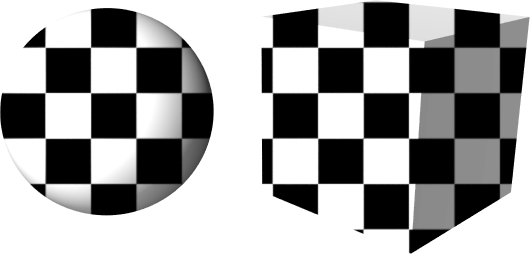
Parametric mapping places a texture in the UV parameter space of a surface. This gives the effect of the texture being wrapped around the object. The above illustration shows how the gridded texture map is wrapped around the sphere and placed on each face of the cube as a separate map.
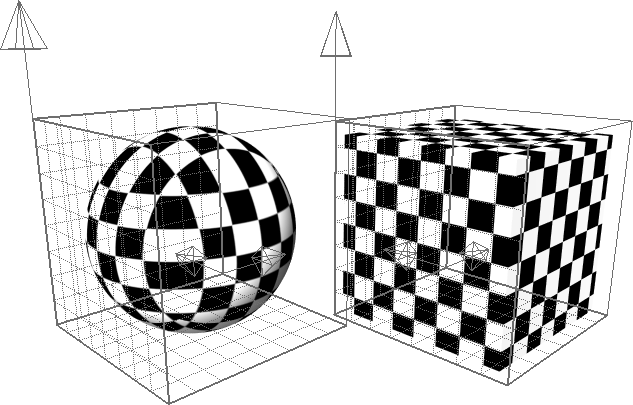
Solid texture mapping makes surfaces appear as if they are carved out of a solid block. Solid textures exist in XYZ coordinate space instead of UV parameter space. This allows a solid texture to affect all parts of an object and not only individual surfaces.
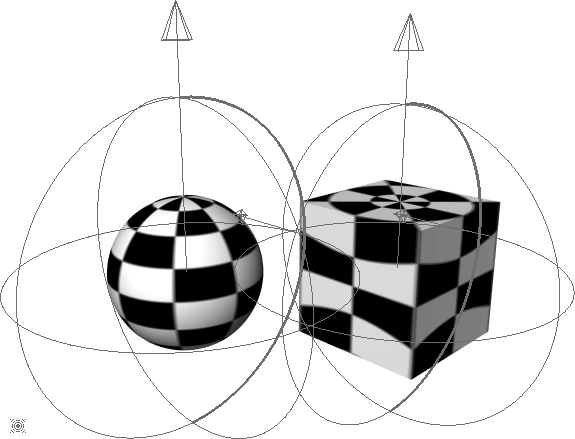
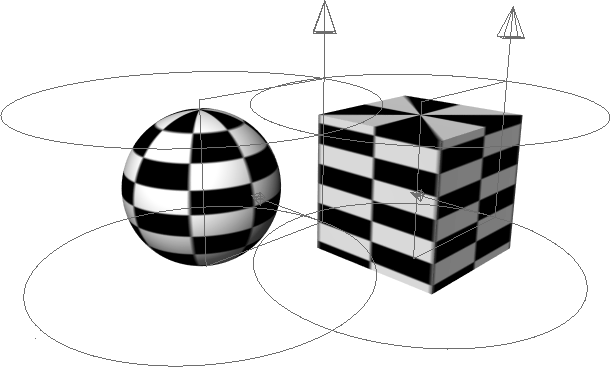
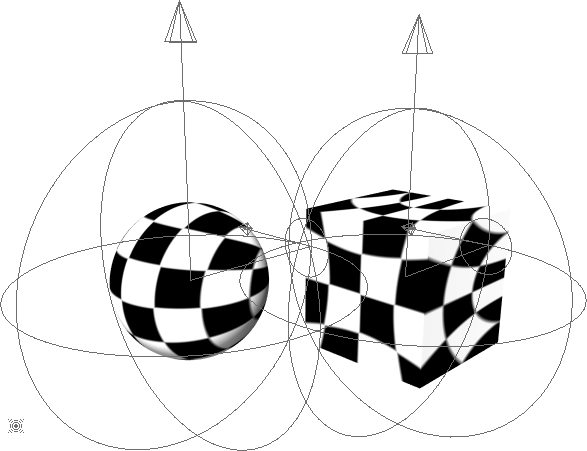
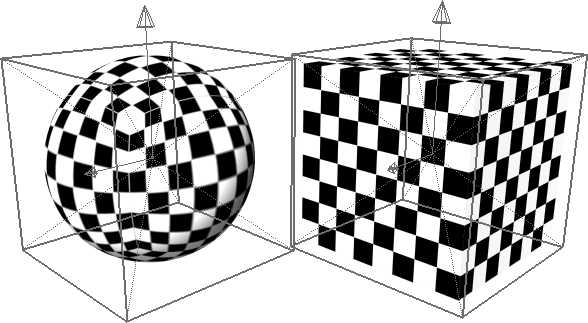
Solid textures are controlled by a texture placement object that helps define the location of the solid texture in 3D space and project the textures onto the surfaces. In the above illustration, you can see the Solid texture icon placed in front of the various objects.
The texture is projected towards these objects based on the orientation and placement of the Solid texture icon and the chosen projection method. Note how the checker pattern passes through the cube and the sphere as if they were one solid object.
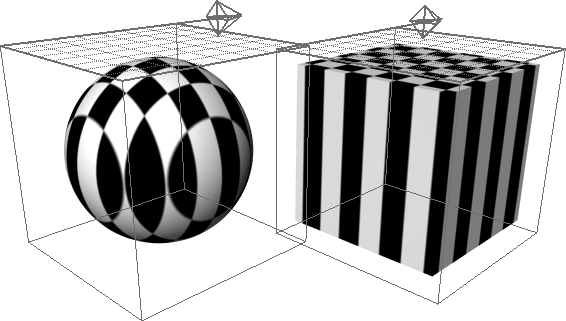
When projecting textures onto objects, there are several methods for achieving the final effect. Listed below are some of the projection options available for texturing objects. Each projection method has its own Solid projection icons that can be positioned in relation to the object.
Wraps the texture around the Y-axis in a spherical fashion centered on 0,0,0.
Wraps the texture around the Y-axis in a tube-like fashion.
Projects the texture in a manner similar to a candy-wrapper being pulled around a lollipop. There is therefore one pinch point as opposed to the two pinch points in Spherical and Cylindrical mapping.
Creates six copies of the texture then projects them outwards from 0, 0, 0 in a pyramidal fashion.
Projects the texture by extruding along the three axes defined by the Solid projection icon.
Projects image planes onto the surface based on the orientation of the camera. This method is very useful when projecting hand drawn sketches onto surfaces and is used in Lesson 33.
In some cases, such as CV animation, it is very important that all the textures end up as parametric maps. Alias includes a Convert Solid texture option in the Multi-lister that takes a Solid texture and turns it into a series of parametric maps that work with the UV parameter space of the various objects.
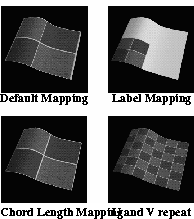
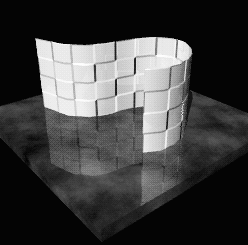
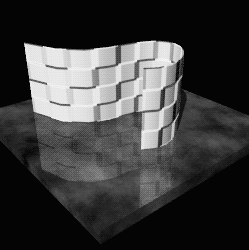
When working with parametric texture maps, you are placing the texture into the UV parameter space of that surface. By default the texture will stretch and warp using the surface patches as a frame of reference.
This means that a surface with an uneven layout of isoparametric patches will create an uneven texture.
To map the texture evenly over the whole surface, turn on Chord length in the Surface Placement section of the Texture Editor. You can also control the position of the texture on the surface using label mapping, and you can increase the number of repeats along each direction to cover the whole surface.
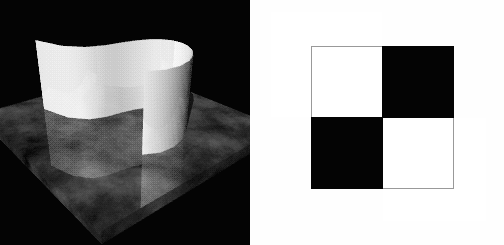
Shown below are four examples of how the ceramic tile texture could be mapped onto the surface shown.
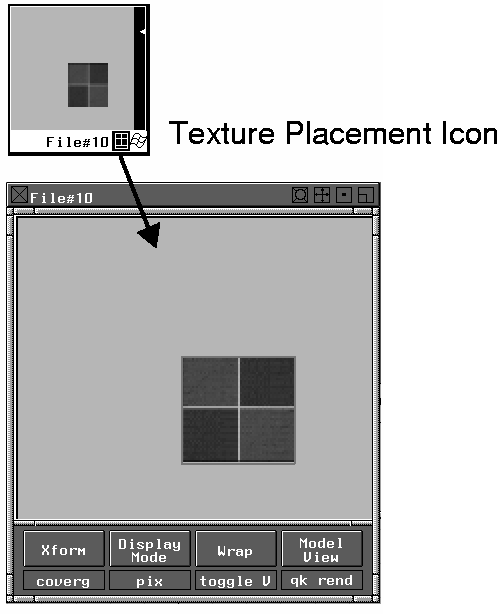
One tool that will help you place textures is the Texture Placement window. This window can be opened using the Texture placement icon in the Multi-lister. It has various menu items that help you position textures.
In addition to basic color textures, you can apply special types of textures to your shaders. These effects add detail to your shaders and give your surfaces a more realistic look. These mapping types can sometimes be used in place of modeling when it comes to fine details. Shown below are several mapping techniques that use this wall and the gridded texture.
A bump map uses a texture's tones of grey to create the illusion of relief on a surface. Areas of black on the texture indicate that the surface is raised while a gradation can be used to represent a sloping area. This effect only gives the illusion of depth on the surface and does not actually alter the surface.
A displacement map is a bump map that physically moves the surface during rendering. Whereas the edge of a bump mapped surface still looks flat, a displacement map is visible at the edge. Displacement maps look better than bump maps if you are moving around the object in an animation. Displacement maps take a while longer to render than bump maps but the final effect is often worth the wait.
A transparency map uses tones of gray to create the appearance that the surface is transparent. Areas of black on the texture indicate that the surface is transparent, while gray areas create a semi-transparent look. White areas are completely opaque.
A reflectivity map uses tones of gray to create the illusion that parts of a surface are reflective and other parts are not. This would be a good effect for a shiny surface that has rust spots.
There are other areas in the Shader Editor where you can map textures. These various levels of textures give you a whole range of texture effects that can all be combined in a single shader. For instance, if you wanted to show rust on a metal surface, you could use a Color map to represent the change of color from metal to rust red, a bump map to show a bit of relief where the rust is happening and a reflectivity map so that the metal reflects but the rust doesn't.
The Environment shader defines the background of the rendered scene. This shader can contain a texture image or a more straight- forward color map or ramp. This shader is also where you can create a fog effect or add a glow to your scene.
Now that you know a little bit about how shaders work, you can begin applying them into a scene. Watch for the various methods of mapping textures onto objects and be sure to become familiar with how the Multi-lister and Shader Editor work together.