|
Runs other applications from inside Alias.
When you use the external application, you can pass data to an Alias OpenModel program that modifies the data and returns the results back into the Alias interactive package.
You can also use this facility to run any other application, which means you do not have to minimize (or lower) your Alias session, and type the command from a UNIX window.
How to Use
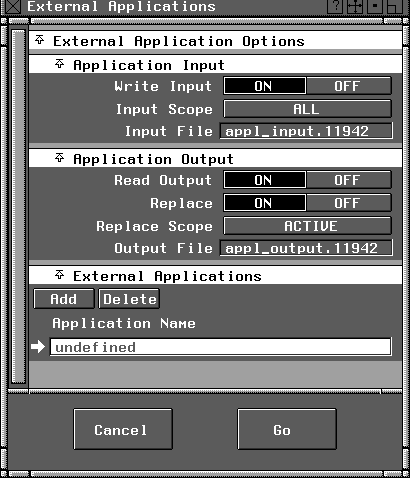
Select File > External apps. The External Applications window appears.
>
|
Note:
|
UNIX commands that are usually entered from a shell
require that you specify a window in which they can run. If
the command just prints some information and exits (like
date or df -k), then you will also have to specify an option
to hold the window. Here are some examples of running
standard commands:
|
|
|
To open a window that displays the top processes running
on your machine:
|
|
|
xwsh -geometry 80x40+100+50 -e top
|
|
|
To open a window that displays the amount of free disk
space on your machine:
|
|
|
xwsh -geometry 80x40+100+50 -hold -e df -k
|
Write Input
-
- ON-Alias saves a wirefile for input into the application prior to executing it.
Input Scope
-
- Click to the right of the heading to select from:
-
- ALL-the input wirefile includes the whole model.
-
- ACTIVE-the input wirefile includes only picked (or active) portions of the model.
Input File
-
- ON-the name displayed in this field is the filename that Alias calls the input wirefile.
>
|
Note:
|
If you provide an input file, whether Write Input is ON or
OFF, it is assumed to be the input filename for the
application. Therefore, it is passed to the application,
replacing any %i strings in the Application Name field.
|
Application Output Options
Read Output
-
- ON-Alias waits for the application to finish, and reads its output as a wirefile.
Replace
-
- ON-data read back from the application replaces data written out by Alias (note that the data replaced depends on the Replace Scope setting).
-
- OFF-data read back from the application is appended to the Alias model.
Replace Scope
-
- Click to the right of the heading to select from:
- ALL-the output wirefile replaces the whole Alias model, and a Delete all objects confirmation box appears.
- ACTIVE-the output wirefile replaces only picked (or active) portions of the model.
>
|
Note:
|
Only top-level nodes can be replaced (for example, not
geometry or lights). These nodes can only be replaced by
nodes of the same type and number. Any additional nodes
are simply added to the left of the model in the DAG.
|
This section provides a list of the external applications you have defined. This list is saved from session to session.
Application Name
-
- Use this field to type commands that provide a complete user interface.
-
- For example, double-click on the undefined entry and type gr_osview -a to change it. Now close the External Applications section to save the value you just typed in. The next time you want to run gr_osview -a, you can just open the External Applications window, click once on the gr_osview -a entry in the list of application names, and then click Go.
-
- Click the Add button to add an application to the list, or the Delete button to remove one from the list.
|


