 |
~Lesson 5~ |
 Next Page |
| ||
|
~Lesson 5~ |
Next Page |
| ||
The computer uses the current date and time to keep track of when files and folders are created and modified (changed). It is relatively easy to change the date and time on your computer, and then your computer uses an internal battery to keep the date and time up-to-date. (If the date and time do not stay updated, that internal battery may need to be replaced by a certified professional computer repair person.)
Opening the Date and Time Properties Window
The Date and Time Properties window is opened through the Control Panel. In older versions of Microsoft Windows, open the Start Menu, go to the Settings submenu and select Control Panel.
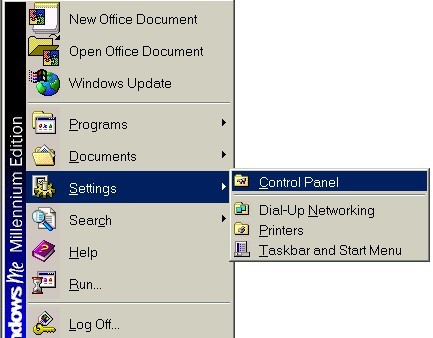
 Settings Control Panel (Windows Millennium Edition)
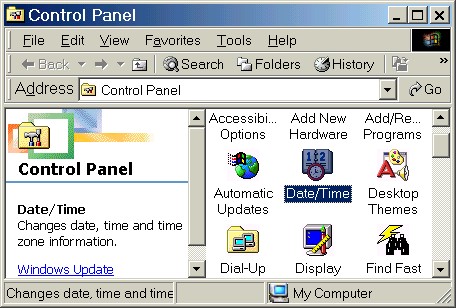
Double-click on the Date/Time icon in the Control Panel window to open the Date and Time Properties window.
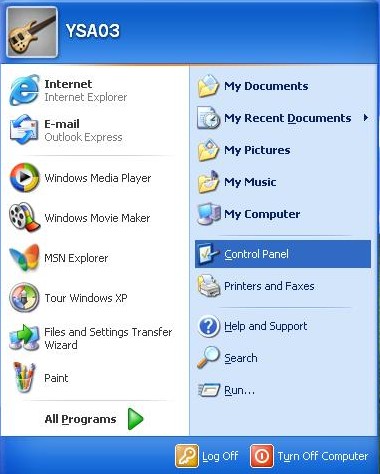
In Windows XP, open the Start Menu and select Control Panel.
 Control Panel (Windows XP)
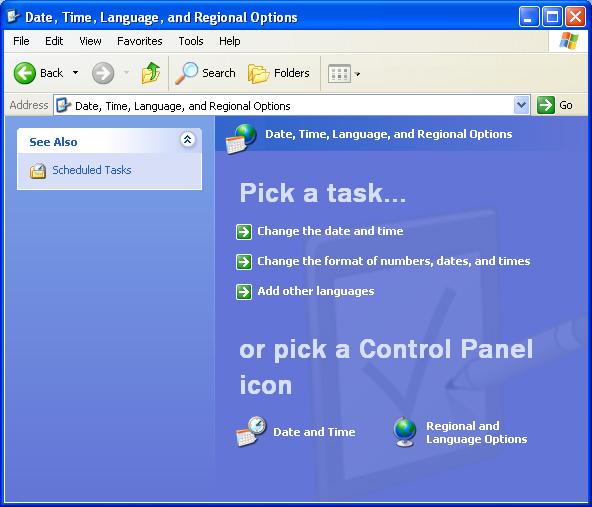
In the Control Panel window, left-click once on Date, Time, Language, and Regional Options.
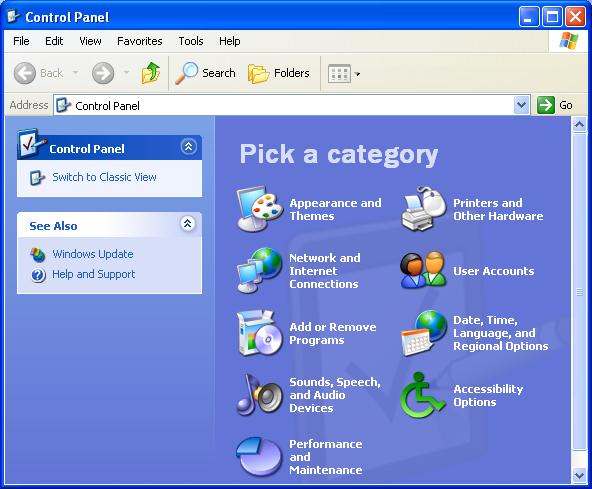
Once in the Date, Time, Language and Regional Options window, left-click once on "Change the date and time" under "Pick a task..." or double-click on the Date and Time icon under "or pick a Control Panel icon."
Changing the Date
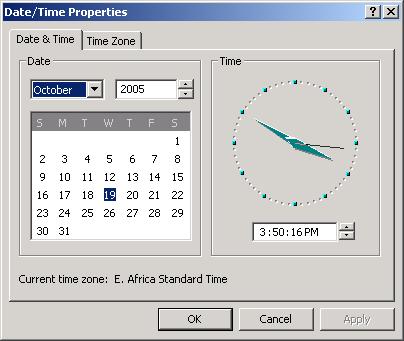
To change the date, first click on the Date & Time tab if that section is not showing. Next, change the month by clicking on the drop-down arrow and selecting the correct month from the list. Change the year either by selecting the year and then typing the correct year, or by clicking in the year box and then on the up or down arrows. Click on the correct day in the month calendar (e.g., 19 in this example). Finally, click on the Apply button to update the date and keep the properties window open, or click on the OK button to update the date and close the properties window.
Changing the Time
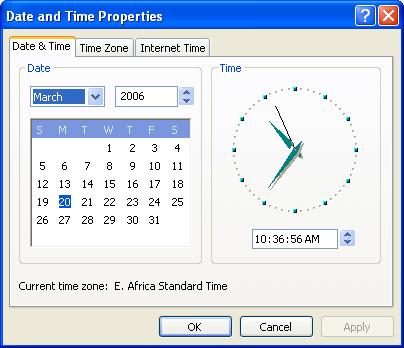
To change the time, click on the Date & Time tab if that section is not showing. Left-click once in the section (in the box) of the time you want to change (the hour, for example), and then click the up or down arrows in the spin box to increase or decrease the time. To change AM or PM, left-click once in that section of the box and click either the up or down arrow once. Click on the Apply button to update the time and keep the properties window open, or click on the OK button to update the time and close the properties window.
Changing the Time Zone
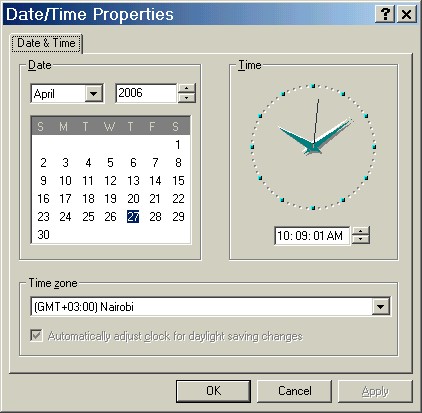
Changing the time zone can be done either by clicking on the Time Zone tab (see above pictures) and then selecting the correct time zone or, as in the picture below, selecting the time zone from the list below the Date and Time section, depending on the version of Windows. If there is a Time Zone tab, the current time zone will also be shown in the Date and Time section (e.g., "Current time zone: E. Africa Standard Time" in the pictures above).
|
Next Page |