Notepad
Numeric Keypad
| A | B | C | D | E | F | G | H | I | J | K | L | M | N | O | P | Q | R | S | T | U | V | W | X | Y | Z |
| N |
| Network: A group of computers connected to each other. |
|
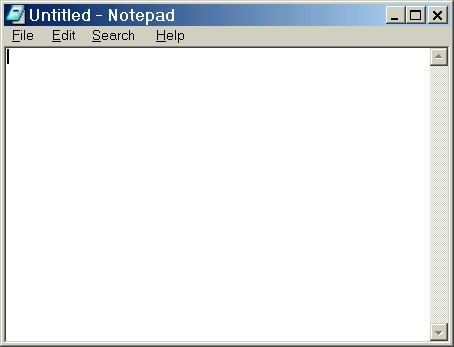
Notepad: An application in all versions of Microsoft Windows (a Windows Accessory) that can be used to create simple documents.
Notepad |
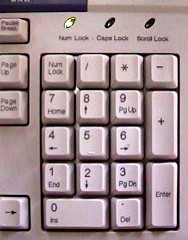
| Num Lock: A key on the Numeric Keypad used to toggle the keypad between number mode and movement node. There is usually a light on the top right-hand side of the keyboard that turns on when the Num Lock key is pressed and the Numeric Keypad is toggled. |
|
Numeric Keypad: A selection of keys on the right side of the keyboard that can be used either for typing numbers and mathematical signs or for moving around in a document.
Numeric Keypad |
| O |
| Object: Any item that can be seen on the screen, or anything that can be inserted into a document or other type of file. |
| Office Assistant: A help feature in Microsoft Office applications. |
| Offline: Not connected to the Internet. |
| Online: Connected to the Internet. |
| Operating System (O/S): The main computer program that allows interaction between the user and the computer software. Example operating systems are Windows 98, Windows Millennium Edition (ME), and Windows XP, as well as Macintosh and Unix. |
|
Option Button: A round button next to each of a group of options. Usually, only one option button in a group can be checked.
 Sample Option Buttons |
|
Option Dialog Box: A dialog box that offers options to choose from. For example, the Font dialog box allows you to choose between font styles, colors and sizes.
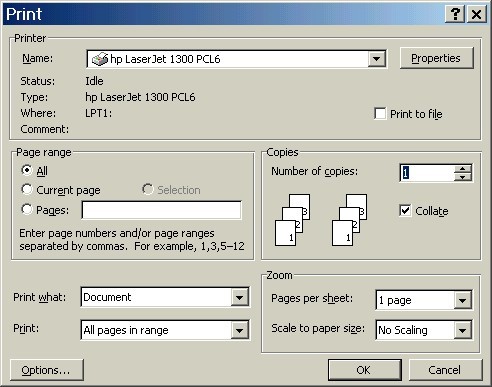 Sample Option Dialog Box |
| Outlook: A Microsoft application used for email and also contains a calendar, an appointment reminder, a to-do (task) reminder and an address book. Also known as Microsoft Outlook. Outlook Express is a smaller, less complete version of Outlook. |
| Output Device: A piece of hardware used for retrieving data from the computer. Examples of output devices are monitors, printers, and speakers. |
| Overstrike: To type over (replace) text in a document instead of inserting text. The Overstrike feature is turned on and off by pressing the Insert key on the keyboard. |
| P |
| Page Setup: The location in most applications where options can be set regarding the page margins, paper size, and other printing information. Page Setup is usually located in the File menu on the menu bar. |
|
Page Up and Page Down Keys: Keys on the keyboard used to move up and down the page in an application window if that page is too long to fit on the screen in its entirety.
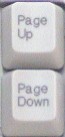 Page Up and Page Down Keys |
| Pane: A section of a document window separated from other parts of the window. |
| Password: Secret characters used to limit access to a file, computer, or online account. |
| Personal Digital Assistant (PDA): A small, handheld device that performs a few of the same functions as a computer. Mostly used by business people who need to be reminded of appointments and access and record information when they are not near a computer. |
| Peripheral Device: Any piece of hardware that attaches to the computer, usually via the hard disk drive. Common peripheral devices are printers, scanners, and speakers. |
| Personal Computer (PC): Any desktop or laptop computer owned or used by an individual. |
| Plug-In: A program that allows web browsers to access special features on a web page. For example, Real Player and Windows Media Player are plug-ins that can be used to play music or show videos from the web browser. |
| Point-and-Click: To move the mouse pointer over text or an object on the screen and left-click once. |
|
Port: An opening on the back of a hard disk drive where peripheral devices can be attached to the computer.
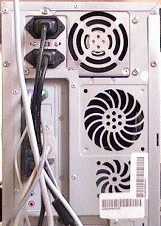 Sample Ports |
| PowerPoint: Microsoft presentation software used to create slides for demonstrations. Also known as Microsoft PowerPoint. |
| Presentation: (PowerPoint) A way of demonstrating information to an individual or a group of people using slides. |
| Presentation Software: Special applications used to create slide shows and other tools to sell or explain items or ideas. PowerPoint is an example of presentation software. |
|
Preview Box: A box in which option choices can be viewed.
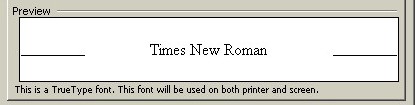 Sample Preview Box |
| Primary Key: (Access) A field or fields that have a unique value for each record in a table. |
| Print Preview: A view of the entire document in a way that shows how the document will look when it is printed. |
|
Printer: A peripheral output device used for printing data from the computer onto paper.
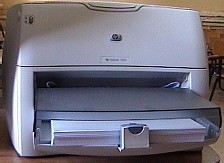 Sample Laser Printer |
| Program: A set of instructions that tells the computer how to perform certain tasks. Also known as software, computer program, application program or application. |
| Programmer: A person who writes software applications (programs). Also known as a computer programmer. |
| Programming Language: A language used by a computer programmer to create software applications. Examples of programming languages include C, C++, Visual Basic, COBOL, Java, and JavaScript. |
| Properties: (Access) Specific information about different parts of a field in a table. |
| Q |
| Query: (Access) A way to retrieve specific information from records in a table. |
|
QWERTY Keyboard: A standard typewriter keyboard, called the "QWERTY" keyboard because the first six letters on it are Q, W, E, R, T and Y.
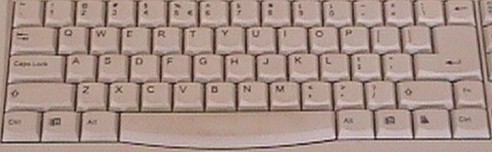 QWERTY Keyboard |
| R |
| Random Access Memory (RAM): Memory used by the CPU and other hardware devices that is not permanent. Data stored in RAM is lost when the computer is shut down. |
| Read-Only: A file, folder, or storage media that can be viewed (read), but not changed. |
| Read-Only Memory (ROM): Information (data or instructions) that is permanently placed in the computer during the manufacturing process and can be read, but cannot be changed. |
| Real-Time: Something happening at the present time, not in the past or in the future. For example, since instant messaging allows two people who are currently connected to the Internet to talk to each other immediately via typing, it is said to be occurring in real-time. Email, on the other hand, is not done in real-time as email can be sent while the receiver is not currently connected to the Internet. |
| Rebooting: Restarting the computer by reloading the operating system. |
| Record: (Access) Data stored for one specific item of a topic (e.g., one person's name and address in a table for storing names and addresses). |
|
Recycle Bin: A folder on the desktop where files and folders are usually placed before they are permanently deleted from the computer.
 Recycle Bin |
Removable Disk Drives: Storage media that connect to the computer as peripheral devices.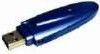  Sample Removable Disk Drives |
| Repositioning the Mouse: The act of lifting up the mouse off of the desk surface and moving it to a more convenient location before setting it back down and using it. |
| Resize: To make an application window smaller so that it does not fill the entire screen. |
|
Resize Corner: A section of the application window in the lower right-hand corner when the window has been restored (made smaller) that can be used to
resize the window.
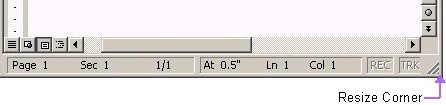 Resize Corner |
| Restart: To safely turn the computer off and back on again without physically turning the computer off. Restarting closes open applications, shuts down the operating system, and then restarts the operating system. |
| Restore: 1. Making an application window smaller so that it can be resized manually. (See Maximize/Restore Button.) 2. To return files and folders back to their original locations after they have been moved to the Recycle Bin. |
| Right-Click: To press and release the right mouse button once. |
| S | ||||||
|
Scanner: A peripheral device that creates a digital image of an object. A picture or document is scanned, turned into a digital image, and can then be stored in a computer or on a disk or CD, for example.
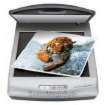 Sample Scanner | ||||||
| Scheduled Tasks: Tasks, usually system tools, that can be scheduled to run automatically in the background (while other applications are running). | ||||||
| Screen: The area of the monitor used for viewing data from the computer. | ||||||
| Screen Saver: A moving picture that comes onto the screen after the computer has been idle a certain number of minutes, used mainly to prevent others from seeing the screen contents while you are away from the computer. | ||||||
| Screen Tip: Helpful information that appears automatically when the mouse button moves over specific parts of a file. | ||||||
|
Scroll Bars: Bars on the side or bottom of document windows used for scrolling up, down, left and right on the page. To use a scroll bar, hold the left mouse button down over the bar and move the mouse up and down (or left and right).
| ||||||
|
Scroll Box: A text box where several options are listed and can be seen by scrolling through the list.
 Sample Scroll Boxes | ||||||
| Scrolling: The act of moving up or down through a page or list. | ||||||
| Search Engine: A web site that collects information about a variety of different web pages including their links. Search engines regularly send out search programs (called spiders, web crawlers, or "bots") that scan the Internet and report back information. When a user goes to a search engine web site and enters a keyword, a list of relevant web sites appears. Google (http://www.google.com/) is a famous search engine. | ||||||
| Select or Selecting Text: Highlighting text (by either clicking over it or by dragging the mouse over it) so that it can be changed. | ||||||
|
Shift Key: A key on the keyboard used to create individual uppercase letters on the screen. To use it, hold the shift key down and press the letter key. (To make all letters uppercase, see Caps Lock.)
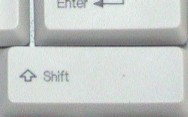 Shift Key | ||||||
| Shortcut: 1. A link to a file or application; 2. A method of doing a task faster than the usual way (by using the Alt and Ctrl keys on the keyboard instead of the mouse, for example). | ||||||
Shortcut Arrow: An arrow that appears on an icon to show that it is a shortcut. Shortcut Arrow 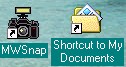 Sample Shortcut Icons | ||||||
| Shortcut Menu: A menu of frequently used commands that appears when you right-click over a word or object. | ||||||
| Shut Down: To close any open applications, turn off the operating system and then turn the computer physically off. | ||||||
| Slide: (PowerPoint) One page of a presentation. | ||||||
| Slide Show: (PowerPoint) The process of viewing a presentation on the computer screen. | ||||||
| Snail Mail: A term used to refer to the fact that sending email is faster than using the regular postal system for delivering mail. | ||||||
| Software: Computer programs that perform functions. Also known as applications, application programs, and software applications. Common software programs are word processing, spreadsheet, database, web browsing, desktop publishing and accounting. | ||||||
|
Spacebar: A key on the keyboard used to place one or more blank spaces between characters when typing.
 Spacebar Key | ||||||
| Spam: Unrequested or unwanted email sent to you by strangers, usually to try to sell you something or obtain secret information like passwords. Similar to "junk mail" received via snail mail. | ||||||
|
Speakers: A peripheral device used for hearing sound from the computer (music, for example).
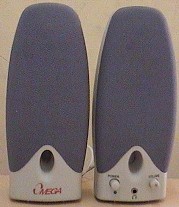 Sample Speakers | ||||||
|
Spin Box: A text box listing numbers that can be scrolled through.
 Sample Spin Box | ||||||
| Spreadsheet: An application program that allows easy manipulation of numeric data, with a grid of boxes and the ability to calculate totals and balances. Used most often for financial documents. | ||||||
|
Start Menu: Main menu of the computer where applications can be opened, searches can be started for files and folders, help for the computer can be found, the computer can be shut down, and other tasks performed. Usually located in the lower left-hand corner of the screen, on the taskbar.
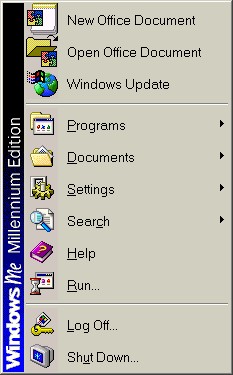 Start Menu | ||||||
|
Start Menu Button: The button on the taskbar that, when clicked, opens the Start Menu.
  Start Menu Buttons | ||||||
|
Status Bar: A row, usually at the bottom of an application window, that shows the status of that document or application. For example, the status bar of a Microsoft Word document window may show the current page number, the total number of pages in the document, where the cursor is currently located in the document, whether there are any spelling errors, the current status of saving or printing tasks, etc.
 Sample Status Bar | ||||||
|
Submenu: A menu of commands related to the command on the main menu. For example, the View menu in a text editor may have "Toolbars" listed, with an arrow pointing to the right. When the mouse pointer is moved over this, a second menu (submenu) appears listing the available toolbars.
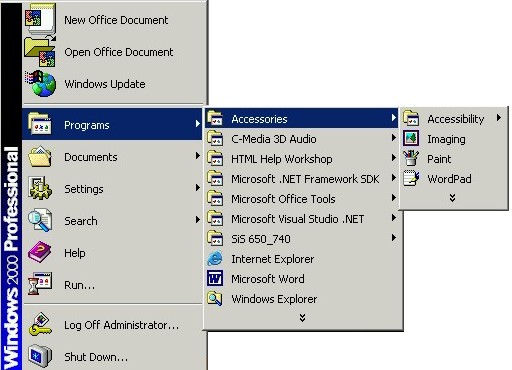 Sample Submenus | ||||||
| Subscript: The placement of certain letters, numbers or symbols lower than the average placement of text. Example: H2O. | ||||||
| Suite: A selection of applications that are grouped together and sold in one package. The most common of these is office suites, which are groups of applications used by businesses. An office suite may consist of programs for word processing/text editing, databases and spreadsheets. | ||||||
| Superscript: The placement of certain letters, numbers or symbols higher than the average placement of text. Example: Today is the 2nd of May. | ||||||
|
Surge Protector: An electrical cord that has outlets for several other electrical cords to be attached to it, and is used to protect hardware from receiving surges of electrical power.
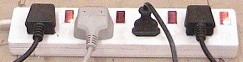 Sample Surge Protector | ||||||
| System Tools: Applications used to help the computer run smoothly and effectively. Examples of system tools include Disk Cleanup, Disk Defragmenter, ScanDisk, and Scheduled Tasks. |
| T |
| Tab: 1. A location in a page or paragraph - a stopping point - where text can be indented or aligned. 2. A title of a section on a dialog box that has related options grouped together. |
|
Tab Key: A key on the keyboard used to jump from one tab stop to another.
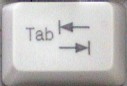 Tab Key |
| Tab Stop: A stopping point on a page or in a paragraph where text can be aligned or indented. |
| Table: (Word) A box that holds information in rows and columns. (Access) A database file that holds records on different topics or subjects and is used for organization of that information. |
| Table Relationships: The way data in one table relates to data in another table. |
|
Taskbar: A bar on the desktop, usually at the bottom of the screen, that has the Start Menu button, shortcut buttons for applications that are frequently used, buttons for applications that are already open, and other helpful items.

|
Task Pane: A separate part on the right side of the main window in newer versions of Microsoft applications that displays information on different topics, depending on commands selected.
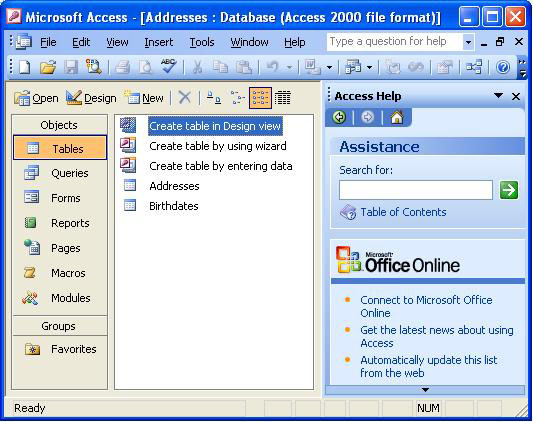 Access Window with Task Pane (Access 2003) |
Template: A document design that has already been created with certain fonts, styles, layouts and formatting and is ready for information to be inserted. Templates can be used to create letters, brochures, business plans and many other types of documents.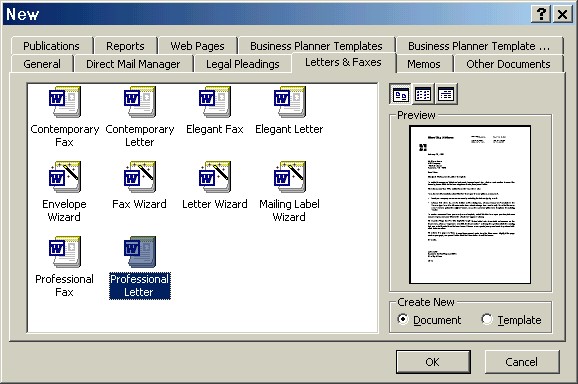 Sample Templates |
| Temporary Files: Files created by the computer to help it remember a file the way it was before changes were made to it. Temporary files are usually deleted after the file has been saved and closed. |
| Terabyte (TB): Unit of memory consisting of 1,024 gigabytes. |
| Text: Letters, numbers and symbols typed into a document. |
|
Text Box: A box into which information the computer or application needs is typed.
 Sample Text Box |
| Text Editor: An application program that allows manipulation of text. Documents such as letters and reports are created, saved and printed with text editors. Also known as a word processor. Microsoft Word and WordPad are examples of text editors. |
| Thumbnail: A small picture of a file or object. |
|
Title Bar: Top section of a window which usually contains the name of the file, the name of the application, and the Minimize, Maximize/Restore, and Close ("X") buttons.
 Sample Title Bar |
|
Toolbar: A selection of commands represented as buttons and grouped together. (See also Docked Toolbar and Floating Toolbar.)
 Sample Toolbar |
|
Toolbar Button: A button representing a command and placed on a toolbar. Toolbar buttons are shortcuts, used to perform tasks more quickly than if the command was selected from a menu.
     Sample Toolbar Buttons |
| U |
| Undo: The act of removing the last action performed. For example, if you type some text and select Undo, the text you last typed will be removed. |
|
Unexpanded Menu: A menu that does not show all of the available commands and has two downward-pointing arrows at the bottom. Clicking on these arrows will expand the menu to its full size.
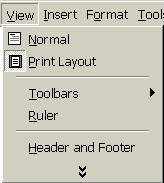 Unexpanded Menu |
| Uniform Resource Locator (URL): An address to a location on the Internet. (Example URL: http://www.peacecorps.gov/) |
|
Uninterruptible Power Supply (UPS): A piece of hardware used to control the electricity received by the computer. If the battery is charged in the UPS and the computer is connected to it, the computer will remain on for a few minutes after a power loss. This can allow enough time to save work and shut down the computer safely.
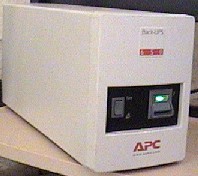 Sample UPS |
| Upload: To take data from a computer and place it on the Internet. |
| Username: The name with which a user logs in to a computer or Internet account. |
| V |
| Value: A number entered into a cell and used for calculations. |
| Virus: A destructive program that can enter the computer and destroy data, then be spread to other computers. Viruses can be downloaded from the Internet or spread through emails, disks, or other networked computers. |
| Voice Over Internet Protocol (VOIP): A method used to make voice calls over the Internet, in a way similar to using a telephone. |
| W |
|
Wallpaper: The background of the desktop, usually a picture.
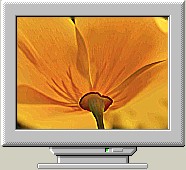 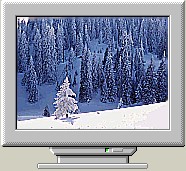 Sample Wallpaper |
| Web Browser: A software application that allows you to see web pages on the Internet. |
| Web Page: A page of information seen on the Internet that contains information and has links to other pages. |
| Web Site: A group of related web pages. |
| Wildcards: Certain symbols used to represent unknown characters when searching for a word in a document or other file. |
| Windows Accessories: Microsoft applications that come with every version of the Windows operating system and are located on the Accessories submenu off of the Start menu. Example Windows Accessories are Notepad, WordPad, and Calculator. |
|
Windows Logo Key: A key on the keyboard used to open the Start Menu without using the mouse. The Windows Logo key usually has a picture of the Microsoft Windows logo on it.
 Windows Logo Key |
Wizard: A guide that "walks" you step-by-step through creating a new template. Wizards ask questions or offer options and then create design templates based on your input.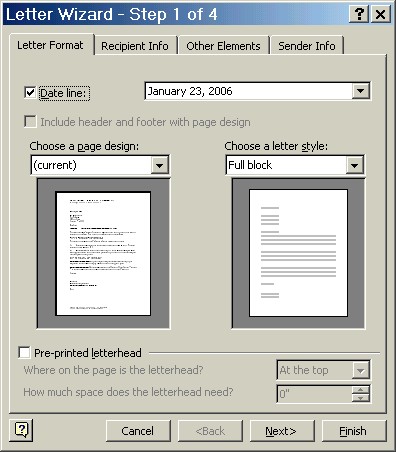 Sample Wizard |
|
Word: An application that can be used to create documents with complex formatting and inserted objects such as pictures. Also known as Microsoft Word.
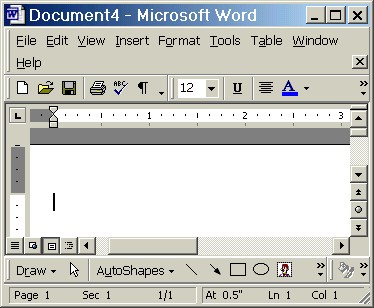 Microsoft Word |
WordArt: Used to enhance text by stretching, moving and applying special effects to it.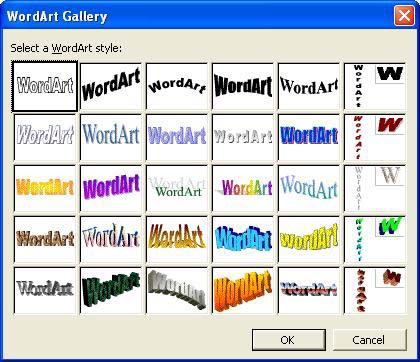 WordArt Gallery Dialog Box |
|
WordPad: An application in all versions of Microsoft Windows (a Windows Accessory) that can be used to create text documents that need a medium amount of formatting.
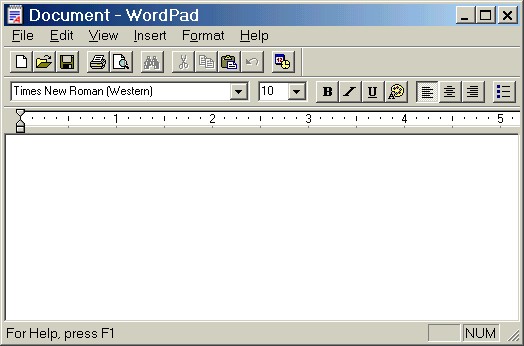 WordPad |
| Word Processor: An application program that allows manipulation of text. Documents such as letters and reports are created, saved and printed with word processors. Also known as a text editor. Microsoft Word and WordPad are examples of word processors. |
| Worksheet: (Excel) A document used to create and perform easy manipulation of numeric data, with a grid of boxes and the ability to calculate totals and balances. Used most often for financial documents. |
| Workbook: (Excel) One file consisting of several worksheets. |
| World Wide Web (WWW): A service on the Internet used to view web sites and web pages. |
| X |
| Y |
| Z |


