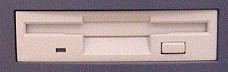
"A:" Drive
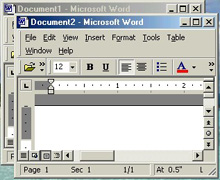
Active Window (in front)

Alt Key
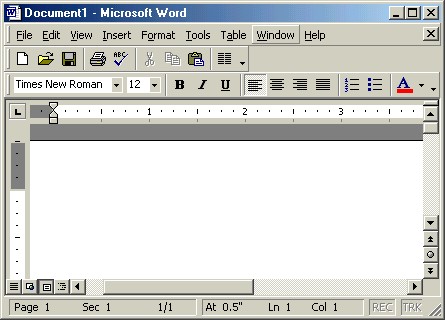
Application Window
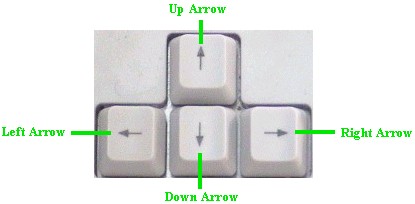
Arrow Keys
| A | B | C | D | E | F | G | H | I | J | K | L | M | N | O | P | Q | R | S | T | U | V | W | X | Y | Z |
| A |
|
"A:" Drive: The floppy disk drive where disks can be inserted. Also known as the "A:" drive because the computer usually assigns the letter "A" to this drive.
"A:" Drive |
| Access: A database application. Also known as Microsoft Access. |
|
Active Window: A window on the screen that is currently being worked on. The title bar of an active window is usually a darker blue, while the title bars of inactive windows are usually gray or lighter in color.
Active Window (in front) |
| Address Book: A list of names and email addresses for sending email to people. |
|
Alt (�Alternate�) Key: A key on the keyboard used with other keys to perform shortcuts without using the mouse. On the menu bar, for example, the menu names may have letters underlined, such as File. To open the File menu without using the mouse, you can hold down the Alt key, press the F key, and then release both keys. This is written as "Alt+F."
Alt Key |
| Animation: Movement of a graphic or object. |
| Anti-Virus Software: A computer program that scans the computer and its files for computer viruses. |
| Application: A computer program that performs tasks. Also known as application program or software. Common application programs are word processing, spreadsheet, database, web browsing, desktop publishing and accounting. |
|
Application Window: A box that appears on the screen when an application is opened. Application windows contain title bars, menu bars, toolbars, and work areas. Also known as document windows.
Application Window |
| Archive: A compressed file; used for storing unused files for a long period of time. |
| Attachment: A file (for example, a document or a picture) sent along with an email. |
|
Arrow Keys: Four keys toward the right side of the keyboard, to the left of the Numeric Keypad, that can be used to move up, down, left or right on a page.
Arrow Keys |
| B |
| Background: 1. On the desktop, the background is what is shown behind open applications and file, folder and other icons (see wallpaper); 2. An application working on the computer without the user being aware of it is said to be "running in the background." |
| Backspace: To go back one character to the left. |
|
Backspace Key: A key on the keyboard used to delete one character to the left of the cursor.
 Backspace Key |
| Bit: Short for binary digit, the smallest unit of digital data in a computer, consisting of a 1 or a 0. All data on a computer is stored in these units. |
| Bookmarks: (Word) Links to different parts of the same document. (Web Browser) Saved links to certain web pages that you may want to visit at a later time. Also known as Favorites. |
| Booting Up: Loading the operating system by turning the computer on. (See also Rebooting.) |
| Bug: An error in a program that causes it to act or react strangely or unexpectedly, or to suddenly stop working completely. |
| Bullets: Characters used to separate items in a list. |
|
Button: An object that performs a task or command when it is clicked on.
 Sample Buttons |
|
Button with Ellipsis (...): A button that, when clicked on, will open a dialog box.
 Sample Button with Ellipsis |
| Byte: The smallest unit of memory on a computer, consisting of 8 bits. |
| C |
| CD (Compact Disk): A media that stores data away from the computer. |
|
CD/DVD Drive: The part of the computer where CDs or DVDs (Digital Video Disks) can be inserted for writing and retrieving data.
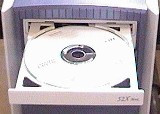 CD/DVD Drive with CD |
|
Caps Lock Key: A key on the keyboard used to turn on or off the Caps Lock function. When turned on, all letters will appear in uppercase when typed. When turned off, all letters will appear in lowercase unless used with the shift key.
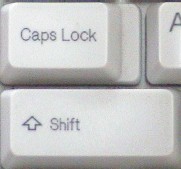 Caps Lock and Shift Keys |
|
Caps Lock Light: A light on the keyboard, usually on the upper right-hand side, that turns on when the Caps Lock function is turned on.
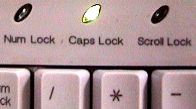 Sample Caps Lock Light |
| Case Sensitive: Making sure that when matching words or phrases, all uppercase and lowercase letters match exactly. For example, when searching a text document for the words "Official Letter" using the Case Sensitive option, only the words with the same uppercase and lowercase letters will be found: "Official Letter" will be found, but "official letter" will not. |
| Cell: (Excel, Access) The intersection of a row or column in a spreadsheet or table. |
| Central Processing Unit (CPU): The main part of the computer that does all of the work including calculations, logic control and immediate access memory (or RAM). The speed of the CPU is measured in megahertz (MHz) or gigahertz (GHz). Generally, computers with higher CPU speeds run faster. |
| Character: A letter, number or symbol. |
| Chart: A graphic image that represents data in a spreadsheet or worksheet. |
|
Checkbox: A square box next to an option. When you click in the box, a checkmark is placed in it and the option is selected. Click on the box again to remove the checkmark and turn the option off.
 Sample Check Boxes |
| Click: To press and release one of the buttons on the mouse. When used as an instruction, click means to left-click: "Click the Save button to save your document" means to left-click. |
| Clip Art: Images provided by Microsoft, yourself or someone else, that can be inserted into documents and other files. |
|
Close ("X") Button: A button on the title bar, in the upper right-hand corner of a document window (with an "X" on it), that is used to close the window and/or application.
 or or  Exit Buttons |
| Comments: Text inserted into a document or other file that appears when the mouse pointer rests over the area where the comment was inserted. |
| Computer Virus: A destructive program that can enter the computer and destroy data, then be spread to other computers. Viruses can be downloaded from the Internet or spread through emails, disks, or other networked computers. |
| Control Panel: A folder or section of the computer that has dialog boxes used to change the computer's settings. |
| Cookie: A small computer file sent to your computer by a web site on your first visit so the site can identify you on future visits with a personal greeting or settings. |
| Copy & Paste: The act of copying selected text and placing it in an additional location in the same or different document. |
|
Ctrl (�Control�) Key: A key on the keyboard used with other keys to perform shortcuts without using the mouse. For example, the File menu in an application may list "Ctrl+S" next to the Save command. Holding down the Ctrl key, pressing the S key, and then releasing both keys will perform the Save task without using the mouse.
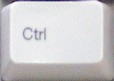 Ctrl Key |
|
Cursor: A guide in typing to show where the next character will be placed.
 Sample Cursor |
| Customizing the Desktop: Changing the computer's desktop configuration, such as the date and time, the wallpaper, and other display settings. |
| Cut & Paste: The act of selecting text, removing it from one location and placing it in another. |
| D |
| DVD (Digital Video Disk): A media that stores data away from the computer. |
| Data: Information on a computer or storage device such as disk, CD or DVD. |
| Data Source: Where data being used will be taken from (e.g., a specific database). |
| Data Type: (Access) A field format that determines what kind of data can be stored in that field: text, number, date/time, currency, etc. |
| Database: An application program used for storing records which can be retrieved later in any order and printed as reports. For example, a database of music CDs could be sorted and listed alphabetically by CD title, song title or artist. |
| Debug: What a computer programmer does to remove errors (bugs) from an application program. |
| Default: The original option(s) set at the beginning. For example, the default font is the one that is available when an application is first opened, before it is changed by the user. |
| Defragmentation: A file that is too large to be stored in one place in memory on a computer is instead stored in several locations. This is called fragmentation. Defragmentation is when all of the separated pieces of the file in memory are collected and placed closer together. Defragmenting the hard disk drive can help the computer run more quickly. |
| Delete: To erase characters and objects from the screen or work area. |
|
Delete Key: A key on the keyboard used to delete characters to the right of the cursor.
 Delete Key |
| Desktop: The on-screen work area that contains the taskbar, the Start Menu, icons and shortcuts. |
| Desktop Computer: A computer that sits on and/or under or near a desk or table. Generally, the monitor, keyboard, mouse and other peripheral devices are located on the desk or table and the hard disk drive is either on the desk/table, underneath it, or near it. Desktop computers are usually too large to transport easily, unlike laptop computers.
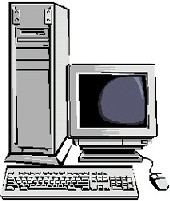 Drawing of a Desktop Computer |
| Desktop Publishing: The term used to describe the creation of fancy documents such as newsletters, brochures, books, pamphlets, letterhead, business cards, etc. |
| Desktop Shortcut: A shortcut placed on the desktop to allow faster access to a file or application. |
|
Dialog Box: When the computer has a question or wants to give you a message about a problem, a dialog box appears. In most cases, the computer will not let you continue working until you have responded to the dialog box. Dialog boxes may contain buttons such as OK, Save, Cancel, etc., and may also contain options that can be chosen. (See also Message Dialog Box and Option Dialog Box.)
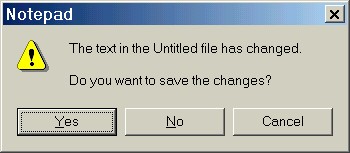 Sample Dialog Box |
| Digital: Data represented by the numbers 0 and 1. All information stored on a computer is stored in digital format. |
|
Dimmed Menu Commands: Commands that appear gray or grayed-out on a menu. Dimmed menu commands are available only under certain conditions. For instance, the Copy and Cut commands in a text editor menu may appear dimmed until text is first selected, and then appear as normal commands on the menu.
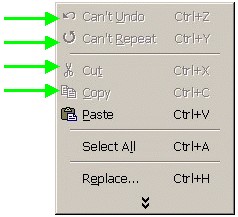 Dimmed Menu Commands |
|
Disk or Diskette: A media that stores data away from the computer.
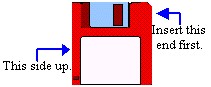 Disk |
| Disk Error: A problem with a disk or disk drive that causes it to lose data. |
| Display Properties: A dialog box (located in the control panel) where changes can be made to the desktop, screen saver, and other computer settings. |
|
Docked Toolbar: A toolbar attached to the top, bottom, right side or left side of a document window.
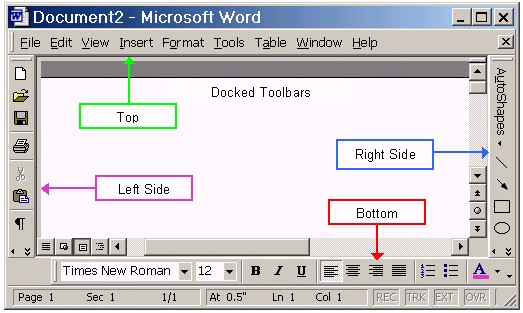 Docked Toolbars |
| Document: A file that contains text and/or pictures. |
| Document Extension: The 3- or 4-letters that appear to the right of a file name, after a period/dot (.), that tell the computer which application to use to open the file. For example, documents created and saved by Microsoft Word have a document extension of ".doc" after the name of the file. |
| Document Properties: Information about a file, such as its size, creation and modification dates, location on the computer, and which application is used to open it. |
|
Document Window: A box that appears on the screen when an application is opened. Document windows contain title bars, menu bars, toolbars, and work areas. Also known as application windows.
Document Window |
| Domain Name: A name given to a group of computers or web sites. In a URL, the domain name is usually the part after the first period ("."). In an email address, the domain name is the part after the @ sign. For example, in the URL http://www.peacecorps.gov/, the domain name is peacecorps.gov. In the URL http://mail.yahoo.com/, the domain name is yahoo.com. In the email address [email protected], the domain name is hotmail.com. |
| Double-Click: To press and release the left mouse button twice quickly; a method used to open files and folders. |
| Download: To retrieve data from the Internet and put it on your computer. Common downloads include software, music, and emails. |
| Drag-and-Drop: To move an object by placing the mouse pointer over the item, holding down the left mouse button, moving the mouse to another location, and then releasing the left mouse button. |
| Drive: A piece of hardware used to access a storage media. Examples: hard disk drive, floppy disk drive, CD/DVD drive. |
| Driver: Software that tells the computer how a certain piece of hardware works. For example, printers have printer drivers. |
|
Drop-Down Arrow: A downward-pointing arrow that, when clicked, opens a list of more options.
 Drop-Down Arrow |
|
Drop-Down List: A list box that shows one option and has a drop-down arrow on the right. When you click on the drop-down arrow, the remaining options are listed and you can scroll through the list to make your selection.
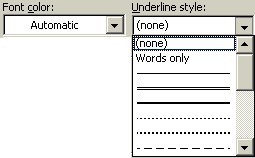 Drop-Down List |
| E |
| E-Commerce: Term used to describe conducting business (purchasing goods and services) over the Internet. The user is able to visit a web site, view the goods and services offered, order items, and pay for them (usually with a credit card or a bank account deduction). When the items are received, the user usually has a right to return them if they are not satisfactory. |
| Email (Electronic Mail): Mail sent over the Internet. |
| Email Address: The address to which email is sent. The format of an email address is username@domain.name. Example: [email protected]. |
|
End Key: A key on the keyboard used to jump the cursor to the end of the line.
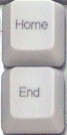 End Key (Bottom) |
|
Enter Key: A key on the keyboard used to move the cursor to the next line or tell the computer that a task is finished.
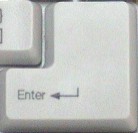 Enter Key |
|
"Esc" or Escape Key: A key on the keyboard used to cancel the previous action.
 Esc (Escape) Key |
| Excel: A spreadsheet application. Also known as Microsoft Excel. |
|
Expanded Menu: A menu that is open completely and shows all available options.
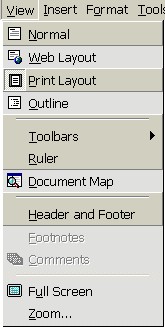 Expanded Menu |
| Export: Take a file from the current application and save it in another file format so that it can be used by a different application. |
| F |
| Favorites: Saved links to certain web pages that you may want to visit at a later time. Also known as Bookmarks. |
| Field: (Access) A place where certain types of information can be stored. |
| Field Name: (Access) The name of a field used in a table (e.g., "Plant Name" could be the field name for a field used to enter names of different plants). |
| File: Any type of data created and saved by an application, whether it is a text document, a picture, or any other type of information. |
| File Name Extension: The 3- or 4-letters that appear to the right of a file name, after a period/dot (.), that tell the computer which application to use to open the file. For example, documents created and saved by Microsoft Word have a document extension of ".doc" after the name of the file. |
| File Type: The type of a file is based on the application that created it. Example of file types include Microsoft Word documents, JPEG picture images, Microsoft Excel Firewall: A computer program that controls access into and out of a computer or a computer network. Mostly used by businesses and individuals to keep out hackers and/or limit Internet usage by employees or children. |
|
Floating Toolbar: A toolbar that is not attached to the top, bottom or sides of a document window and can be freely moved. Floating toolbars have title bars while docked toolbars do not.
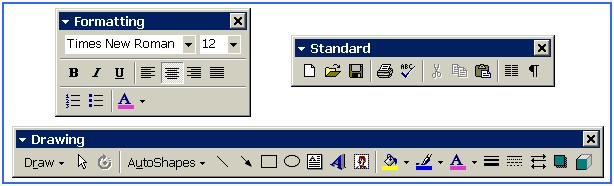 Floating Toolbars |
|
Floppy Disk Drive: The part of the computer where disks can be inserted for writing and retrieving data. Also known as the "A:" drive.
Floppy Disk Drive |
|
Folder: An area where a group of common files are stored together.
 Folder Icon |
| Folder Properties: Information about a folder, such as its size, creation and modification dates, location on the computer, and how many files and folders are contained within it. |
| Folder View: The way in which files and folders are viewed inside of an open folder. |
| Font: Characters, numbers and symbols in one design style. |
| Footer: graphics that appear at the bottom of printed pages. |
| Foreign Key: (Access) A primary key used to refer to a field in a second table. |
| Form Letter: A generic letter with basic information that will later be personalized during a mail merge. |
| Formatting: The act of styling and aligning text in a document. |
| Formatting a Disk: Preparing a disk so that data can be stored on it. |
| Formula: (Excel) Values, cell numbers and mathematical operators used for calculations. |
| FrontPage: A Microsoft application used to create web pages. Also known as Microsoft FrontPage. |
| Function: (Excel) Pre-designed formulas that perform complex calculations. |
|
Function Keys: Twelve keyboard keys, numbered F1-F12, that are assigned different tasks in different applications. For example, in most applications the F1 function key will open the help feature for that application.
 Function Keys |
| G |
| Gigabyte (GB): Unit of memory consisting of 1,024 megabytes (approximately 1 billion bytes). |
| Graphic: A picture or other image. |
| Graphical User Interface (GUI): Term used to describe the parts of the screen (desktop, application window, etc.) that are graphics (pictures) and not words. |
| Gridlines: (Excel, Access) Horizontal and vertical lines on a worksheet or form that help a person to read and input data. |
| H |
| Hacker: A person who uses the Internet to illegally access other people's computers and files, either to collect information or to cause damage. |
|
Hard Disk Drive: The main part of the computer, which contains the central processing unit, fans for keeping the components cool, the floppy disk drive, and the CD/DVD drive. On the back are ports for attaching peripheral devices. The hard disk drive is also sometimes known as the "C:" drive because the computer usually assigns this letter to the drive.
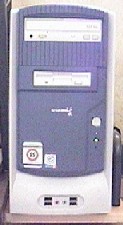 Sample Hard Disk Drive |
| Hardware: The physical parts of the computer that can be touched, such as the hard disk drive, monitor, keyboard, and mouse. |
| Hidden Files & Folders: Files and folders that exist on the computer but whose icons cannot be seen. |
| Header: graphics that appear at the top of printed pages. |
| Highlight or Highlighting Text: Selecting text (by either clicking over it or by dragging the mouse over it) so that it can be changed. |
| History: A list of web pages that have previously been accessed, in the order in which they were seen. |
|
Home Key: A key on the keyboard used to jump the cursor to the beginning of the line.
Home Key (Top) |
| Hyperlink: Underlined and colored text - or a picture - that you click on to go to another location, such as going from one page to another. Usually, the mouse pointer turns into a hand when the pointer moves over a hyperlink. Also known as a link. (Example: "Mouse pointer" in this paragraph is a hyperlink to the definition of that phrase.) |
| Hypertext Markup Language (HTML): The computer programming language used to create web pages. |
| Hypertext Transfer Protocol (HTTP): The method by which information is transferred on the Internet. |
| I |
|
Icons: The small pictures located over the names of files and folders that represent the application that created the document or the type of folder it is.
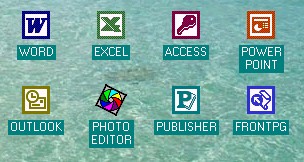 Sample Icons |
| Import: Take a file from another application and use it within the current application. |
|
Inactive Window: A window on the screen that is not currently being worked on. The title bar of an inactive window is usually gray or lighter in color than the title bar of the active window.
Inactive Window (in back) |
| Inbox: The location in your email program or online email account where new emails are placed when they first arrive. |
| Information Technology (IT) or Information Communications Technology (ICT): The knowledge and equipment used in working with information (data). This includes equipment such as computers, personal digital assistants and mobile phones, as well as the knowledge used to create software applications. |
| Input Device: Hardware used to input data into the computer. Examples of input devices are the keyboard and the mouse. |
| Insert: To place something into a document or line of text. If the Insert feature is turned on, anything typed or inserted will move the text or objects to the right of the cursor farther over to the right, instead of replacing it. |
|
Insert Key: A key on the keyboard used to change between Insert mode and Overstrike mode.
 Insert Key |
| Instant Messaging (IM): A method by which two people can talk to each other in real-time by typing messages to each other using a special program. |
| Internet: A network of computers all over the world connected together. Also known as the World Wide Web (WWW), the Information Superhighway, Cyberspace, and the Net. |
| Internet Protocol (IP) Address: A unique number given to every computer that accesses the Internet. |
| Internet Service Provider (ISP): A company that provides Internet access for a monthly or yearly fee. Computers first connect to the ISP (using a modem and telephone line, for example) and are then connected to the Internet by the ISP. |
| J |
| Java: A programming language used to create highly animated and interactive web pages. For a Java component (called an "applet") to work properly, it must be downloaded completely and run in a web browser. |
| JavaScript: A much simpler and more popular programming language than Java. JavaScript can be used to create animated images and scrolling messages on web pages, for example. |
| Justification: The alignment of text based on the margins: Left, center, right or "justified" (both left and right sides). |
| K |
|
Keyboard: The piece of hardware containing letter, number, symbol and function keys used to input data into the computer and perform tasks.
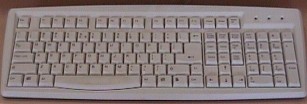 Sample Keyboard |
| Keyword: A word used to describe a topic being searched for. For example, if you were using a search engine to search for web sites on the Internet that contained information about growing fruits and vegetables, you might use the word "agriculture" or the words "fruits" and "vegetables" as keywords. |
| Kilobyte (KB): Memory unit consisting of 1,024 bytes. |
| L |
| Laptop Computer: A small computer that can fit on one's lap and can be transported easily. The hard disk drive, monitor, keyboard, and mouse all fit inside the laptop computer case, instead of being separate pieces of equipment like a desktop computer.
 Drawing of a Laptop Computer |
| Left-Click: To press and release the left mouse button once. |
| Link: Underlined and colored text - or a picture - that you click on to go to another location, such as going from one page to another. Usually, the mouse pointer turns into a hand when the pointer moves over a link. Also known as a hyperlink. (Example: "Mouse pointer" in this paragraph is a link to the definition of that phrase.) |
|
List Box: A text box in which the item that was selected from the scroll box below it is listed.
 Sample List Boxes |
| Logging In: Entering a username and password to use a computer or access a web site such as an email account. |
| M | |||
| Macro: Multiple tasks that have been automated so that they can be performed later automatically as one task. | |||
| Mail Merge: (Word) A system that combines a form letter with a list of names and addresses to create a new document that is personalized toward each name on the list. | |||
| Margins: Blank areas at the top, bottom, left side and right side of a document. | |||
| Maximize: To enlarge an application window so that it fills the entire screen. | |||
|
Maximize/Restore Button: A button on the title bar of an application, in the upper right-hand corner of the application window, that either makes the window fill the entire screen (Maximize) or, if it already fills the screen, makes the window smaller in size (Restore).
| |||
| Media: The physical items (CDs, disks, etc.) used for storing computer data. | |||
| Megabyte (MB): Unit of memory consisting of 1,048,576 bytes. | |||
| Memory: The area of the computer that stores data, located in the hard disk drive. Memory is measured in bits, bytes, kilobytes, megabytes, gigabytes, and terabytes. | |||
|
Menu: A group of similar tasks or commands listed for easy selection.
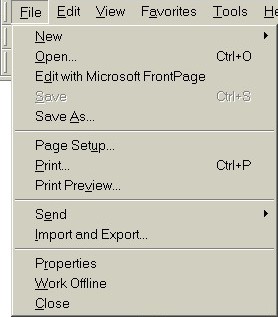 Sample Menu | |||
|
Menu Bar: A row of menus (such as File, Edit, View, Tools and Help) usually located at the top of a document window underneath the title bar.
 Sample Menu Bar | |||
|
Menu Key: A key on the keyboard that opens the shortcut menu without using the mouse.
 Menu Key | |||
| Merge: To combine two or more documents (Word), cells (Excel), or other information. | |||
|
Message Dialog Box: A dialog box that gives information and asks for a response. For example, if you close a text editor application without saving changes, a message dialog box will appear, asking if you want to save the changes.
Sample Message Dialog Box | |||
| Microprocessor: A section of the main part of the computer containing electronic circuits. | |||
| Microsoft: The software company that makes the Windows operating system and applications that can be used with it. | |||
| Microsoft Office: A group of Microsoft programs sold together at one time. This suite of programs usually includes Word, Excel, Access, and PowerPoint. | |||
| Microsoft Windows: The operating system made by Microsoft. Different versions of Microsoft Windows include Windows 95, Windows 98, Windows NT, Windows Millennium Edition (ME), and Windows XP. | |||
| Minimize: To lower an application window to the taskbar so that the desktop or other application windows can be seen. (Clicking on the taskbar button for that application window returns it to its previous state.) | |||
|
Minimize Button: A button on the title bar of an application, in the upper right-hand corner of the application window, that lowers the application window to the taskbar when clicked. (Clicking on the taskbar button for that application window returns it to its previous state.)
 Minimize Button | |||
|
Monitor: A piece of hardware (an output device) used for viewing work on the computer.
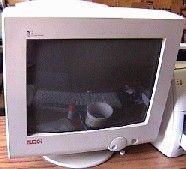 Sample Monitor | |||
|
Mouse: The device used to move a pointer on the screen and perform tasks.
 Sample Mouse | |||
|
Mouse Pointer: The arrow on the screen that moves when the mouse is moved and is used to select items and objects for performing tasks.
 Sample Mouse Pointer | |||
My Computer: A location on the computer (sometimes a folder on the desktop) where the various drives of the computer can be reached (such as the floppy disk drive, the hard disk drive, and the CD/DVD drive). My Computer Icon | |||
My Documents Folder: A folder on the desktop inside which many files and folders are placed. My Documents Folder Icon |

