| Evidence Eliminator Configuration - Page 3 |
|
|
16. - Now click onto the "Mode" tab. In the sub tab "Windows Mode" you can set the number of passes and the method of destuction. For the average user you can safely set the "Method of Destruction" to "Zero" although if you feel you need to set this to "Zero + Reverse" or "Zero + Reverse + Random" do so now. Set the number of passes to 7.  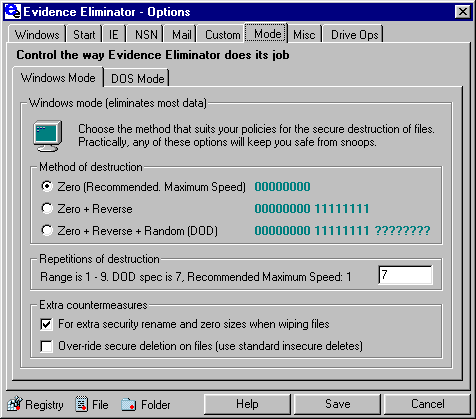 17. - Now click onto the "Dos Mode" tab. Set this to what you feel more comfortable with. 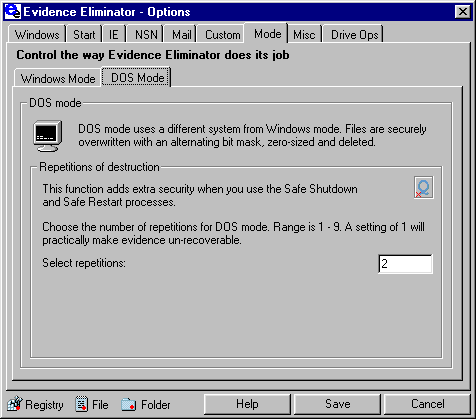 18. - Now click onto the "Misc" tab. The first sub tab will be the "Registry" tab. I would leave these unchecked for now. If you feel you need to clean or defrag the registry I would recomend you do this with out using Evidence Eliminator. 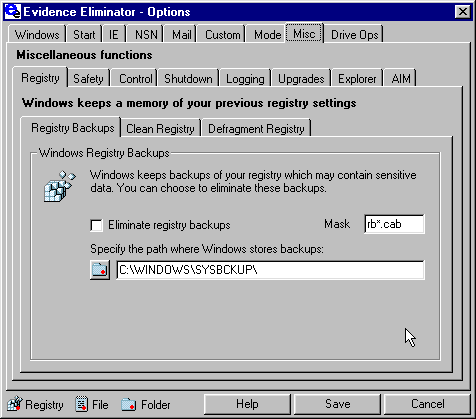 19. - Now click onto the sub tab "Safety". Here you can make EE pop up a confirmation box if your files exceed a specified amount of files. 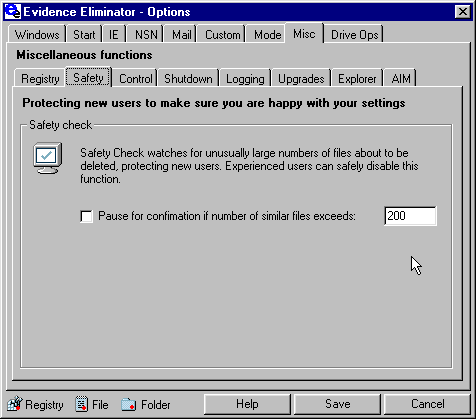 20. - Now click onto the sub tab "Control". This tab is self explanatory. Here you can also enable the "Stealth Hot Mode Key" which will make EE work in the background. 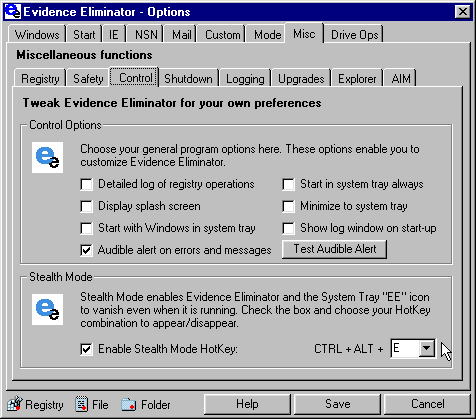 21. - Now click onto the sub tab "Shutdown". Here you can make EE 'intercept' a shutdown and start runnging. Evidence Eliminator must be running in the background (in you system tray) for this to work. And for computers that have the power down ability can add this to. 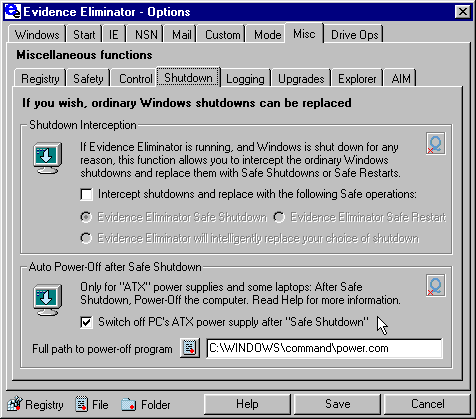 22. - Now click onto the sub tab Explorer. In the sub tab of Explorer you will see "Shell Extensions". Here you can activate the 'right click' menu function. I would recomend clicking the "Activate" button for this handy feature. 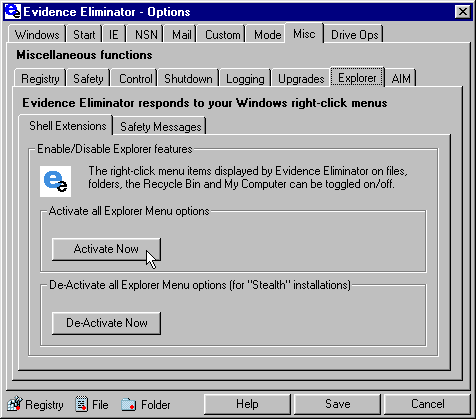 23. - Now click onto Explorer's sub tab "Saftey Messages". Put checks next to both of these. 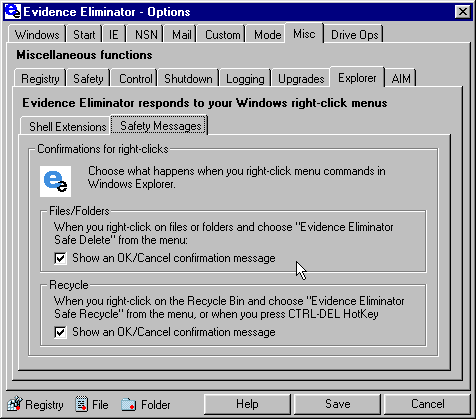 24. - Now click onto the sub tab "AIM". I don't (and never will) use AOL or AOL's AIM. For those of you who do, do something here. 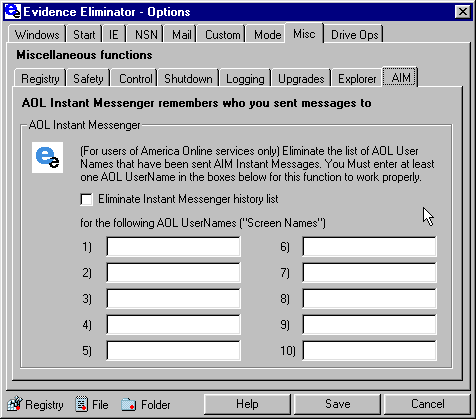 |
  |
|
| Back up |