Step 1: View Basic Tools Toggles
|
1. The first four buttons on the left of this toolbar toggle in and out of view some of Visio's most basic tools. The Rulers toggle turns on and off the rulers at the edge of the drawing space. Grid turns on and off the visible grid on the drawing page. Guides turns on and off the extended guide lines that you position from the rulers. Connection Points turns on and off the visible connection points on shapes. Remember while these may not be visible when toggled off. They are still there.
|
Step 2: View Windows Toggles
|
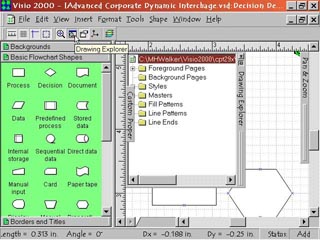
2. The next four toggle buttons turn on and off windows that appear in the workspace. Starting from the left we have Pan and Zoom window toggle that opens or closes the Pan and Zoom window. The Drawing Explorer window toggle opens or closes the Drawing Explorer window. The Custom Properties toggle opens or closes the Custom Properties window. And the Size and Position toggle opens or closes the Size and Position window.
|
Step 3: Step 3: Layer Properties Command
|
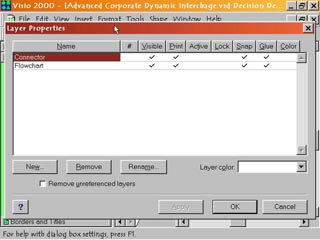
3. The last button on the right is the Layer Properties command. Click this to bring up the Layer Properties dialog box to access information about the layers of a selected shape or page.
|
Step 4: The Layer Properties Box
|
4. The Layer Properties Dialog box lets user make various changes to any designated Layer. For all Layers the Visible, Print, Snap and Glue features are activated by default.
|
 Proceed to the Next Page!
Return to the Previous Page!