Step 1: Snap and Glue Toggles
|
1. Unlike the previous toolbars, the Snap and Glue toolbar consists mainly of toggle buttons. And most of these toggles depend on whether the first two buttons on the left are toggled. Leftmost is the Snap toggle button. This must be on for the snap related functions to work. These deal with placement of shapes on the page. Usually aligning to a grid or ruler. Right of it is the Glue toggle button. It must be on for the glue-related functions to work. These deal with alignment between shapes.
|
Step 2: Grid and Drawing Aids
|
2. Third from the left is the Dynamic Grid toggle. When it is active, it helps you align shapes by dropping them in line with other shapes already placed. The toggle to the right of that is the Drawing Aid toggle. When active it helps you draw shapes using the ellipse, rectangle and line tools more effectively.
|
Step 3: Positioning Toggles
|
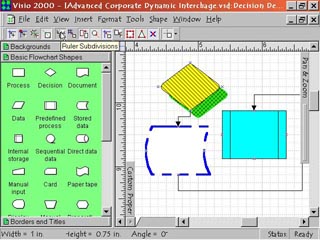
3. The fifth button from the left is the Ruler Subdivision toggle. When active it aligns objects to the nearest ruler subdivision set in Properties. For example this can be set to position shapes to the nearest quarter inch. This is usually secondary to the toggle to its right. Grid, when toggled on, automatically pulls a shape to the nearest grid subdivision. These are usually based on the ruler subdivision unless set otherwise in properties. Alignment Box helps align two shapes by their bounding box.
|
Step 4: More Positioning Toggles
|
4. Eighth from the left is the Shape Geometry toggle. When active it lets you align shapes by the actual drawn edge of the shape. Right of it is the Guides toggle. It allows you to snap to guide lines which you can place yourself in the drawing. Next is the Shape Intersections toggle. It allows you to position shapes at intersections of shapes or at intersection of a shape and grid lines.
|
Step 5: Yet More Positioning Toggles
|
5. Eleventh from the left is the Shape Handles toggle. This lets you align shapes by their Shape Selection Handles. Right of that is the Shape Vertices toggle. This allows you to align shapes by their vertices (corners). The next to last of the toggles is the Connection Points toggle. This allows you to align shapes by their connection points. Visio gives you many ways to align shapes with each other.
|
Step 6: Shape Extension Toggle
|
6. The final toggle and rightmost is the Shape Extensions toggle. The pop down submenu of Shape Extension options can be accessed through the down arrowhead on the right of the button. This gives you the various extensions to the visible shape that you can have other shapes align to. For example, you can have a box ?extend' its walls in invisible lines that other boxes will align to.
|
 Proceed to the Next Page!
Return to the Previous Page!