 How to make a Yahoo! Booter - Step 3
How to make a Yahoo! Booter - Step 3
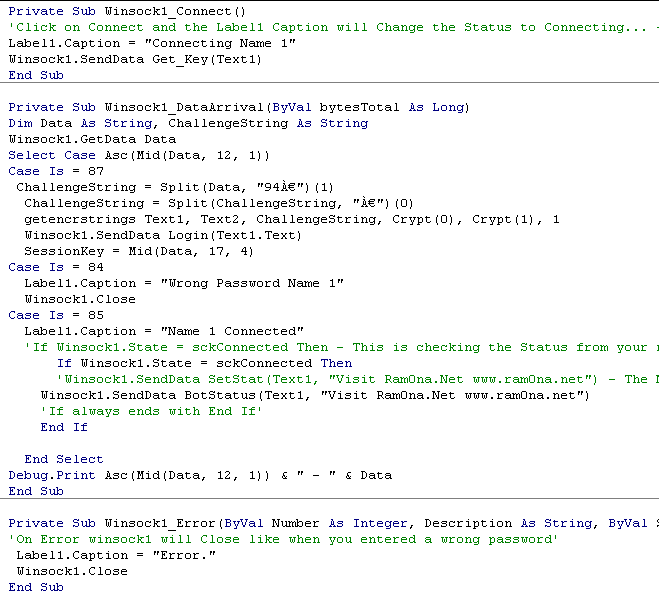
- Now we need to Write the Code for the Winsock.
Double Click on the Winsock icon that you Placed on your Forum and Place these Source in it
Private Sub Winsock1_Connect()
'Click on Connect and the Label1 Caption will Change the Status to Connecting...
- See the others now you know what they doo'
Label1.Caption = "Connecting Name 1"
Winsock1.SendData Get_Key(Text1)
End Sub
Private Sub Winsock1_DataArrival(ByVal
bytesTotal As Long)
Dim Data As String, ChallengeString As String
Winsock1.GetData Data
Select Case Asc(Mid(Data, 12, 1))
Case Is = 87
ChallengeString = Split(Data, "94À€")(1)
ChallengeString = Split(ChallengeString, "À€")(0)
getencrstrings Text1, Text2, ChallengeString, Crypt(0), Crypt(1), 1
Winsock1.SendData Login(Text1.Text)
SessionKey = Mid(Data, 17, 4)
Case Is = 84
Label1.Caption = "Wrong Password Name 1"
Winsock1.Close
Case Is = 85
Label1.Caption = "Name 1 Connected"
'If Winsock1.State = sckConnected Then - This is checking the Status from your
name you logged in when it is connected it will move on if not it will end here'
If Winsock1.State = sckConnected Then
'Winsock1.SendData SetStat(Text1, "Visit Ram0na.Net www.ram0na.net") -
The Name you connected will show this Message in the Status'
Winsock1.SendData BotStatus(Text1, "Visit Ram0na.Net www.ram0na.net")
'If always ends with End If'
End If
End Select
Debug.Print Asc(Mid(Data, 12, 1)) & " - " & Data
End Sub
Private Sub Winsock1_Error(ByVal Number
As Integer, Description As String, ByVal Scode As Long, ByVal Source As String,
ByVal HelpFile As String, ByVal HelpContext As Long, CancelDisplay As Boolean)
'On Error winsock1 will Close like when you entered a wrong password'
Label1.Caption = "Error."
Winsock1.Close
End Sub
This is the Complete Login source for the Winsock1 . You can Copy and Paste it in your Project.
After Doing this it should be Looking a little like this
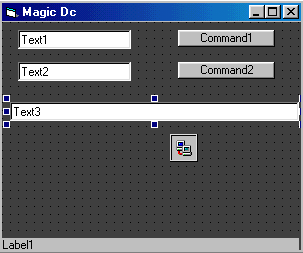
The Winsock Completed now we add a New Text Box to the Forum for our Yahoo Server Text.
Now we change the Text3 Text in the Propeties like This
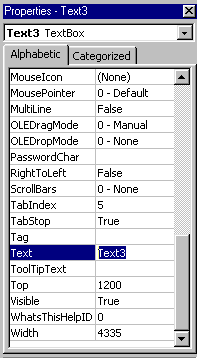
Where it Says Text3 hit the Backspace and write the Server [ scs.msg.yahoo.com ]
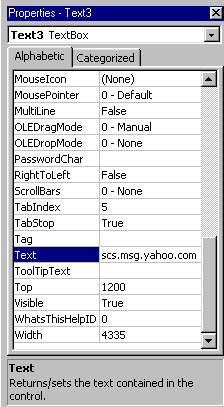
The Text3 box should be looking like this
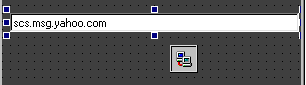
Now we click 2 Times on the Caption 1 button to enter the Login Source Code There
Private Sub Command1_Click()
Winsock1.Close
Winsock1.Connect Text3.Text, 5050
End Sub
Copy the Login Source here and Paste it in your Forums
Should be Looking like this Here
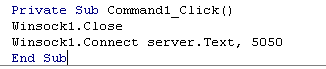
So the Login for our Booter is to 99% Ready now we can Test it. Don't Forget to Put the YMSG12ENCRYPT.dll in the Same folder where your Source is because without the dll the Yahoo Id won't Login. If you Paste the dll right now than Close your Project dont forget do Save First and Reopen the Project. We Test the Login now by Clicking on the Start Button.

Once we Click Start our Project will appear. Give a Working Yahoo Id in the Text1 Field and the Password from it in the Text2 Field and Click the Command 1 Button
Yahoooo The Id Logged in as you can See
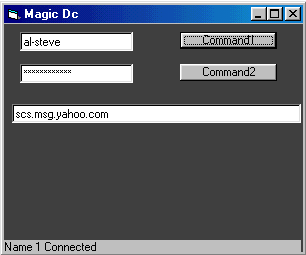
Add the Yahoo id to your Messenger List to Check it my Id I gave in the Project here I Online

Now we need to give the Source to Disconnect the id By Clicking the Command2 button.Doubble Click on the Command2 button and Enter the Source I gave you Here
Private Sub Command2_Click()
Label1.Caption = "Name 1 Disconnected."
Winsock1.Close
End Sub

Now the Login Completed. Lets Change the Caption and Text Names.
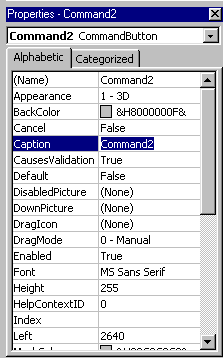
Change Command1 to Login and Command2 to logout. Than change the text Boxes like you did with the Text3 Box where you entered the Server Text.
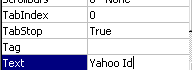
Should Be Looking like this Now
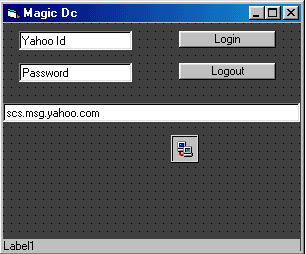
Now Login your Yahoo Id again and when it Logged in than Click Logout. If the Id Logged Out than You Got a 100% Working Login. I Tested it and it Worked.
- You Can Download the Complete Step 3 Here
By _Jehanzeb_ - www.jehanzeb.tk