
| HOME | TUTORIALS | EXERCISES | ABOUT US |
|---|---|---|---|
-It is an image-editing program that lets you manipulate praphics by using palette tools and variety of techniques such as rotating it, moving it
many other more.
Parts of Adobe Photoshop:
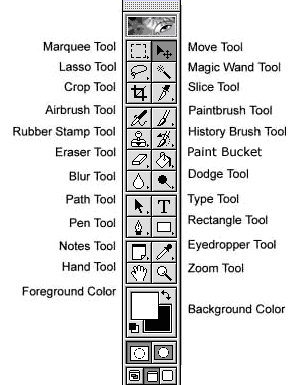
Toolbox
Kinds Of Tools
*Magic Wand Tool
-This tool selects all objects in a doucument with the same or similar fill color, stroke weight, stroke color, opacity or blending mode. By specifying the color range, or tolerance.
*Magnetic Lasso Tool
-This tool selects an bject by drawing to a border that snaps to the edges of the defined area of the object. Click on the starting point on the image, drag around the area of the image. The tool will make fastening points at the edges. To finish selecting, drag the border to the starting point and click precisely on the point.
*Crop Tool
-Click the tool button, then click the area of the image you wish to select. It selects and cuts parts of an image.
*Slice Tool
-It is used to cut images into slices, which can be exported into a webpage.
*Marquee Tool
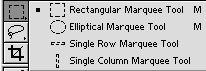
-Selects an object by drawing a rectangle or an ellipse around it. Click the tool button, choose a rectangular or an elliptical marquee. Drag the marquee over the area of image you wish to select.
*Move Tool
-Used to select and move objects on the page. Click the tool button, the click on any object on the page you wish to move.
*Lasso Tool
-This tool selects an object by drawing a freehand border around it. Click the tool button, drag to draw a freehand border around the area of the image you wish to select.
*Polygonal Lasso
-It selects an object by drawing a straight-edge border around it. Click the tool button, click on the starting point on the image, drag to draw a straight-edge border, click and drag again to select the area of the image you wish to select. Double-click to finish.
*Direct Selection Tool
-This tool selects paths and path segments. Select the tool, click anywhere on the path.
*Type Tool
-It types text on a page. Everytime you click the Type Tool on a new portion of the page a new layer will be created. Select the tool, click on the page and begin to type. You can specify the font and size in the Options bar. You can also resize and transform the text box by dragging the squares at the sides and corners. Use the Move Tool to move the text page.
*Pen Tool
-It draws smooth-edged paths. Select the tool, click on the page, drag to draw a path. Click and drag the anchor points to modify the path.
*Rectangle Tool
-This tool draws a rectangle shape. Other shapes that are hidden in this tool are: Rounded Rectangle Tool, Ellipse Tool, Polygon Tool, Line Tool, and Custom Shape Tool. Select the tool, click and drag on the page to draw a shape. The shape will be automatically filled with the foreground color.
*Eyedropper Tool
-This tool takes color samples from colors on the page and displays tool them in the Color Boxes. Select the tool, click on the color in the image you wish to sample. The Color Box will display this color.
*Hand Tool
-Allows you to move within the image. Select the tool, click on the spot on the page, hold the mouse button down, drag to move in the area.
*Magnifying Tool
-Magnifies or reduces the display of any area in you image Glass Tool window. Select the tool, choose Zoom In or Zoom Out in the Options bar, click on the area of the image you wish to magnify or reduce.
*Rotate View Tool
-This tool rotates the canvas. Select this tool and drag outside of the canvas and the canvas will turn. Hold Shift to make sure that the canvas will snap to certain degree points.
*Healing Brush Tool
-Connects small blemishes in scanned photos. Select the tool, hold down the ALT key and left-click on the base color you need to heal. Then, left-click over the blemish.
*Brush Tool
-Draws lines of different thickness and colors. Select the tool. Then click on the selected are, and drag to draw lines. Use the Options Bar to change the Brush, Mode, Opacity, and Flow.
*Clone Stamp
-Takes a sample of an image and applies over another image, or a part of the same image. Select the tool. Hold down the ALT key and left-click on a certain point of the document where you want to start your copy point. Then, put your mouse over whatever part of the new document you want the picture to go to. Hold down the left mouse button and drag the mouse across the page to copy the picture.
*Art History Brush
-Paints over an image using the source data from a specified history state or snapshot. Select the tool, specify the brush, blending mode, opacity, style, area, and tolerance.
*Erase Tool
-Removes part of an existing stroke. You can use the Erase Tool on paths, but not on text. Select the tool, click on the part on the part you wish to erase. Drag to erase pixels.
*Paint Bucket Tool
-Fills an entire area with a specific color of your choice. Select the Tool. Choose a foreground color in the Color Box. Select an area you wish to apply the color to. Click the tool button, then click on the selected area.
*Gradient Tool
-Applies a gradient fill to a selected part of the image or to an entire layer. Select an area you wish to apply gradient to, click the tool button, choose a fill in the Options bar, click on the starting point, hold the mouse and drag to the end point.
*Blur Tool
-Blurs the sharps endges of an image. Select an area where you wish to apply the tool. Click the tool button, choose the Brush, Mode and Strength. Drag the brush along the edges.