
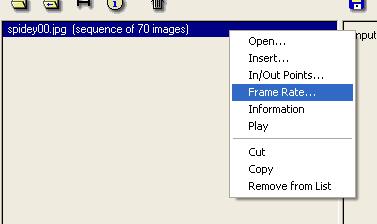
If you opened each file individually, highlight all the files (click on either the first or last one, then 'Shift' key and use the arrows) and then right-click and select 'frame rate'.

|
|
|
|
|
|
|
|
|
|
|
|
|
|
|
|
|
|
|
|
|
|
|
|
|
|
||||||||||||||||||||||||
| If you opened the files in a sequence, click on the opened sequence, right-click and select 'frame rate'. If you opened each file individually, highlight all the files (click on either the first or last one, then 'Shift' key and use the arrows) and then right-click and select 'frame rate'. |
||||||||||||||||||||||||
|
||||||||||||||||||||||||
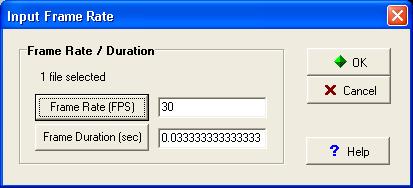
| This step is very important. Before you started filming, you should have decided on a frame rate in which you wanted to film. Go ahead and select your frame rate either by typing it in place of '30' or by clicking on the 'Frame Rate' button. | ||||||||||||||||||||||||
|
||||||||||||||||||||||||
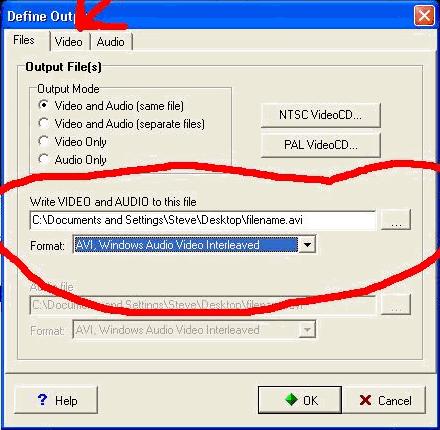
| Does this screen look familar? Name your output file, and select .avi or .mpeg. You can also compress your output file by clicking on the 'Video' tab, and following the guide on the first 2 pages of this tutorial. When your finished, click 'Ok'. | ||||||||||||||||||||||||
|
||||||||||||||||||||||||
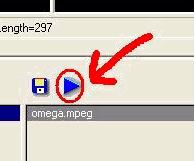
| hen you are finished with everything, click on the 'Play' button and let Videomach do its thing. The file should play when it is finished. | ||||||||||||||||||||||||
| Hope you found this tutorial helpful. Videomach is capable of many things besides what I have covered. The best way to learn is to try it yourself. It is a very valuble program to have and use. The best part of Videomach....its FREE! | ||||||||||||||||||||||||
| <<< PREV | ||||||||||||||||||||||||
|
||||||||||||||||||||||||
| Take me home! | ||||||||||||||||||||||||