 |
|
|
|
|
|
|
|
|
|
|
|
|
|
|
|
|
|
|
|
|
|
|
|
|
|
|
|
|
Videomach Tutorial |
|
|
|
Videomach can be a very confusing piece of software, especially to those who have never used it before. Below is a tutorial which should help those of you who are confused, frustrated, or have no clue what to do. This program is capable of many things, but I will just cover the basics for now. Covered in this tutorial are: 1. Compressing a file using a Codec (in this case, Divx) 2. Spliting a video file into individual frames. 3. Combining more than one video file into one video file. 4. Combining individual frames into one video file. Let's get crackin'! |
|
|
|
Compressing a video file using a codec: |
|
|
|
Before we can do anything, you need to have Divx installed on your computer. If you do not have it already you can get it by clicking on the link to the right. |
|
|
|
 |
|
|
|
Download Divx |
|
|
|
|
|
|
|
|
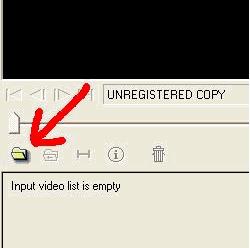
First thing we have to do is open the file we wish to comprress. To do this, click on the folder icon as shown to the right. |
|
|
|
|
|
|
 |
|
|
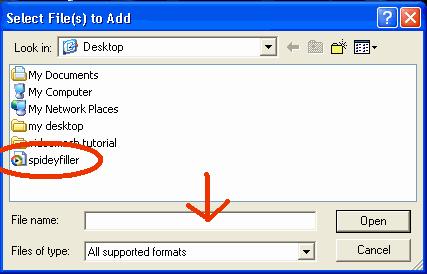
To select your file, you can either type the pathname (c:/folder/file) or search for in on your hard drive with the icons. To make this easier, you could put the file on your desktop, but it isn't necessary. |
|
|
|
|
|
|
 |
|
|
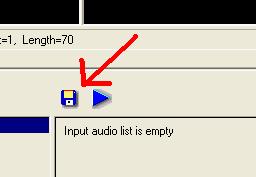
After opening the file you wish to compress, click on the diskette icon. |
|
|
|
|
|
|
 |
|
|
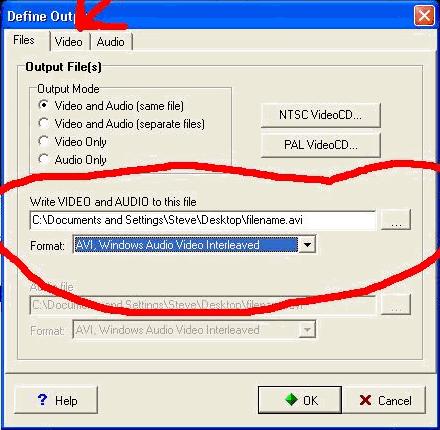
Here is where you set the output for your file. In the circled area, select your format (.avi for this application). After you name your file, click on the 'Video' tab. Then, click on the 'Advanced' button on the next screen (sorry I don't have a pic, but it is pretty easy to find). |
|
|
|
|
|
|
NEXT >>> |
|