After you are done doing the first pass, now its time to make the real video file. First make sure there is a audio stream, if you are using VBR MP3 audio, go to audio and choose (VBR) MP3 audio and select your MP3 that you have made with LAME. It will take about 10 seconds to load and at that time the program will stop responding for a while. Choose no Audio for the second stream. Make sure that Direct Stream Copy is selected for audio.
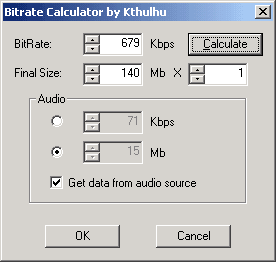
Go to video, look for SBC options and select Bitrate calculator. If you are using VBR MP3, check the box that says get data from audio source, otherwise, choose the bitrate that you used. Then, at the final size box, choose the file size you want. For a VCD rip that is relatively small screen size, use about 140MB so that 5 episodes can fit into a cd with decent quality. For DVD rips with large resolution, I recommend 170MB to 230MB. You can choose your own setting as you see fit. Then press calculate, the bitrate that you get is the average bitrate for this video, and it will be automatically set for you:
Now click ok and go to SBC settings:
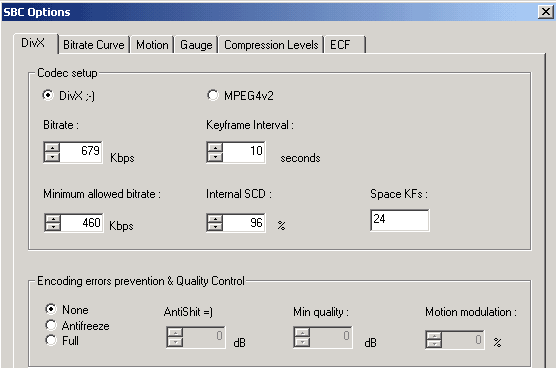
The bitrate was already filled in for you, you don't really have to change anything here as they all work fine, just make sure the minimum allowed bitrate is lower than the bitrate you set. The quality control adds to the time it takes to encode, unless you have problems you don't need to set it. Now go to the sceond tab Bitrate curve:
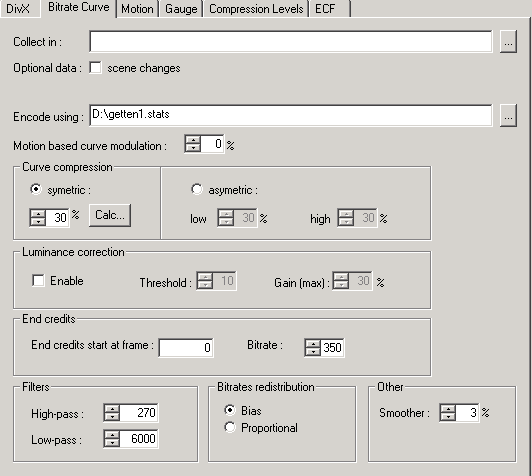
Click the calc button next to the curve compression, choosing symetric is ok as they don't make much difference in quality. If the percentage is too high or too low, change to cross point a bit (more on that later). I got 30% for this encode. Enable Luminance correction and leave it at default values. This setting should have more effect if your video is bright a lot of times. You don't really need to touch end credits as a lot of times those anime ED are not only name scrolling, leave it at zero. I am not so sure about how the filters work.... leave it as is. Set Bitrates redistribution to Proportional is better in my opinion. And leave smoother around 5%.
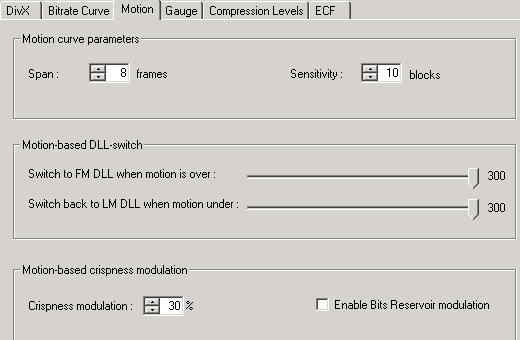
Default values work fine for me, so I leave all of them like this. If you want a small size rip, check enable Bits Reservoir modulation.
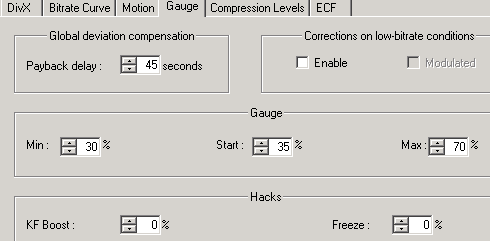
All default values work for me, if you want to allow higher bitrate to be used, set max gauge 80 or even 100, other stuff doesn't affect much. Don't touch anything at Compression Levels and ECF tab.
Now click ok and go to Option menu and choose Preferences, there are not much to change except Scene and SBC:
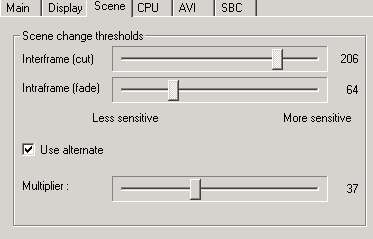
Most people say that alternate scene change detection works better, set it around 30 to 40.
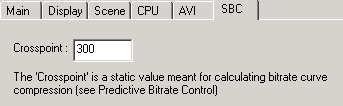
If you have extremely high value for curve compression calculation before, that probably means you are asking for too much quality out of too little data. Set the crosspoint to about 400 if you are looking for rediculously small files, otherwise use 280 or 300. Save and get out of the screen.
Now the last step, go to file menu and choose save avi, choose your final filename and click save. Then wait for your result.
Enjoy the SBC rip that you have just made. Make sure the video is playable. Also, explore around the options to find the optimal settings for each video. The setting made above are not absolutely right and may produce horrible results on some samples.
| �@ |

 <- Back