
The Source: eCheques (4/5)
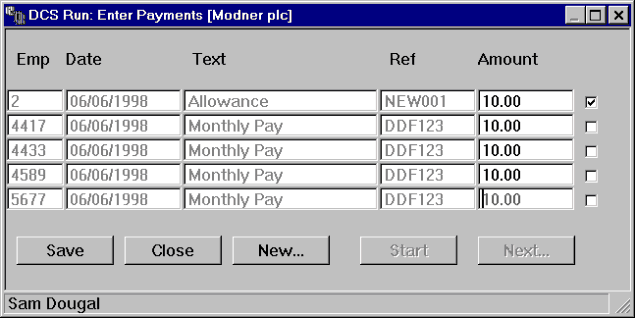
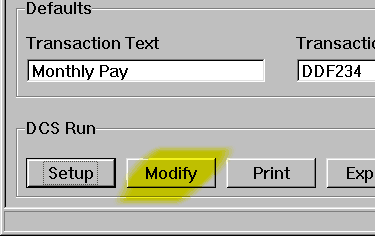 In its simplest form, all you have to do is type
in the amounts next to each payee. The currently selected payee name is displayed on the
message bar.
In its simplest form, all you have to do is type
in the amounts next to each payee. The currently selected payee name is displayed on the
message bar.
If you have more than one screen full worth of payees, the Next Button will become available allowing you to move from one screen to another. The Start button takes you to the beginning of your payees (applies only then there is more than one screen of payees).
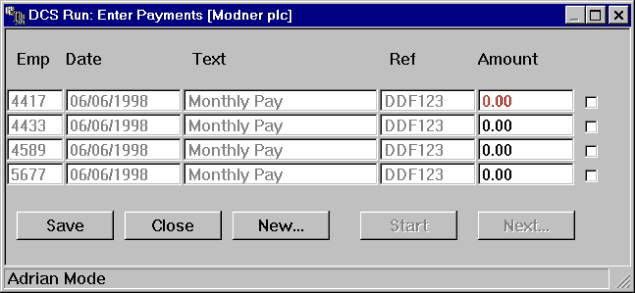
The check box next to the amounts indicates whether any of the payee details (other than amounts) have been modified. Changes to payee details from here do not reflect in the master payee file. This gives you the option to customise a transaction for only one particular run. See Altering DCS Run Payee Details for more information.
The payee # shows the payee reference. Other details may vary according to Bank:
| DCS Run Text | This is a free text field will be displayed on the payee’s and subscriber transactions |
| DCS Run Reference | This is a free text field that may contain a numeric reference. It will appear on the subscriber’s statement. |
| Transaction Date | The date when the transactions are to be credited to the individual payee accounts. Must be greater than or equal to the effective payment date. |
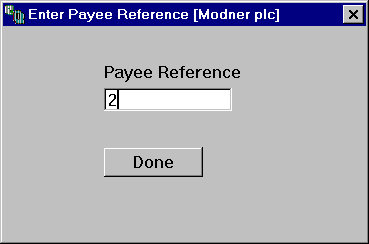 The New button allows you to add a payee to this
run. This will not reflect in the actual payee list and applies only to this run. You must
supply a unique payee number and then fill up the rest of the details.
The New button allows you to add a payee to this
run. This will not reflect in the actual payee list and applies only to this run. You must
supply a unique payee number and then fill up the rest of the details.
Thus, with eCheques it is possible to include non-regular payees within a run. This greatly facilitates appending generic payments to normal runs. See Altering DCS Run Payee Details for more information.
Altering DCS Run Payee Details
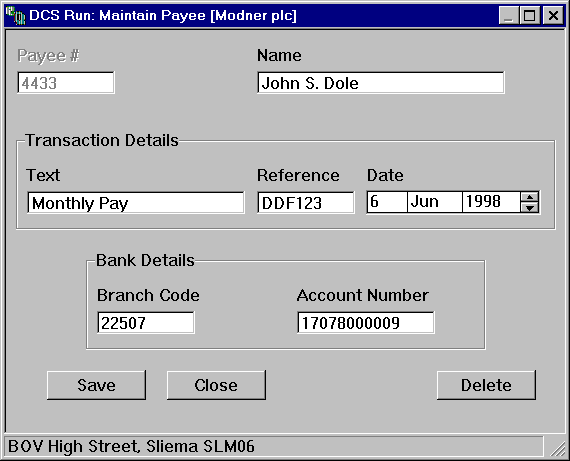
The window pops up when you either create a new payee or modify one already on the list. Details vary according to bank.
| DCS Run Text | This is a free text field will be displayed on the payee’s and subscriber transactions |
| DCS Run Reference | This is a free text field that may contain a numeric reference. It will appear on the subscriber’s statement. |
| Transaction Date | The date when the transactions are to be credited to the individual payee accounts. Must be greater than or equal to the effective payment date. |
| Branch's Sort Code | of the account being credited. |
| Account Number | The account that will be credited. |
If you click the Delete button, the payee will be removed from the run. This will not reflect in the master payee file of the company.
Altering any details and saving them updates the details for this run. The Check box next to the payee will become checked to indicate that the person has been changed. Go to DCS Run Modify button for more information.
Contact Information |
| Chris Bonnici CBSoft Ltd email: [email protected] |
