
The Source: eCheques (2/5)
Day to day operation
Once you provide a valid password, you will be presented with the menu below.
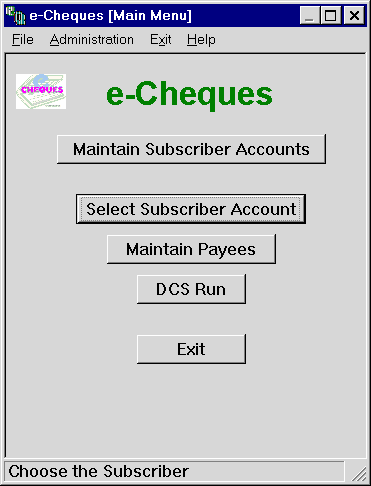
The menu has been designed to be as simple as possible. The buttons on the menu reflect the most common options, with additional options/customisations available accessible via menus and keyboard shortcuts.
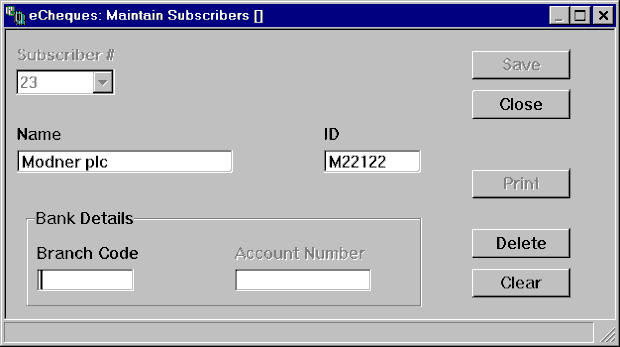
Add, edit, delete and print subscriber accounts. The following details must be keyed in:
| Subscriber # | a unique number identifying the subscriber. Each account would have a unique number. |
| Name | The name of the subscriber, normally the account name. |
| ID | Provided by Bank |
| Branch's Sort Code | Of the account being debited |
| Account Number | The account that will be debited |
When you add a new subscriber if payees exist in assigned to another account, you will be prompted whether you would like to copy these payees. Therefore, if you pay the same set of payees from different accounts you only have to key in the one set of payees.
A single payee account may be assigned to multiple groups of people. This can be done by creating multiple subscriber accounts referring to the same account.
The Print button outputs all defined subscribers. See Maintain Subscriber Print Defaults to see how to go about customising your report. Go to Print font defaults to change the point size of your output.
Select Subscriber
You select the subscriber you will be working on. This is automatically called up if you select the Maintain Payees and the DCS Run options. The details of the subscriber, are displayed on the title bar of the other modules.
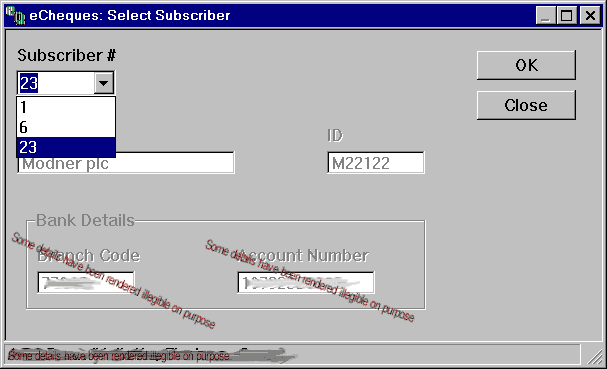
Maintain Payees.
Add/edit/delete/print payees.
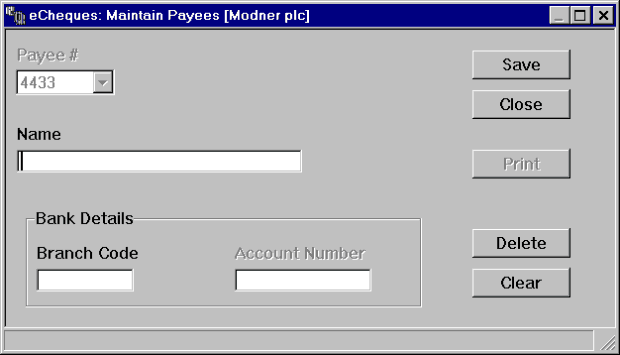
| Payee # | A unique number identifying the payee for this subscriber. |
| Name | The name of the subscriber, normally the account name. |
| Branch's Sort Code | of the account being credited. |
| Account Number | The account that will be credited. |
The Print button outputs payees associated with a subscriber. See changing Maintain Payee Print Defaults to see how to go about customising your report. Go to Print Font Defaults to change the point size of your output.
Contact Information |
| Chris Bonnici CBSoft Ltd email: [email protected] |
