
Shareware: %ZCBRS
List of topics:
- Introduction
- Installation
- Running the Program
- Shareware
- Distribution and Disclaimer
- Contacting the Author
- Development History
- Bug Reporting, your Suggestions and Updates
- Download
This utility came into being after I realized that the %RS routine supplied as standard in MSM did lack a few extras that I regularly needed. The utility performs a routine search for a string within user selected routines.
%RS :
- Lacks a facility to total the number of lines and total occurrences of the string within the found programs. I normally need these values as initial estimates on the duration/cost of maintenance runs within existing code. Year 2000 projects are such examples. For example, how frequent is a global referenced within a few thousand routines?
- Does not provide a summary. Each search must list the line occurrences. The majority of my needs do not require such information (although %ZCBRS does allow the user to select whether the output should be detailed or not).
- Does not have a facility to pause the screen. For output to a printer this might not be a problem (even though skipping over the perforation is catered for in %ZCBRS), but for those inquiries on the screen a large number of occurrences make reading the information close to impossible.
- Does not automatically set page width and page length depending on whether output is being directed to a printer or screen.
Following the BETA release in Nov 1997, Feb 1998 saw %CBRS go out of Beta.
Version 1.00 included a research facility. After the first searching, you could search the found routines only for another string. The research can go many levels deep.
Version 1.2 further enhanced this utility. Added is the facility to display screen highlighting and printer underlining. This applies to detailed output searches. The settings are device independent meaning that the multitude of different terminals and printers can be set to correctly display the highlighting and bolding properly. This version also added the facility to research at any level and not only the before this one.
If you are using version of %ZCBRS prior to version 1.2 you can safely delete %CBRS. The new version conforms to ANSI Standard M in preceding all filenames that are not an ANSI standard with the letter Z.
Open the ZIP archive.
Run your version of MSM
Enter you MGR UCI.
Using %RR, load the file ZCBRS.RTN into the MGR UCI so that it will be available in all other UCI's. The file should consists of two files: %ZCBRS and %ZCBRS1.
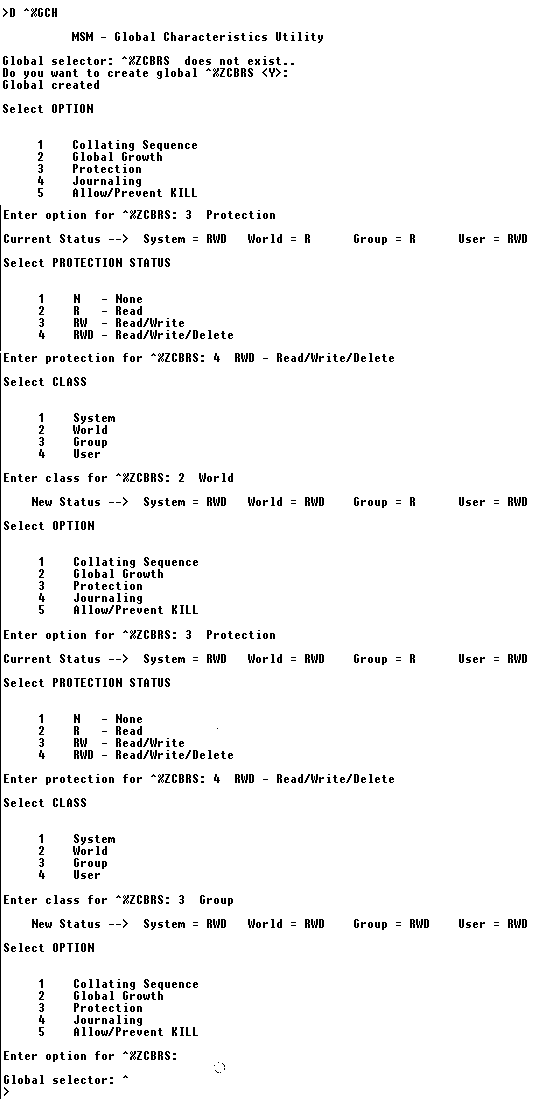
Version 1.2 makes use of a global called ^%ZCBRS which will store within it device characteristics. A default installation of MSM rejects requests to write to a global in the MGR UCI. This will give a <PROT>ection error if you attempt to use ^%ZCBRS outside the MGR UCI.
The utility ^%GCH allows you to change the properties of a global. One option is Protection. The diagram below shows how to go about setting ^%ZCBRS so that it can be accessed from anywhere. Using this approach does not compromise existing or future globals that you might create in the MGR UCI as the settings only applies to this global.
DO ^%ZCBRS to run the program.
The program is very simple to run. If you place it in the MGR UCI you would be able to invoke it from any other UCI. Once loaded (via a D ^%ZCBRS) you have to supply the following:
- Routine Selector - The routines you would like to look for;
- Search for - The string you want to look up;
- Output Device - Where the search results should be directed to;
- Lines per page - How many lines will the routine display before pausing;
- Page width - Self explanatory.
An additional sequence of questions will be asked once for each device you want to output to:
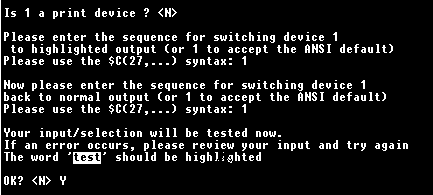
- Is <device number> a print device? - If output is being directed to a printer press <Y> if it is going to a terminal press <N> (or enter).
<device number> is a printer.
- Please enter the sequence for switching device <device number> to underlined output." If your printer is an HP type printer type in 1. This corresponds to the sequence $C(27,38,100,68). If you have an Epson-type printer press 2. The default code sequence for this printer is $C(27,45,1). If your printer requires different codes, type them in this format.
- Please enter the sequence for switching device <device number> to underlined output." If your printer is an HP type printer type in 1. This corresponds to the sequence $C(27,38,100,64). If you have an Epson-type printer press 2. The default code sequence for this printer is $C(27,45,0). If your printer requires different codes, type them in this format.
(If you prefer italics or bold or any other differentiation to normal, simple enter this code sequence instead.)
<device number> is a terminal.
- Please enter the sequence for switching <device number> to highlighted output. - If your terminal is ANSI standard, choose 1. This corresponds to $C(27,91,55,109). If your terminal requires a different sequence, use this format to type it in.
- Please enter the sequence for switching <device number> to normal output. - If your terminal is ANSI standard, choose 1. This corresponds to $C(27,91,48,109). If your terminal requires a different sequence, use this format to type it in.
Choosing either terminal or printer causes %ZCBRS to perform a little test. If you accept the defaults, these will be filed in the ^%ZCBRS global subscripted by <device number>. If you ever change the printer or terminal, you may need to KILL ^%ZCBRS(<device number>) so that you can reinitialize it.
Pressing a `?" gives context sensitive help. Pressing `^' at any prompt takes you to the previous (relevant) option.
The program now gives a summary of the number of files that contained the searched-for phrase. Once the search is complete, a list of all the previous re/searches will be displayed and you can specify at what level you would like to commence. This feature is quite useful, for example, when a search chain does not lead to where you had intended originally. Go back, one or more steps is simple and avoids having to re-key in everything again. If you accept the default <0> program terminates.
%ZCBRS is a shareware program and there is no charge if you are using this program for personal purposes although an e-mail is appreciated. If this program is used within a commercial environment a registration fee of $15 is mandatory after the 30 day trial period.
Any income earned from this program will be used to initiate some projects in M Web Magazine at http://www.geocities.com/SiliconValley/7041/mwm.html so if you can pitch in you'll see your donation turned into something useful to the entire M community.
For corporate/multiple licensing please contact the author.
%ZCBRS may be distributed by any means, provided that the original files as supplied by the author remain intact. This program may be placed on any archive or BBS system.
If used in a commercial environment, the program must be registered if used beyond the evaluation period.
This program can not be bundled with any commercial package or distributed by itself without express written permission from the author.
The author of this program accepts no responsibility for damages resulting from the use of this product and makes no warranty or representation, either express or implied, including but not limited to, any implied warranty of merchantability or fitness for a particular purpose. This software is provided "AS IS", and you, its user, assume all risks when using it.
By installing this program you implicitly agree to the rules outlined above.
Electronically, Chris Bonnici can be reached at [email protected].
Comments and suggestions are welcome.
Version 1.00 - Feb 1998 - ACB
- %CBRS move out of BETA
- Arranged Order of Prompts
- Cleared out problem with display when outputting to a printer
- Added Shortlist Research
Version 1.20 - May 1998 - WM / ACB
- %ZCBRS becomes the new name of this utility.
- It is split up into two parts so as the fit within small partitions.
- It can be programmed to display the searched-for string differently from other text on the line. This applies to both terminal and printer output. Each device can have it's own code.
- The Shortlist Research facility can commence from any level and need not be the last level.
Bugs, your Updates and Suggestions
Although this program is no longer BETA but if you encounter a problem with it send an e-mail to [email protected]. Also send in your suggestions as to how it can be improved further (or modify the code directly and send it over for consideration).
If you would like to modify %ZCBRS, you must be in the MGR UCI (for example, MGR) where the program resides. The MGR UCI, by default, allows you to read routines from it, but blocks out writing to it. As %ZCBRS has now grown substantially, it has been split up into two %ZCBRS and %ZCBRS1.
If you get an error loading the programs, use %PARTSIZ to increase your partition size. A partition size of 40K is sufficient. It is very important that you reload your program from disk as the memory version will not be complete and could corrupt the one residing on disk.
Download Chris Bonnici's Routine Search Utility (1.0).
