Introduction
Windows
XP is the next version of Microsoft Windows beyond Windows 2000 and Windows
Millennium. Windows XP brings the convergence of Windows operating systems by
integrating the strengths of Windows 2000—standards-based security,
manageability and reliability with the best features of Windows 98 and Windows
Me—Plug and Play, easy-to-use user interface, and innovative support services
to create the best Windows yet.
This paper provides a
broad technical overview of what’s new in Windows XP. It shows how new
technologies and features make it easier to get work done, share information,
manage your desktop, stay productive while traveling with a mobile computer,
obtain help and support, and perform many other computing tasks.
Windows XP is built on an
enhanced Windows 2000 code base, with different versions aimed at home users and
business users: Windows XP Home Edition and Windows XP Professional. Unless
otherwise noted, this paper addresses technologies and features common to both
versions of the operating system.
At the time Snapstream Media decided to port their
Windows-98-based "personal video station" (PVS) software to Windows
XP, they had already received market kudos — including a Best of Show Finalist
nomination at this year's Computer Electronics Show (CES) — for their product
that allows consumers to record and then view their favorite television programs
from anywhere, on a variety of viewing devices.
In doing the port, Snapstream was able to take advantage of
new features in XP to offer handy extra end-user features, including easier CD
creation, and parental control.
Seeing the Opportunity
Snapstream PVS was developed as a result of the frustrations
of Richard Kuo, who found it a complete pain trying to keep up on his favorite
TV shows while traveling throughout the country as a consultant. While he could
program a VCR to record his shows (a feat in itself), he couldn't play them back
while on the road. Seeing an opportunity, he joined with Rakesh Agrawal in 1999
to form Snapstream Media in Houston, Texas, to develop a Windows-based software
application to help manage the recording of TV shows for personal use.
As Richard and Rakesh updated the Snapstream PVS product to
embrace new Windows XP features, Microsoft designated Snapstream Media as an
early Windows XP ISV.
Snapstream's long-term vision is to build a network video
platform which ultimately allows to consumers to access their favorite
television shows and movies (and other video entertainment content) anywhere,
anytime, on any viewing device.
Product Features
Snapstream PVS makes it possible for the consumer to both
record and manage TV shows from their PC. In addition to configuring the
software to record TV shows the user is interested in, Snapstream also provides
a separate product called PocketPVS that allows the playback of recorded shows
to a PocketPC device. In addition, with Windows XP's new "burn to CD"
capability, Snapstream PVS also allows users a quick and easy way to archive
their recorded shows to CD-ROM for later playback.
Windows 2000 Head Start
Richard and Rakesh originally developed Snapstream PVS in
C++. They also used Assembler to develop in some rare cases where they needed
additional performance.
Though targeted at Windows 98 and Windows ME, much of the
original code base had been developed on the Windows 2000 platform. As a result,
Snapstream had a head start in terms of porting to Windows XP. Through the use
of Windows API calls and re-usable COM components, the resulting code provided
an application architecture more structured for the creation of future updates,
such as the upcoming Windows XP version.
Benefits of Porting to Windows XP
As a result, the initial port of Snapstream to Windows XP
took about 2 months. This primarily involved ensuring support of existing
functionality on the new operating system, as well as leveraging new features of
Windows XP for users of Snapstream. Burning to CD and fast user switching are
both directly supported by Snapstream PVS?
Intelligent User Interface
While maintaining the core
of Windows 2000, Windows XP features a fresh new visual design. Common tasks
have been consolidated, and simplified, and new visual cues have been added to
help you navigate your computer more easily. This section introduces the
innovations in the user interface that make it easier to use your computer at
work or at home.
Improving the End-user Experience
Nothing can be more frustrating in a personal computer video
experience than for a user to come home and find their favorite TV shows did not
record properly because of a system crash. Overall, one of the biggest benefits
of moving to Windows XP has been better operating system stability. Besides
running in a more stable environment, Snapstream comfortably runs in the
background so the user can interact with their computer and not have to manage
the Snapstream application.
XP's Fast User Switching feature allows multiple users to be
logged into the computer at the same time, each on an individual private
"session." Richard and Rakesh took advantage of this new Windows XP
feature to offer parents control over what the system records—for example,
they can configure Snapstream to record shows for themselves while blocking
access to those same shows, or to whole channels, to their children. Snapstream
does this by monitoring the user permission (Admin or limited) and then allowing
users with limited access only to channels and shows marked as
"common." Users with Admin access can, of course, have free access to
Snapstream as well as the ability to configure the common shows.
Another Windows XP feature the team embraced to enhance the
end-user experience is the new "Burn to CD" capability inherent to
Windows XP. Users can now easily burn data to a CD writer attached to their
computer. Richard and Rakesh used Burn to CD to integrate the ability to store
the previously recorded TV shows for later playback off the CD into the
Snapstream system.
Extending the Platform
Using the Windows Media player, users can now not only watch
their shows from a CD, they can play back the shows on a PocketPC using the
optional Snapstream PocketPVS module.
Leveraging Windows XP's advanced networking features,
Snapstream PVS moved one step closer to the company's goal of a true video
platform. Users can watch recorded shows from anywhere on their home or office
network. They can pop a wireless card into their laptop and watch Star Trek from
the dining room table. Or if they forgot to set up a recording of the Tour De
France before leaving the house, they can connect to their SnapStream PVS from
work and take care of it.
One final new feature of Snapstream that will be available
only on the Windows XP platform is support for AutoPlayHandlers. One of the
options in this new feature is the ability for applications, like Snapstream PVS,
to quickly and easily import non-Windows Media format files for playback. For
example, a user may have previously recorded MPEG or AVI video files using a
different application. Windows XP AutoPlayHandlers will allow the user to import
these video clips into Snapstream, and allow Snapstream to convert them into the
Windows Media format. As a result, the user can then combine these previously
disparate video clips into a single presentation that can be played back, or
record to CD for later use.
Sample Windows XP Feature Implementation
One specific example of a new Snapstream PVS feature that is
available only on the Windows XP platform is support for balloon tooltips. As
shown in Figure 1, when the user places the mouse over the PVS system tray icon,
a new type of tooltip is presented. In this figure, the tooltip provides the
user information about the initialization of the PVS. The tooltip will close
automatically based on the Timeout property set by the developer, or when the
user clicks the close button in the upper right corner.
Using the following example
code, Snapstream developers were able to include this more graphical and
user-friendly tip:
NOTIFYICONDATA nif;
hIconIdle = (HICON)LoadImage( ghInstance,
MAKEINTRESOURCE(IDI_TRAYIDLE),
IMAGE_ICON, 16, 16, LR_SHARED);
nif.cbSize = sizeof(NOTIFYICONDATA);
nif.hWnd = hWnd;
nif.uID = 77;
nif.uCallbackMessage = TASKBAR_EVENT;
nif.hIcon = hIconIdle;
_tcscpy(nif.szTip, _T("Initializing...") );
nif.uFlags = NIF_ICON | NIF_TIP | NIF_MESSAGE | NIF_INFO;
_tcscpy( nif.szInfo, _T("Your PVS will be fully operational in
few seconds.") );
nif.uTimeout = 10000;
_tcscpy( nif.szInfoTitle, _T("PVS is initializing") );
nif.dwInfoFlags = NIIF_INFO;
Shell_NotifyIcon(NIM_ADD, &nif);
How Snapstream Developers Leveraged Windows XP as a Dev Platform
The application programmers at Snapstream also used Windows
XP as a development platform. Some of the new features included in Windows XP
helped the team increase their productivity by facilitating better
communication. For example, Richard and Rakesh used the new Windows Messenger
feature to replace the previous messaging system they had used, ICQ. Besides the
normal text-based chats that IM facilitates, Snapstream developers took full
advantage of the additional collaborative features such as streaming audio and
video.
In addition, the new Most Recently Used program list was a
big hit with Snapstream developers, as they could quickly launch frequently used
development tools.
Overall, the new features provided by Windows XP has enhanced
the user experience as well as increased productivity of the Snapstream
developers.
Dave Perkovich is a Microsoft Certified Solution Developer
and Microsoft Certified Trainer who focuses on developer certification training.
Dave co-founded Training Associates, Inc., a company that delivers online
classes using the edCenter®
online learning system.
Performance Enhancements in Windows®
XP
Introduction
During the last several years, Microsoft® has upgraded a major version of Windows every year. Windows
98, Windows 4.0, Windows ME, Windows 2000, and now Windows XP. Between these
releases, there appeared service packs to apply and decisions about whether to
configure PCs as NT-based workstations or Windows 9x descendants of MS-DOS.
The goals of these constant updates and upgrades were
two-fold. The first and most conspicuous was the addition of substantial new
functionality, such as Active Directory, which appeared in Windows 2000. The
second—and more important—goal has been the quest for reliability. The
release of Windows 2000 is the first release of any Microsoft operating system
that can be called reliable with a straight face and a clear conscience. This
new level of reliability means you do not have to reboot much—not more
frequently than once or twice a month. This might not be mission-critical
reliability, but it's a darn sight closer than Microsoft has ever been before.
Having attained this kind of solidity and having parried any
last remaining challenge from Novell with the delivery last year of Active
Directory, Microsoft is suddenly free to consider what it wants to do in its
head-to-head competition with UNIX (and Linux, by extension). With the upcoming
release of Windows XP, Microsoft has made it clear it wants to set off in its
own direction. Specifically, it wants to provide its own innovations without
having to worry about whether it's responding to the UNIX gang.
As a result, several interesting features have been
introduced in Windows XP. The most conspicuous of these, of course, is the
complete absence of Java. Microsoft has announced there will be no JVM shipped
with Windows XP. Separately, the company has redone the user interface (again!)
and removed all icons. The first step got Microsoft out of any entanglements
with Sun regarding the residual terms of the Java lawsuit settlement; the second
move was a response to the antimonopolists at the Department of Justice.
But the real news is not Java or the absence of icons, but
the unique performance enhancements Microsoft has made in Windows XP.
Running Faster
The performance optimizations appear in three separate areas:
application loading, system boot, and hardware management. Of these,
applications loading is the most interesting and the one developers will have to
think about the most.
Application Loading
Prior to Windows XP, applications have loaded basically the
same way on all operating systems: At launch, the application's main module is
loaded into memory, then the DLLs used by this module are loaded. Address
resolution is performed by the loader, and the application starts up. During
startup, the program is likely to examine the registry or read data from a
configuration file. Once all this is done, the application continues bootup and
eventually begins its intended operations. As every user knows, this process
generates hundreds of disk seeks. And the only way the number of seeks can be
reduced is if portions of the application are already in cache and read from
there into the program's process space. Otherwise, a disk seek is needed.
With Windows XP, Microsoft has changed the process. The
operating system keeps a log of which files are needed at application start up
and which data files are typically used (for example, a certain spreadsheet that
is regularly used when Excel is booted). When the app is started, Windows XP
looks at this list of files and seeks all of them at once. In so doing, it can
consolidate disk seeks optimally and reduce head movement. So rather than
thrashing the disk, application launch process now minimizes disk seeks.
To enhance this process further, Windows XP will moves the
files around on your disk during lulls in computing activity. For example, it
will reposition all files used in starting up your favorite browser and place
them in contiguous blocks on the disk. This way, in just a few disk seeks, the
entire application can be loaded. And to reduce head seeks even more, it places
these blocks as much as possible on the outermost sectors of the disk, so that
the heads have to travel as little as possible.
How does it know which files to move? Windows XP keeps track
of files used by every application. After several launches of the same
application, it has some sense of what files are required. Thereafter, it uses
an algorithm that says, basically, if a file has not been used in the last six
launches, it is marked for removal; if a file has been used in the last two
launches, it's marked for inclusion. Then based on these notations, Windows XP
determines which files need to be brought into the block, and which ones moved
out. When this move will take place depends on several factors, such as how
recently files were moved for this application, and when the machine is
available? Consistent with the idea that disk activity should not interfere with
performance, Windows XP won't move the application files unless there has been
no user-initiated I/O activity for 13 minutes. Microsoft presumes this means the
user is away from the machine. It then begins migrating the files to the optimal
place on the disk.
This innovation has implications for developers. Previously,
the recommendation was to write small DLLs that could load quickly. But now,
such small DLLs are loaded into memory only when called, and are thus likely to
cause delays. With fast app loading, therefore, developers really want to stuff
their programs into a few large DLLs, so the DLLs will always be loaded when the
application is launched.
Fast Boot
Windows XP uses a technique similar to application-launch
optimization to arrange boot-up files as efficiently as possible, especially
files used by the operating system. But Microsoft has also added several other
features of importance.
The first of these is parallelism in device querying. In
previous Windows releases, the boot cycle queried numerous devices and waited
for their reply before continuing. Only once the full complement of hardware was
known would the boot continue. Windows XP first determines whether the OS can
load. If it can, it begins to load while the devices are being queried. As
results from the queried devices are generated, the data is folded into the boot
process. Hence, the usual blocking caused by synchronous device queries has been
sidestepped.
Network authentication, of course, is the ultimate blocking
query. To get around it, Windows XP can be configured to use cached credentials.
Through this trick, the user can be logged on to the single machine and begin
working locally. However, the OS will halt if any network request is made and
formal authentication has not verified the credentials.
Undoubtedly, security issues will have to be considered when
using this last feature. But for users with laptops, this is a valuable option.
Resume from Standby
Laptops have two battery-conservation modes: Standby, in
which the screen is dimmed and system activity is reduced; and hibernation, in
which system memory is written to disk and the disk is halted. Resuming from
hibernation requires the disk to start up and all applications to be reloaded
from disk to memory. This is a long cycle akin to boot up. Microsoft has
optimized aspects of the hibernate by improving the memory-save function. But in
resume-from-standby, Windows XP uses the same parallelism of device query seen
in the standard boot-up phase. Formerly, devices were sequentially and
synchronously notified of the change in power state. With Windows XP, the
notifications run in parallel and the wait for response does not delay the
start-up cycle. Resuming from standby now can happen in as little as two
seconds.
Hardware Changes
The biggest change in hardware support is Windows XP's
significant benchmarking of a system's video driver. Because the new Windows XP
user interface relies even more heavily on graphical effects, slow or poorly
written graphical device drivers will appreciably affect performance. Hence,
Microsoft tests graphical drivers. And in its default state, it will disable
effects that take too much time. Typical disabled effects are menu-fading, and
shadowing. For developers, this means that some applications might look slightly
different on older machines with slower graphics subsystems or drivers. Users
can override the disabling of these affects, at the cost of slower performance.
The last hardware change of note is that Windows XP will
automatically perform disk defragmentation during activity lulls. As described
previously, these lulls consist of 13 minutes of no user I/O. The result of this
is, of course, more-efficient disk access.
What Have They Wrought?
Microsoft correctly understood that to improve performance,
it could no longer simply exhort users to buy faster CPUs and more memory. It
had to tackle the issue itself. It did this by focusing on the biggest known
bottleneck: disk I/O. By managing file location, performing optimized reads, and
constantly defragmenting the disk, Microsoft has made sure that its operating
system gets the best possible I/O from the disk. Competing operating systems do
not do this yet. Nor do they optimize boot-up the way Windows XP does. For the
first time, Microsoft has jumped out ahead of its competitors in terms of useful
operating system innovations. If it keep this up, we're going to see operating
systems get a lot better pretty quickly. It will be about time.
Andrew Binstock is the principal analyst at Pacific Data
Works LLC, a firm that specializes in high-tech white papers. He is a frequent
contributor to DevX.com. He can be reached at [email protected].
Using Fast User Switchingto Test Apps
Introduction
 As
Microsoft® prepares to roll out their latest OS platform, Windows® XP, a new feature called fast user switching should interest
developers. Fast user switching differs from the Remote Desktop feature built
into Windows XP. With Remote Desktop, you can connect to one or more remote
computers via terminal services. But fast user switching allows the locally
logged in user the ability to run multiple login sessions at the same time.
Using the terminal services technology, developers can finally configure an
environment that allows them to quickly and easily test their software, while
simulating different users with their own unique permissions, on the same
computer. We will introduce you to the fast user switching feature for
developmental testing, and provide examples of how this new capability will
revolutionize how you develop applications on the Windows platform.
As
Microsoft® prepares to roll out their latest OS platform, Windows® XP, a new feature called fast user switching should interest
developers. Fast user switching differs from the Remote Desktop feature built
into Windows XP. With Remote Desktop, you can connect to one or more remote
computers via terminal services. But fast user switching allows the locally
logged in user the ability to run multiple login sessions at the same time.
Using the terminal services technology, developers can finally configure an
environment that allows them to quickly and easily test their software, while
simulating different users with their own unique permissions, on the same
computer. We will introduce you to the fast user switching feature for
developmental testing, and provide examples of how this new capability will
revolutionize how you develop applications on the Windows platform.
User Benefits
Let's first take a closer look at fast user switching from
the user's perspective. Fast user switching creates independent sessions based
on user accounts. You can create multiple sessions at the same time on the
system, but only one session can have access to the screen, keyboard, and mouse
at a given time.
From an end-user standpoint, this solution allows multiple
employees, for example, to use the same computer. While previous Windows
operations systems allowed this through user profiles, a user would need to
close their applications and log out from the computer before the next user
could log into the computer.
In contrast, fast user switching maintains the state of a
session even when another user is accessing the computer. This means that the
first user does not need to close their applications and log off. Instead,
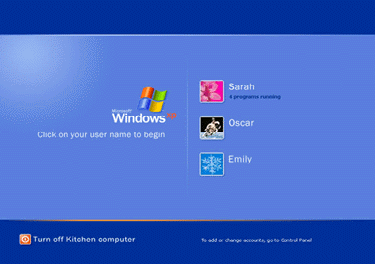
through the new welcome screen in Windows XP, users simply click their name to
log into the computer, leaving the original user's session running in memory.
Most importantly, the previous user's session is completely secure and totally
isolated from other users accessing the computer. Fast user switching allows you
to have multiple connections on the same, local, computer.
Live Session Application Testing
From a developer's standpoint, you can now test applications
you develop using sample accounts that represent your actual client base.
For example, you may develop a customer management system for
use by the sales department. Let's assume that depending on the user, such as a
sales representative or a sales manager, your application will allow different
levels of access to the underlying data. For instance, sales managers may have
the capacity to run detailed reports on all customer orders, such as their order
history and credit limits. Individual sales representatives should have the
capacity to run a similar report, but only on their own assigned customers. Your
application will expose this data based on the authentication of the user
accessing the application.
To test this program, you will need to log into the computer
as a sales manager and then as a sales representative. In the meantime, you'll
want to remain logged in as your primary developer's account so that you can
work on the code to fix any bugs you may encounter.
So for example, you could create the following live sessions
via fast user switching:
- Your
developer session - to interactively debug code, etc.
- A
sales rep session - to test your application using a sales rep account
- A
sales manager session - to test your application using a sales manager
account
Now, as you find bugs or other issues with your code, you can
quickly switch to the developer session, recompile your code, and switch back to
one of the end-user sessions to test your changes. You can do all this without
logging in and out of your computer, or configuring multiple physical computers
to play the role of different users.
Planning Considerations for Both
When developing an application for this manner of use, there
are a few specifics that you must take into account because you will have two or
more users running the application at the same time, at least while you are
testing. (It will also be true if, after deploying your solution into
production, your clients will use the application in their own fast user
switching environment.) Fortunately, most applications, if properly designed and
developed in the first place, will typically address the following
considerations without any additional coding. Let's review them.
- Install
the program for All Users:
You really need to consider this only if any user that has access to the
computer in a fast user switching environment will access the application.
From a development standpoint, you probably won't need to actually install
the application—just compile it and run it from the appropriate session.
- Save
user-specific data in the My Documents folder:
Properly organizing data that is generated by your application on a per-user
basis is critical in the fast user switching environment. Remember, multiple
users (through their unique sessions) will run your application
concurrently. This creates a possibility of data corruption if you save
user-specific data, for example, in App.Path. Saving data in the user's My
Documents folder is a good idea anyway when developing a Windows
application. However, fast user switching simply raises the need to segment
and isolate user data.
- Saving data to the registry:
You'll probably want to use HKEY_CURRENT_USER instead of HKEY_LOCAL_MACHINE
to store application-specific data in the registry. Again, since multiple
user sessions will be accessing your application in a fast user switching
development environment, there is a distinct possibility that they could
overwrite one another's data. Using the HKEY_CURRENT_USER key will assure
that any data specific to the user will be isolated and protected from
possible corruption.
- Plan
for "access denied" errors:
Whether you deploy your application to support fast user switching, or just
use fast user switching for development purposes, you should prepare your
application for the operating system to potentially deny access to resources
based on the current user session. As you switch between sessions, say as
the developer and as a normal end-user sales representative, it is very
likely that the level of permissions will be different between these users.
As a result, access denied errors can easily occur and you will need to plan
to add the appropriate error handlers as a result.
Multimedia Considerations for Testing
Fast user switching has the ability to support multimedia
output devices independently from each user session. This can be useful, but it
can also be tricky if, for example, one user session is playing music through
the speakers and another user session wants to use the speakers.
For testing purposes, the easiest thing to do is simply to
disable an application's access to multimedia devices when it is switched to the
background. Windows XP provides the WTSRegisterConsoleNotification API call that
will notify your application if the session it is running in changes — such as
being relegated to a background session—or has been selected as the current,
foreground session. Through this API, you can then run the appropriate code to
configure your application to run appropriately if it is not in the foreground
session, such as temporarily disabling multimedia output.
Of course, if you want to ensure that only one copy of your
application is running, you can use the FindWindow or FindWindowEx API call when
your application starts. Obviously you'll only need this when you deploy your
application to your client's desktop since, from a development standpoint,
you'll want to run multiple copies for testing purposes.
Juggling multiple-session simultaneous access to multimedia
output devices for end-user deployment is a deeper issue. A companion article in
the DevX Windows XP Developer Center, "User
Accounts and Fast User Switching," by Keith Pleas, discusses these
issues in more detail.
Overall
Overall, fast user switching provides a great way to create
controlled user sessions, with all the appropriate permissions, to allow you to
interactively test and debug new applications all from the same computer. Since
fast user switching isolates each user session from the other, you can
confidently recreate the desktops of your various end-user clients. Then by
switching between these sessions, you can quickly and easily test your
application against various user account types, such as sales representatives
and sales managers. As a result, multiple copies of your application can
potentially run concurrently on your development computer.
This means you will need to take additional care in how you
manage user-created and application-specific data.
The considerations for multiple users listed in this article
are all typically included in a properly developed solution. Depending on
whether your clients will be using fast user switching on their actual
production desktop computers, you may just want to leave any additional code
added as a result of considerations in your application. Fast user switching
provides a great new tool for developing and easy applications for use on any of
the Windows operation systems.
|
Microsoft®
Windows®
XP: What Your Friends and Family Will Want to Know
Microsoft's new Windows XP operating system is full of new features for
both home and business users
Windows
XP, Microsoft's latest and most efficient operating system, is so powerful
that it is designed to replace all previous version of Windows. From a
general user perspective, it's an important upgrade, and the initial Beta
reviews have been very positive. You can read articles elsewhere on this
site that explain why Windows XP is important to you as a developer. If
you're like most techies, however, sooner or later those close to you will
start asking whether they should be interested in Windows XP or not—and
if so, why. Here's a summary of the key end-user aspects of Windows XP, so
you'll be prepared when the questions start coming.
Windows
XP enables an expanded world of PC usability, especially in two areas:
- Multiple
Devices—such
as digital cameras, video, music players, PDAs and scanners;
- Web
Services—including
publishing, storing and sharing information such as pictures,
documents and video on the web.
At
Home, at Work
Windows
XP comes in two editions—Windows XP Home Edition for home use and
Windows XP Professional for business and power users.
This new operating system is designed to give you
better connections to other users over the Internet, for communications
and gaming, for example, and makes the task of setting up a home network
much easier than before.
Because Windows XP is powered by the new Windows
Engine, it gives you the most dependable Windows performance ever. This is
also the first time home users get the power and reliability that business
users have enjoyed with Windows 2000, extending the role of your home PC
in creative and entertainment activities.
Windows XP Professional includes all the
capabilities of Windows XP Home Edition, plus important features to meet
the demanding needs of business and power users in areas such as mobile
computing, networking, security, and management.
In fact, Windows XP Professional's enhancements make
it the clear choice for mobile users, businesses of all sizes, and power
users. It includes enhanced networking, security, management, and support
capabilities. Windows XP Professional's advanced features in these areas
include
|
FOR NEXT PAGE