Microsoft®
Windows®
XP: User Accounts and Fast User Switching
Introduction
Windows XP represents Microsoft's big push to get the largely
Windows 9X-based user community to an operating system family based on the
Windows NT-kernel. In Windows XP, new client services not only blend the ease of
use of familiar Windows 9X profiles with the robustness of Windows NT (and
Windows 2000) user management, but significantly improve on the combination.
While the majority of these advancements will be appreciated most by home users,
enterprise customers that share assets—for instance, with shift workers and
telecommuters or with users who access e-mail from multiple machines while
roaming—will also see improvements.
Many computers are shared between multiple users,
particularly in the home environment where studies have shown that 80% of
computers are used routinely by multiple people. In previous versions of Windows
NT, user account management—which could be strictly enforced across the
enterprise by administrators—was a somewhat tricky process that was beyond the
abilities of most non-computing professionals. Simple-to-use Windows 9X
profiles, however, were not enabled by default and were largely ignored: The
cost of actually using the profiles, which required that users log off before
allowing other users to access the system, meant that the vast majority of
machines made do with a single shared profile, with all of the corresponding
security, configuration, and data-loss risks.
In Windows XP, user profiles are always enabled and even
non-enterprise users are encouraged to create accounts during the Setup process.
These accounts are based on Windows NT profiles and allow Windows XP to provide
strong isolation and protection of users' data and settings. If multiple user
accounts are configured on a machine, then users are presented with a Welcome
screen that appears featuring separate—and customizable—graphics for each
user. Users of Windows XP machines that are members of an NT-style domain do not
see this screen, since presenting a list of machine users could be considered a
security violation. A new control panel applet replaces the familiar Windows NT
User Manager and Windows 2000 Computers and Users snap-in, providing a simple
interface that allows almost anyone to set up a new user and give them
appropriate rights and privileges.
Fast User Switching
Windows XP introduces fast user switching.
Undoubtedly, fast user switching is the single most important feature that makes
sharing Windows-based computers workable. Using fast user switching, it is not
necessary for a user to log off the computer before allowing a second user to
access their own account. Instead, the first user's account is
"disconnected," which leaves all the programs running; the second user
can then log on, and then the users can switch quickly between logged-on
accounts. Many accounts can be open simultaneously on one computer, though only
one account at a time will be able to interact with the keyboard, screen, and
input devices.
In the home environment, for instance, fast user switching
allows a parent working on a personal finance program to yield the computer to a
child to work on homework by browsing the Internet, without requiring the parent
to shut down and restart the finance program and without exposing the child to
the parent's financial information. In the business environment, fast user
switching can allow multiple users in a common environment, such as a research
lab, to share a single machine.
Fast user switching is just one of two mechanisms that allow
multiple users to work with a single system. Remote desktop, another
built-in Windows XP feature, allows users to interact with machines remotely
across a network and to access data and applications on those remote machines.
While fast user switching is aimed principally at the home market, remote
desktop enables business users to access their corporate desktops from remote
computers—and vice versa, enabling them to operate home machines while at
work.
Programming Issues
Both fast user switching and remote desktop use Windows XP's
updated terminal services technology. Improvements have been made to both
the server and client components of terminal services. Windows XP now features
support for both local and remote sound, 24-bit video, performance
optimizations, and the mapping of the local drives and printers.
Fortunately, most applications don't have to be rewritten to
work with terminal services and, thus, fast user switching and remote desktop.
Rather, they need to respect basic user settings management guidelines. These
guidelines are not new: Most are covered in the Windows 2000 Certified for
Windows Application
Specification, which has been available on Microsoft's Web site for some
time. The Data and Settings Management section of this specification includes
several topics that are particularly important when supporting multiple users on
a single machine:
Mostly, this means isolating data and settings for each user.
And an important step in this direction is to ensure that you are using the
HKEY_CURRENT_USER registry key rather than HKEY_LOCAL_MACHINE for storing
settings in the system registry. You should also be careful to install programs
correctly and to classify and store data correctly. You can use the
ShGetFolderPath API to obtain the path of a specific named folder—such as
"My Documents" or even "Program Files"—as well as the
appropriate directories for storing Roaming, Non-Roaming, and Shared application
data. The following are some general guidelines for locating data:
A notable exception to the isolation rule is that you should
support "All Users" installations: It is extremely frustrating for
users to install the same application repeatedly for multiple user accounts.
By carefully locating user data, user settings, and computer
settings, applications can make it easier for users to backup individual
documents and settings, share a computer among multiple users, and even to work
with the same documents and settings on multiple computers. By handling data and
settings properly, you can enable your application to run in both the home (fast
user switching) and business enterprise (remote desktop) marketplaces.
Controlling Running Instances
It is common for applications to control their startup so
that only a single instance may be running on a machine at any given time. There
are many valid reasons for doing this: licensing restrictions, required
dedicated access to specific hardware resources, and perhaps even enforcing data
integrity. However, with multiple users on the same machine, it might be
desirable to allow multiple users—each with their own instance—to work with
(for example) a personal finance program as long as their data remains isolated.
At this point, the commonly used mechanisms for controlling running instances
may exhibit some unwanted side effects when operating under Windows XP's fast
user switching or remote desktop.
The most common method for discovering whether another
instance is running is to use the FindWindow or FindWindowEx APIs
to search for a window that, if your application is running, you know to be
open. Somewhat unexpectedly, both of these APIs work in a single user session
only. So using this method won't prevent another instance of your application
from being started by another user.
A more robust method for controlling multiple instances is to
use one of the NT kernel objects: events, semaphores, mutexes, waitable
timers, file-mapping objects, and job objects can all be used with Global\ or
Local\ prefixes on Windows 2000 and Windows XP. By default, each user (terminal
service) session will have its own namespace for kernel objects. By creating a
Global\ object—for instance, a mutex or semaphore—when your application is
started (and closing it upon exit), your application can detect running
instances across multiple user (terminal service) sessions. Of course, you can't
just switch to the previous instance: It may be in another session! What
typically happens in that case is the user clicks on an icon and then nothing
appears to happen (since the app thinks it's located another running instance).
At a minimum, you should warn the user that there's another instance running.
What about sound? Well, the terminal services in
Windows XP have been designed to configure sound to both the interactive and
disconnected sessions. While it may be difficult to imagine at first, there may
be valid scenarios where it would desirable to output multiple audio streams.
For instance, what if you used a sound card in one user session to output audio
to the home stereo system and at the same time the active user wanted to hold an
interactive meeting with sound? In this case, you certainly would not want to
blend the two streams. And neither would you want to suspend the audio stream in
the disconnected session. Getting this right can be particularly important when
working with shared media devices like DVD players.
One general guideline is to do "as little as possible,
as much as necessary" when you are the disconnected session. To do this, it
can be helpful to know when a session switch occurs. While most applications
won't need to be notified, if your application accesses a shared resource—such
as a serial port or other hardware device—you may want to know when the
machine switches between user sessions. To be notified when a session switch
occurs, you must register to receive the WM_WTSSESSION_CHANGE message by
calling the WTSRegisterConsoleNotification API. Using this function, you can
choose to be notified for a single session or for all sessions, and when either
local or remote sessions connect or disconnect. When you no longer require
notification, you should unregister using the WTSUnRegisterConsoleNotification
API.
Summary
If you isolate access to your application's data and settings
and take care not to tie up shared resources, your application should work well
with Windows XP's terminal services. By developing your application to assume
it's not the only thing running on the machine, your users are likely to have a
much better experience when they start using it with Windows XP's new fast user
switching and remote desktop features.
Beyond Windows 95: Microsoft® Windows®
XP Brings a New Visual Style to Windows Users
Choices,
choices. Learn how to take advantage of the new visual style in Windows XP so
your applications fit in and look the part.
The visual style of Microsoft Windows has been pretty much
unchanged since Windows 95 was shipped. The gray 3D-chiseled dialog controls
have been what everyone identifies as Windows. With the release of Windows XP,
this will change. Windows XP will introduce a whole new visual style to Windows.
In addition to the Desktop Themes that were first introduced in the Windows 95
Plus Pack, there will be the ability to change the overall visual style of the
operating system. While the original desktop themes would change a user's color
scheme, fonts and font sizes, and wallpaper settings, Windows XP Visual Styles
change the way controls, window borders and menus are drawn. For example, since
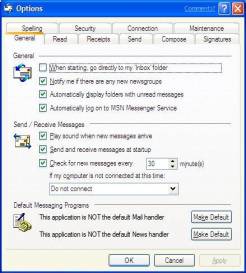
Windows 95, the options dialog for Outlook Express has looked like Figure 1.
|
|
|
Windows XP will be able to show the dialog in exactly the
same way. The "classic visual style" on Windows XP will offer the
current Windows look to users who are most comfortable with this look. However,
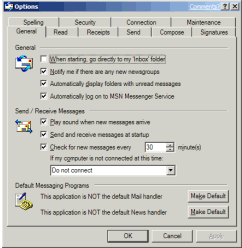
Windows XP will also be able to show the dialog box like Figure 2.
Notice the new dialog border. Gone is the gray, 3D look. The
controls on the dialog also have a new appearance, notice that use of color on
the close button in the upper right corner. What you can't see from these
pictures is the new hot-spot behavior for the controls. This represents the
current thinking for the default visual style for Windows XP.
|
|
|
|
While the visual style for Windows XP can be very different
than the current versions of Windows, the overall feel for working with the OS
will be very familiar. Anyone using any version of Windows today will feel right
at home using Windows XP. The menus and controls will be in the same place and
will work the same way. In fact, it is this uniformity between the various
versions of Windows that stops the visual styles on Windows XP from having a
full "skin" capability. Skins usually allow the skin author to
completely change the look and feel of the skinned component. In a skin, the
controls can not only have a different look and feel, but can also have
different locations or not be present at all. This level of change is not
appropriate for the whole operating system, the way it is for components such as
the Windows Media Player.
Technical Description
Windows XP is introducing "user experience themes and controls."
Themes determine what visual style Windows XP will use to interact with the
user. User experience controls are a new implementation of the Windows controls
(buttons, list boxes, edit controls, etc.) and the common controls (listview,
tab control, toolbar, tooltip, tree view, etc.) that use themes. The actual
implementation is an interesting fork in the road for the structure of some of
the user interface code in Windows. On one fork lies the way all previous 32-bit
versions of Windows have been implemented. The original Windows controls are
implemented in USER32.DLL, the common controls in COMCTL32.DLL, and the
rendering of non-client areas of a window (like the border and menus) is done
from USER32.DLL.
USER32.DLL is a core component of the operating system. It is
the part of Windows that implements the windows, message system, etc. As such,
it is very tied to a particular version of the OS. COMCTL32.DLL is now under
Windows File Protection for Windows 2000 and Windows ME, so it can also only be
changed with an OS update or service pack. For previous versions of Windows,
COMCTL32.DLL actually shipped with many system components and applications, and
it was often a cause of applications failing after another application or system
component was installed. Windows XP has this fork intact. In fact, Windows XP
will ship with the same COMCTL32.DLL as the most recent service pack for Windows
2000. The "classic visual style" is actually not a "visual
style," but uses this original code fork and the controls from USER32.DLL
and COMCTL32.DLL.
The other fork represents the future of operating system and
component development for Windows. The new fork, the user experience visual
styles and controls fork, is based on the side-by-side component sharing
strategy. On this fork, there is a new DLL, UXTHEME.DLL, that understands visual
styles. This new DLL does all the rendering for theme-aware controls, as well as
the non-client areas for all windows. USER32.DLL now has new code that
determines if an application should get its original controls from USER32.DLL,
or it should get the new user experience controls instead.
COMCTL32.DLL now implements all the common controls and the
controls that were originally implemented in USER32.DLL. The new COMCTL32.DLL
calls the UXTHEME.DLL to do all the rendering of the controls in a theme-aware
manner. This new architecture allows the user-interface designers to design and
implement a new theme for Windows XP, or later versions of Windows, without
requiring developers to change the underlying code. While Windows XP will ship
with the professional and consumer themes (and the non-theme classic look), it
is possible that additional themes may become available.
We mentioned that COMCTL32.DLL was often the cause of
applications failing. Microsoft has always tried to make the minimal amount of
changes to the DLL, in an attempt keep as many applications working as possible.
Changing the whole look of the operating system and integrating a whole new
component, UXTHEME.DLL, is hardly something that can be done with minimal
change.
As a result, the new COMCTL32.DLL is expected to break a
number of applications. This is not something that the Windows XP developers
want to happen. To remove this issue, the new COMCTL32.DLL will only be
available to applications that tell the operating system that the application
has been tested and works with the new COMCTL32.DLL. The user-experience
COMCTL32.DLL will not be installed in the SYSTEM32 directory. Instead, it will
be installed as a managed assembly and access to the component will be via an
application manifest. The new COMCTL32.DLL (version 6.0.0.0), and the old
COMCTL32.DLL (version 5.81) will both ship with Windows XP and will be installed
and run side by side with each other. For more information about side-by-side
components and managed assemblies, see "Side
By Side Component Sharing - Ending DLL Hell".
Aside from the new visual styles, another area of the new
visual style that Windows XP will take advantage of is greatly enhanced icons.
In the past, icons in Windows have been very simple images. For versions of
Windows before Windows XP, applications should have supplied three versions of
the icons: two 16-color icons, one 16x16 pixels and one 32x32 pixels, and one
256 color icon of 48x48 pixels. For Windows XP, applications should also provide
icons at all these sizes and use 24-bits per pixel of color with an 8-bit mask
for alpha blending. By taking advantage of this high color support and alpha
blending, a much better, more realistic and more interesting icon can be
created. A lot of the impact of the new visual style for Windows XP will be
delivered with these new icons. Application developers should take advantage of
this new feature of Windows XP to enhance the visual impact of their
applications.
Microsoft's Internet Connection Firewall and You
In December, Microsoft®
offered firewall vendors a new set of resources and options for disabling or
living with the Microsoft Internet Connection Firewall, to be included as a
Windows® XP application.
Microsoft is concerned with the potential security problems
of the naive user who has connected to the Internet via a cable or DSL modem.
Without a firewall, a customer's computer is vulnerable to a variety of scans
and hostile attacks, and many new users don't understand this. Microsoft Windows
XP, the third-quarter 2001 upgrade platform for all Windows users, includes an
easy-to-configure firewall facility to address this security issue.
At the same time, Microsoft doesn't want to cause a series of
upgrade conflicts with third-party vendor firewall products. Many Windows
customers already have firewall software installed, and many others will
purchase new third-party packages. The potential for conflicts between two
firewalls is enormous.
On December 14, 2000, Microsoft presented their concerns to a
small group of independent firewall vendors who are also Windows XP beta users
to develop a plan for avoiding problems early in the Windows XP upgrade process.
|
Microsoft Internet Connection Firewall - Overview
|
|
|
|
• |
Extension
of Windows 2000 NAT driver |
|
|
• |
Designed
for intrusion prevention |
|
|
• |
Enabled
on a per-interface basis |
|
|
• |
Target
Audience: Users of broadband connections who are unaware of intrusion
threats and the need for protection |
|
|
• |
Simple
checkbox UI |
|
|
• |
Advanced
Features: Logging, ICMP options |
|
|
|
||
Toward a Peaceful Coexistence
"We don't want to compete, we want to coexist," says Dennis Morgan,
Microsoft's Program Manager for Home Networking. "Our target audience for
the Microsoft Internet Connection Firewall is the new user, not aware of the
need for a firewall due to having an always-on broadband Internet
connection."
The Windows XP Internet Connection Firewall from Microsoft is
a base-level firewall that only inspects inbound traffic at the packet level. It
does not, as currently planned, conduct any outbound filtering or
application-layer filtering. It was designed for the simplest configurability
possible, targeting new and non-sophisticated users. Microsoft focused on
streamlining the configuration process and programming the majority of settings
with common defaults.
Yet even with the common default settings, Microsoft
anticipates problems whenever two firewalls exist in the same box.
Microsoft has discovered that upgrades from a 9X platform to Windows 2000, NT,
or Windows XP often causes conflicts with existing application components,
third-party firewalls included. This is because of significant architectural
changes in the kernel and network stack between the platforms.
When the Microsoft application compatibility testing team
discovers this type of conflict, they add code to the Windows setup that detects
the presence of those applications, by looking for file names or registry
entries, for example. That code will launch a dialogue box for the user during
the upgrade process that specifies which components will not operate after the
upgrade. The dialogue gives them the option of halting the upgrade in order to
save the component's functionality. If the customer proceeds with the upgrade,
Windows XP will essentially default to disable or uninstall the component in
order to eliminate subsequent conflicts.
"We want to go beyond that default with firewall
application developers to give them the opportunity and resources to test their
products for customer upgrades to Windows XP," says Morgan. "We hope
that firewall vendors can then either write upgrade components to supply to
customers for compatible upgrades or even provide a new revenue-generating
upgrade-enhanced product."
|
|
Third-Party Opinions |
In essence, Microsoft is asking firewall vendors to conduct
the initial testing and establish the upgradability of their products, and then
contact them to work with the vendors to develop a smooth upgrade experience for
users.
"We know every individual vendor and product will have
special issues to address, and we want to work with each of you to develop
better solutions," says Morgan. "For example, you could write code for
the upgrade that we could potentially ship on the Windows XP CD that would
detect your product on the customer's machine and launch an upgrade DLL for your
specific product."
Morgan recommends, "I would encourage firewall developers to install Beta
Release 1 to see how the Microsoft Internet Connection Firewall operates and
then run tests on coexistence issues with each of your products."
It will show, for example, how to enumerate the adapters, how
to determine whether the firewall is enabled on an adapter, and how to enumerate
the port mappings. SDK Beta Release 2, available mid-Q1, will include more
functionality to work with the Microsoft Internet Connection Firewall's
installation, configuration, and coexistence settings.
Microsoft's Preference: Avoiding Conflict
"We hope that your firewall product will be able to detect the presence of
the Microsoft Internet Connection Firewall, read its configuration, migrate the
configuration into your product, and disable the Microsoft product," says
Morgan.
"If you decide not to disable the Microsoft Internet
Connection Firewall during the installation of your product, and both products
are running at the same time, that's fine," he adds, "We just don't
want the user to see pop-up boxes every time there's an incoming packet."
Either way, the Microsoft Windows XP product team emphasizes
that they are not out to replace your product or cut into your sales. They
simply want all of their customers connected to a cable modem or DSL line to
have at least a basic firewall in place.
Microsoft's primary concern for game vendors deals with ICS (Internet Connection
Sharing) and Network Address Translation (NAT) problems. NATs provide the
ability to share a single IP address among multiple computers on a network.
Many game vendors are frustrated over not being able to
ensure compatibility with new releases of Windows, especially when a firewall is
concerned. They ask quite reasonable questions, such as, "Why won't my
network game run in Windows Millennium Edition?" or "How can I have
two instances of my game running behind ICS?" Microsoft has developed a
process to help.
"Our first message is to write your application to use
DirectPlay as your networking transport. Support for DirectPlay is provided as
part of the DX SDK. By doing that, you get support for both ICS and our firewall
for free," says Morgan.
"If you decide to use your own protocol, for example,
because you are cross-platform, which DirectPlay doesn't support, we ask you to
write it in a NAT-friendly way," he says. Microsoft offers a white paper on
this topic, "Developing NAT Friendly Applications," available in the
Microsoft Knowledge Base.
As an alternate approach, Morgan adds, "If you decide
that your application protocol in fact can not work with NAT and DirectPlay,
Microsoft will provide you with an API called the Application Layer Gateway.
With this API, you can write a plug-in, essentially a proxy, that allows you to
maintain control of your data as it goes through ICS and the firewall. That way,
you can write and distribute the plug-in to gain compatibility without releasing
any proprietary protocol information."
Third-party compatibility problems with Millennium Edition of Windows has shown
Microsoft the value of informing vendors early of changes and encouraging
thorough compatibility testing at the vendor end.
Today, the Windows XP team has a simple message: "Test
your products now with the Windows XP Microsoft Internet Connection Firewall.
Test your product with ICS. Test early and retest over and over again. We'll
help you work out the conflicts. But don't wait. Start now."