|
| [Flash Games] [Wallpapers] [Computer Tips] [Web Designing Tips] [Chat Room] [Love Calculator] |
|
|
Tips & Tricks
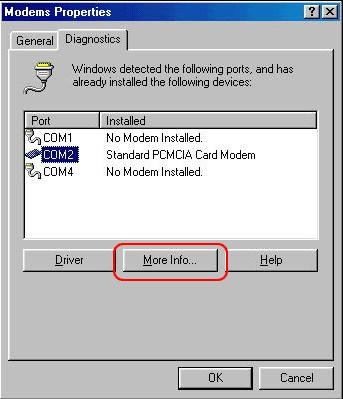
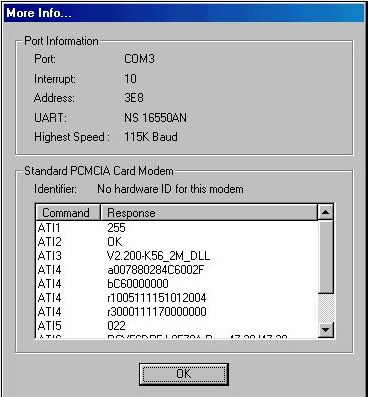
This simple test will help you determine where exactly your modem problem lies. You may want to try this before you take your computer in for repair. Go to the Start menu, Settings, Control Panel, and click on Modems. Then in the Modems Properties window, click on the Diagnostics tab at the top of the window. Select your modem’s port.
(For XP Users, it's the same idea, just different window names... Go to Start, Control Panel, Printers and Other Hardware. Select Phone and Modem Options. Select the Modems tab at the top of this window. Then click on the Properties button. Select the Diagnostics tab and click the Query Modem button. After a few seconds, you should see “success” in the response field. ) All Users: If you do not see anything in the window or if the “Couldn’t Open Port” window pops-up, you may have a modem driver problem. Troubleshooting these problems will be discussed in tomorrow’s tip. |
|
Tips & Tricks
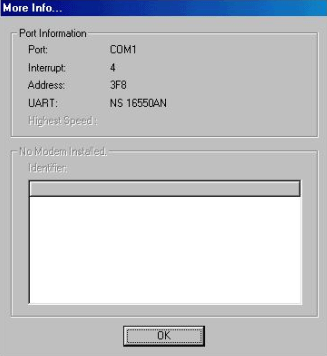
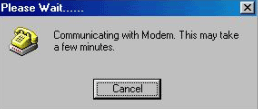
What to do if you do encounter a modem error... In yesterday’s tip, you learned how to verify your modem for proper operation. Today, we will take it one step further and evaluate possible problems you may encounter during the testing of your modem. This test will help narrow down where the problem lies and help you determine if the problem is hardware (modem) or software (driver) related. (A driver is a small program your computer uses to communicate with a hardware device, such as a modem.) After running
through yesterday’s procedure, you will see one of the following three
windows if your modem is NOT working correctly.
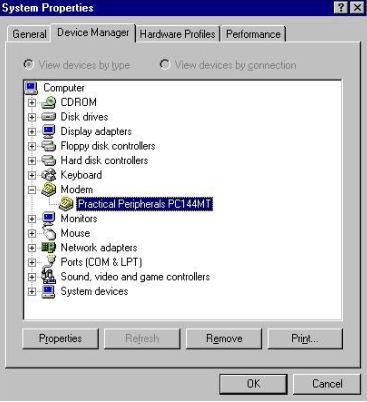
Now, hold down the Alt button and double-click the My Computer icon on your desktop. The System Properties window will appear. Select the Device Manager tab at the top of that window. (XP Users: need to select the Hardware tab, then click on the Device Manager button.) Now, click on the + next to Modem and a window will appear like below (the XP window will vary slightly):
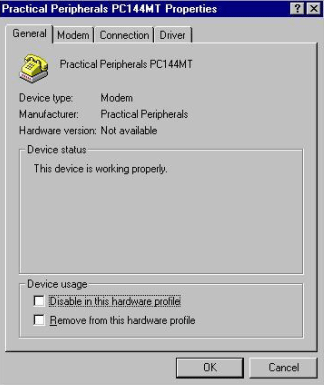
Note: If you see an exclamation point or any other symbol next to the device you are about to test, then you obviously have a problem with that device. Single-click on the name of your modem and click the Properties button to determine where the problem lies. (XP Users: single-click on the name of your modem and go to the Action Menu and select Properties.)
The Device status window will tell you if your modem is functioning correctly or not. If there are any problems with the modem, the Device status window will list them. Most problems are driver problems and can be corrected by reloading the modem driver. This driver will be on either the CD or floppy disk that came with the modem. Follow the instructions in your modem manual to reload the modem driver. You should always reboot the computer after reinstalling any driver to ensure proper operation. If the problem still remains after reloading the modem driver and you perform the above tests again, then you most likely have a bad modem. |
 :
[email protected]
:
[email protected]
Best view at 1024 x 768 resolution and above internet explorer 6. Copyright © 1999-2003 ShahrukhWeb.TK. All Rights Reserved. |
 Modem Problems - Part 1
 Modem Problems - Part 2